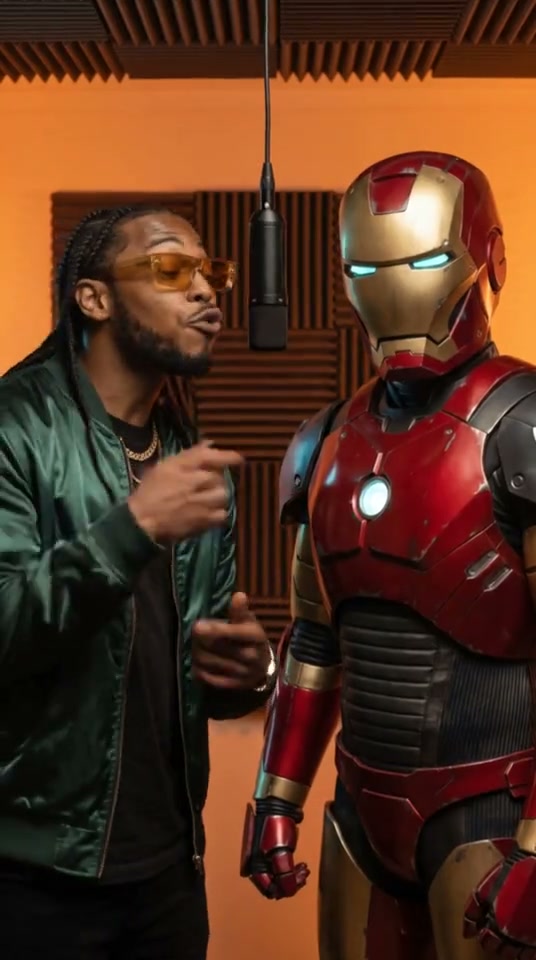
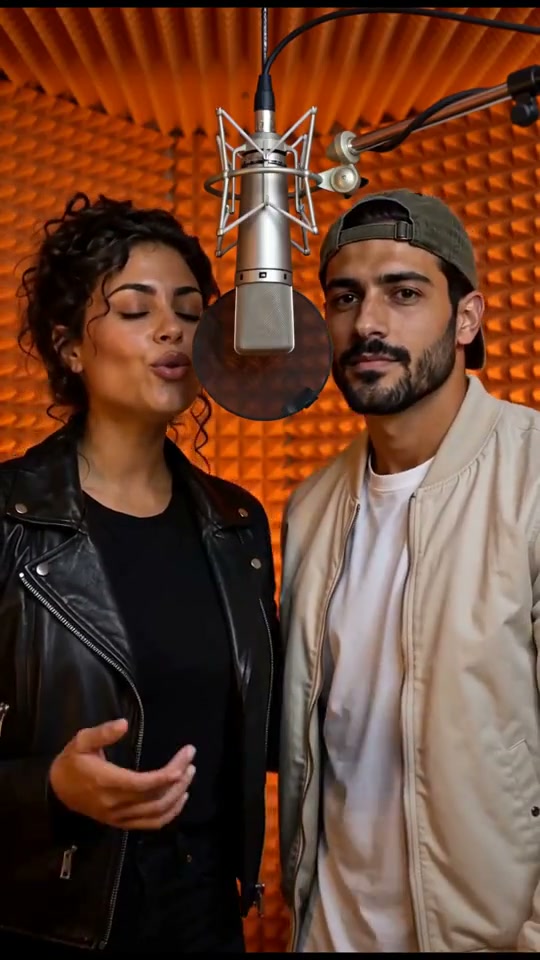
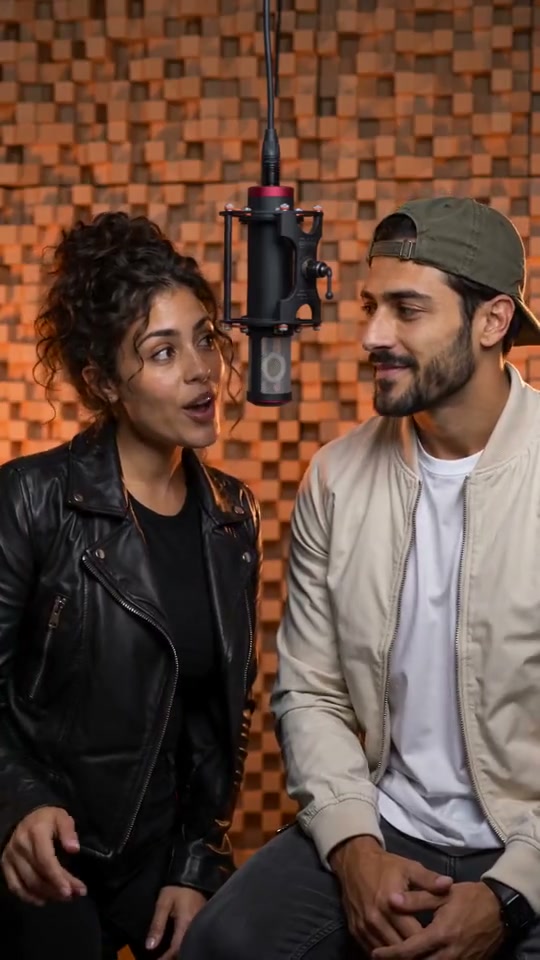
Veo 3.1 Quality on EveryGen AI provides an eight-second text-to-video or image-to-video request with horizontal and vertical formats. Its image workflow uses a first frame and an optional last frame. The requested output settings are 720p, 1080p and 4K, each quoted through the site's fixed credit rules.
Quality is the provider route's name, not a site benchmark proving that every result is better than Fast. Choose it when you want to compare a considered shot against the same brief. Keep the inputs and composition comparable, and assess the complete motion, sound and subject detail before deciding which take suits the project.
THE POSSIBILITIES
Veo 3.1 Quality features, in practice.
Choose the input that fits your idea, then shape the motion. Clips below are local sample footage for the layout.
01 / CREATIVE CONTROL
Text to video with a defined final composition
Write a single shot that changes in a visible way, then explain how it ends. For example, let a subject move into the light and settle into a still composition. Avoid asking eight seconds to contain several unrelated events; a simpler progression gives you a clearer basis for reviewing the result.
The duration is fixed at eight seconds in this configured route.
ILLUSTRATIVE FOOTAGELocal placeholder · not a Veo 3.1 Quality output
02 / CREATIVE CONTROL
First and last frames for a planned transition
Image mode can begin from one frame or use a compatible pair of endpoints. Describe the camera path and the subject's movement between them. Unlike Veo Fast here, Quality does not expose the separate three-image reference mode; prepare endpoint images rather than a collection of unrelated identity and style references.
Keep faces, clothing and spatial relationships compatible across the two endpoint images.
ILLUSTRATIVE FOOTAGELocal placeholder · not a Veo 3.1 Quality output
03 / CREATIVE CONTROL
Review motion, details and provider sound together
Look beyond the first frame. Check whether gestures stay plausible, faces and objects remain usable, and sound matches the visible event. The provider supplies soundtrack behavior without a separate audio switch here. Requested output resolution affects the fixed quote, but it does not certify typography, physical accuracy or native detail.
A precise voice recording or final music mix can be added later in your editing workflow.
ILLUSTRATIVE FOOTAGELocal placeholder · not a Veo 3.1 Quality output
FROM IDEA TO A TAKE
How to use Veo 3.1 Quality.
A clear starting point, a focused brief and settings you can review before submitting.
01
Choose your starting point
Open Veo 3.1 Quality in the generator above. Choose Text to video for a written scene or Image to video when you have an opening composition.
02
Build a focused scene brief
Write the subject, action, camera direction and lighting. In image mode, add a first frame and an optional compatible last frame.
03
Set the format and review credits
Choose 720p or 1080p or 4K output. The request duration is fixed at 8 seconds. Set the aspect ratio for the destination. Review the estimate after changing a setting or adding a reference clip.
04
Generate, review and refine
When generation is enabled, submit after reviewing the brief and content checks. Track the request in Recent takes. Review the full clip for subject details, continuity and sound, then download a useful result or change one part of the brief for the next take.
Load a brief with supported settings in the full workspace. Review it and add your own images or references where required.
Text to video
Light reveals the subject
An eight-second single shot of a person in a quiet studio. Begin with a medium composition, make a slow camera approach as the subject turns into warm side light, then hold a calm final pose. Keep clothing and background consistent. Soft room ambience, no captions, no cuts.
A defined ending makes it easier to judge whether the camera movement served the scene.
Use the first and last uploaded frames as endpoints of an eight-second scene. Move slowly toward the ending composition, preserving the subject's face, outfit and the arrangement of objects. Keep the transition continuous and let the final position settle. No new people or written text.
Upload both frames if you want an ending target; one opening frame is also supported.
Your first-frame upload is required. Loading a prompt does not submit a request.
PUT THE SHOT TO WORK
Ways to create with Veo 3.1 Quality.
Start with the job the clip needs to do. Keep final editing and a full review in your workflow.
01
A considered brand scene
Plan light, composition and one movement before requesting a take. Review product structure and leave exact labels or promotional text for your editor.
02
A controlled scene reveal
Supply compatible endpoints and describe the path between them. Use the final composition as the review target while checking every intermediate moment.
03
A comparison with Veo Fast
Reuse the subject, framing and duration to compare routes. Treat the results as individual samples rather than as a universal model ranking.
BEFORE YOUR NEXT TAKE
Use a full-clip review checklist
Look at the opening, movement and ending; listen for timing and unwanted audio. A strong first frame can conceal a poor transition later. Download and review the whole file before selecting it for a project.
Decide which input workflow you need
Use this route for text or endpoint-frame guidance. If your idea needs several appearance references, compare Veo Fast or Seedance 2.0 rather than placing extra pictures into frame slots that have different meanings.
THE SETUP
Veo 3.1 Quality settings at a glance.
Every model has its own inputs and credit rules. Changing a setting refreshes your quote.
Duration
8 seconds
Output sizes
720p · 1080p · 4K
Frame inputs
First frame + optional last frame
Additional references
0 images · 0 videos · 0 audio files, where the mode supports them
Audio
Provider-native soundtrack
FIXED CREDIT RULES
Veo 3.1 Quality generation credits.
A 20-credit content-check allowance is included once per request. Match the rate below to your chosen output size.
Resolution
Input
Rate
720p
Text / supported images
1023 credits / request
1080p
Text / supported images
1023 credits / request
4K
Text / supported images
1534 credits / request
Rate version v8-fixed-2026-10-11. The final quote appears before submission. Paid generation is awaiting activation.
Inputs, output settings and credit rules for this workspace.
Can Veo 3.1 Quality generate video from text or an image?
Text to video is supported: describe a scene and its movement. First frame + optional last frame are supported in image mode. There is no separate collection of appearance-reference images on this route.
Which duration and resolution can I choose for Veo 3.1 Quality?
720p, 1080p, 4K output is offered with a fixed 8-second duration. The controls above use these same settings. A resolution selection describes the requested output and does not guarantee native detail or readable small text.
Can I upload reference videos or audio?
This configured route does not expose video or audio reference uploads. Put movement and sound directions in the prompt where supported. Compare Seedance 2.0 if your scene needs those reference types.
How are video-generation credits calculated?
The credit table below the controls section lists this model's fixed rates for every supported output size. Some routes charge per request and others by duration. A content-check allowance is included once. Use Review credit estimate in the generator for the actual settings and uploaded reference duration before submitting.
Does Veo 3.1 Quality include generated sound?
Soundtrack behavior is provided by the Veo route, without a separate audio switch here. Include relevant sound directions in the prompt and check the returned audio; exact speech or timing still needs your review.
What happens during content checks or a failed request?
Prompts and image references are checked before submission. A rejection or unavailable check stops submission. These checks do not audit reference-video frames or audio tracks. Confirmed failed tasks release reserved credits once; an uncertain submission remains under review to avoid duplicate requests.
Are these videos results from the example prompts?
The current clips are local sample footage used to demonstrate the layout. They are not outputs from the displayed prompts, model benchmarks or evidence of a specific model's quality. Example prompts are editable starting points; image and reference examples require your own uploads.
 Google Veo / VIDEO MODEL