Clear faces or features
Choose authorized photos with good light and no heavy filters. Keep the body part that performs the movement in view.
AI TRENDS / COMEDY & POV
Turn two adult photos into a Broke Boyfriend Hug AI scene at a perfume counter. Cast the person who pays and the partner who gives the back hug, then play both actions in one short shot.
Generated videos are stored for 24 hours, then deleted. Download files you want to keep.
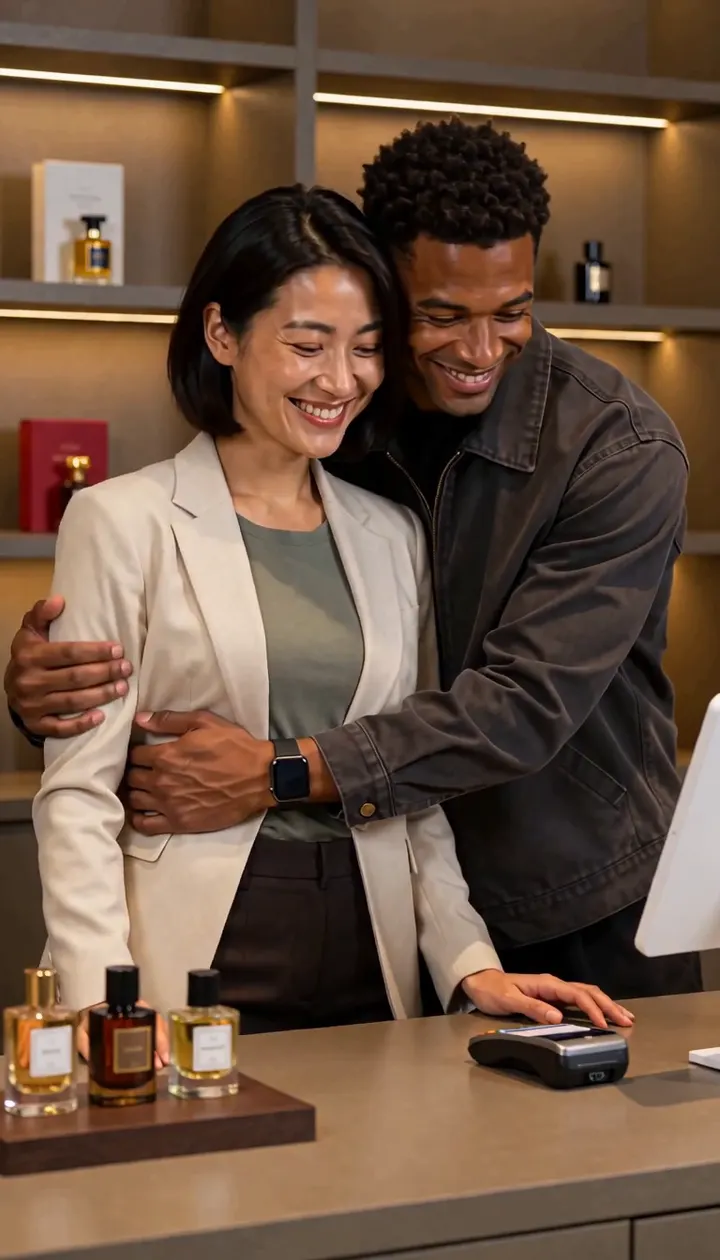
Broke Boyfriend Hug AI · about 6s · 768 × 1344 original · Sound on play. Compact preview; native 768p sources available below.Recorded source demo · MiniMax H3
Open the video editor with the prepared prompt. Review credits before generating; guest checkout is available.
Original EveryGen AI demo generated with MiniMax H3 at 768 × 1344 with generated audio. The payer in the cream blazer taps the terminal first. The partner in the dark jacket moves in from behind for the hug. Template uses the reviewed silent motion to guide a new take.
Template photo roles: Payer, Hug partner. Normal supports editable prompts and compatible native inputs.
Use two distinct consenting adults in a lighthearted perfume-counter clip. The payer uses the first photo, and the partner who gives the hug uses the second. Keep both faces and outfits recognizable.
Normal generation lets you edit the starting prompt and choose a model. Template follows this example using MiniMax H3 at 6s / 9:16 / 768p with audio. Review the quote before generating. Original prompts do not guarantee identical results.
THE SCENE / YOUR CREATIVE DIRECTION
Turn two adult photos into a Broke Boyfriend Hug AI scene at a perfume counter. Cast the person who pays and the partner who gives the back hug, then play both actions in one short shot.
The payer taps the terminal.
The partner leans in from behind.
A gentle hug and a small smile close the shot.
This separate video guides the action, camera and timing. Your subject photos change the featured character; this theme preserves its existing setting.
Prepare the identities and framing before opening a new take in EveryGen AI.
Choose authorized photos with good light and no heavy filters. Keep the body part that performs the movement in view.
Understand what the source brief controls before you edit it in EveryGen AI.
The payer uses the first adult's photo and the hug partner uses the second.
A short card tap and a small one-arm hug fit in one steady view.
A warm smile completes the clip. Any meme captions or soundtrack can be added separately.
Start in Inspiration to shape your idea, or choose Normal to edit the prompt and model. Template follows the example. Review the quote before generating.
Use one clear portrait of each person. Ask permission before using another person's likeness.
Upload the payer in front and the partner behind. Check the quote and keep the reference roles distinct.
Watch the card tap and the hug all the way through. Check faces and arms before downloading.
Use the finished video to choose one useful change for your next EveryGen AI take.
Review the full clip, especially the middle transition and ending. Simplify the action in Normal or supply a cleaner photo for a difficult role.
Prompts, reference inputs, source models and your new video.
The template requires two distinct adult photos, one for each named role. The payer fills the first slot and the hug partner fills the second.
Use separate, clear portraits in Template so each person has an assigned reference. A combined first frame is a different workflow in a compatible Normal editor.
The template guides one original counter scene. Add any caption or properly licensed audio after reviewing your take.
Close contact can vary in generated footage. The template uses a small one-arm motion to make it easier to review both faces, sleeves and hands.
Check the live quote before starting. It reflects the selected model, output time, included reference seconds and any chargeable inputs. Normal settings and Template may have different quotes.
Use Normal to edit the starter prompt and compatible native settings. Template follows the reviewed example's movement and assigns your photos to named roles.
Track the task in Creations and download the private video before its 24-hour availability ends.