
Bulin 47 AI
Text prompt · original native soundAn original street freestyle: one lead, a portable speaker and a night-time crowd. Start with the exact prompt used for the demo, then direct your own take.
Explore Bulin 47 AI, Genjutsu AI reference workflows and Zombie AI stories in EveryGen AI. Watch source demos, copy verified prompts and prepare your video.
AI TRENDS / SCENE IDEAS
Explore Bulin 47 AI street performances, Genjutsu AI reference workflows and Zombie AI memory stories. EveryGen AI pairs each source demo with its recorded prompt and a compatible video setup.
These are curated creative directions, not a live popularity ranking. Source models and required inputs are shown on each page. Genjutsu is a workflow guide with a labeled reference demo. Your new take may vary.
An original street freestyle: one lead, a portable speaker and a night-time crowd. Start with the exact prompt used for the demo, then direct your own take.
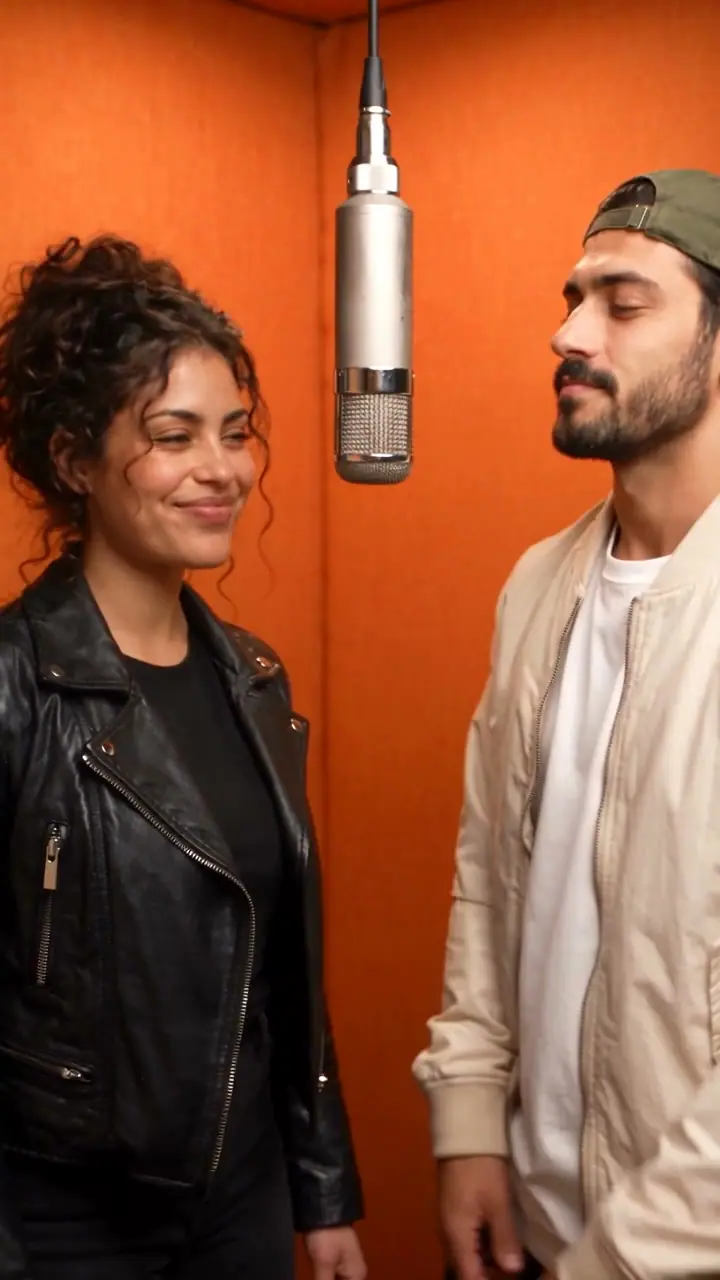
Plan a video reference workflow with clear roles for identity, movement and camera. Explore a real two-photo example and its original prompt.

Turn two reference portraits into a gentle fictional memory story. Use the original zombie costume prompt, source photos and matching 10-second setup.
Choose the scene, add your own references and edit the action. The generator shows the supported model settings and credit quote before submission. Your current account, creations and video storage apply to these scenes too.
The Bulin 47 AI demo starts from text. Zombie AI and the Genjutsu guide’s duet example use two source portraits. Review the recorded inputs and assign each reference a clear role.
Image reference guide →Change the setting, motion or camera direction in the template. Choose supported duration, resolution and audio settings, then review the EveryGen AI credit quote.
Video prompt guide →Check progress in Creations, inspect the finished video and download it before the displayed 24-hour expiry. Your prompt and settings remain in task history for the next take.
Open your creations →