Clear faces or features
Choose authorized photos with good light and no heavy filters. Keep each role visually distinct.
AI TRENDS / DANCE & MUSIC
Make a Dip On Em Dance AI suit duet from two photos. Assign one photo to the front dancer and a different photo to the rear dancer. Both stay visible for high steps, lifted hands and a short synchronized footwork sequence.
Generated videos are stored for 24 hours, then deleted. Download files you want to keep.
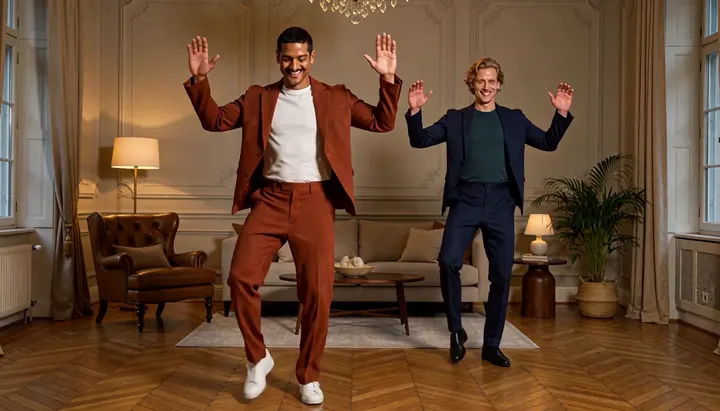
Dip On Em Dance AI · about 8s · 1344 × 768 original · Sound on play. Compact preview; native 768p sources available below.Recorded source demo · MiniMax H3
Open the video editor with the prepared prompt. Review credits before generating; guest checkout is available.
Original EveryGen AI demo generated with MiniMax H3 at 1344 × 768 with generated audio. The rust-suit dancer holds the front-left position and the navy-suit dancer remains farther back on the right. Both execute knee lifts, raised hands and short coordinated steps in a continuous wide shot. Template uses the reviewed silent motion to guide a new take.
Template photo roles: Front dancer, Rear dancer. Normal supports editable prompts and compatible native inputs.
Keep the two people distinct, the first photo in front and the second behind. Preserve the face of each dancer and use two visually distinct suits.
Normal generation lets you edit the starting prompt and choose a model. Template follows this example using MiniMax H3 at 8s / 16:9 / 768p with audio. Review the quote before generating. Original prompts do not guarantee identical results.
THE SCENE / YOUR CREATIVE DIRECTION
Make a Dip On Em Dance AI suit duet from two photos. Assign one photo to the front dancer and a different photo to the rear dancer. Both stay visible for high steps, lifted hands and a short synchronized footwork sequence.
The first dancer starts closer to camera, and the second stays behind to one side.
Both dancers lift a knee and raise their hands on the same beats.
Take two short step-touches and end without crossing or switching roles.
This separate video guides the action, camera and timing. Your subject photos change the featured character; this theme preserves its existing setting.
Prepare the identities and framing before opening a new take in EveryGen AI.
Choose authorized photos with good light and no heavy filters. Keep each role visually distinct.
Understand what the source brief controls before you edit it in EveryGen AI.
The two slots send separate images in order to a multimodal model. Front dancer is the first image. Rear dancer is the second.
A wide shot keeps both sets of shoes and both dancers’ hands visible. The dancers use matching knee lifts, raised hands and short step-touches.
Keep the back dancer slightly to the side so neither face disappears behind the other. Review the output for role or wardrobe drift.
Start in Inspiration to shape your idea, or choose Normal to edit the prompt and model. Template follows the example. Review the quote before generating.
Pick one clear, authorized photo per dancer. Full-body framing, visible faces and contrasting colors make the two references easier to distinguish.
In Template, place the first person in Front dancer and the second in Rear dancer. Both slots need their own photo before you can review the quote.
Look at both faces and outfits at the start, during the knee lifts and at the ending. Download the private video from Creations within 24 hours.
Use the finished video to choose one useful change for your next EveryGen AI take.
Review the full clip, especially the middle transition and ending. Simplify the action in Normal or supply a cleaner photo for a difficult role.
Prompts, reference inputs, source models and your new video.
This template needs two different photos, one per dancer. A group photo or one person used for both slots cannot assign two separate references.
The template sends both photos separately and asks for fixed front and rear positions. AI generation can still drift, so review identities and suits through the whole take.
The template uses the movement from an original EveryGen AI example. Add any music separately only if you have permission to use it.
Check the live quote before starting. It reflects the selected model, output time, included reference seconds and any chargeable inputs. Normal settings and Template may have different quotes.
Use Normal to edit the starter prompt and compatible native settings. Template follows the reviewed example's movement and assigns your photos to named roles.
Track the task in Creations and download the private video before its 24-hour availability ends.