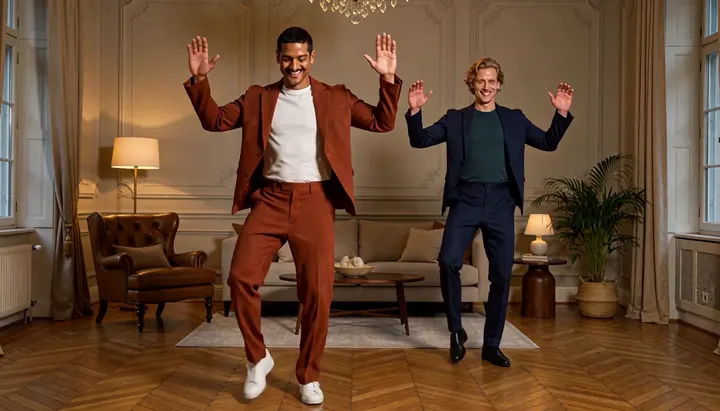
Compact playback preview · Open native 768p video ↗
MiniMax H3 · 768p · about 8 seconds · original audio
Try Dip On Em Dance AI with Every Gen AIPlan a one-take AI video by assigning the people, placing them in the shot and giving the action a clear finish. One full-body photo can cast an office farewell. Two photos can cast a suit duet. An ice cream counter comedy can use one customer portrait and a fictional clerk.
A reference photo controls appearance in a compatible model. Move the set, prop and camera instructions into the scene direction. These three EveryGen AI examples show how to choose the photo count, simplify a short action and check the result before sharing.
Choose the photos by role
| Scene | Template photos | First playback check |
|---|---|---|
| Toesa Quit Job Dance AI | One full-body photo for the office dancer | Hands and shoes visible in the same frame |
| Dip On Em Dance AI | One front dancer photo and one different rear dancer photo | Faces, suits and front/rear positions stay distinct |
| Hot Chick Ice Cream AI | One adult customer portrait | The cup stays with the customer through the clerk’s reaction |
Add a photo for each identity you need to direct. A supplied photo can steer the actor’s look without choosing the room or demanding that the photo appear as the first video frame. First-frame mode instead anchors the opening composition to a particular image. Distinguish the two before you upload, especially when a reference photo has a neutral background.
Give a solo dancer room to exit
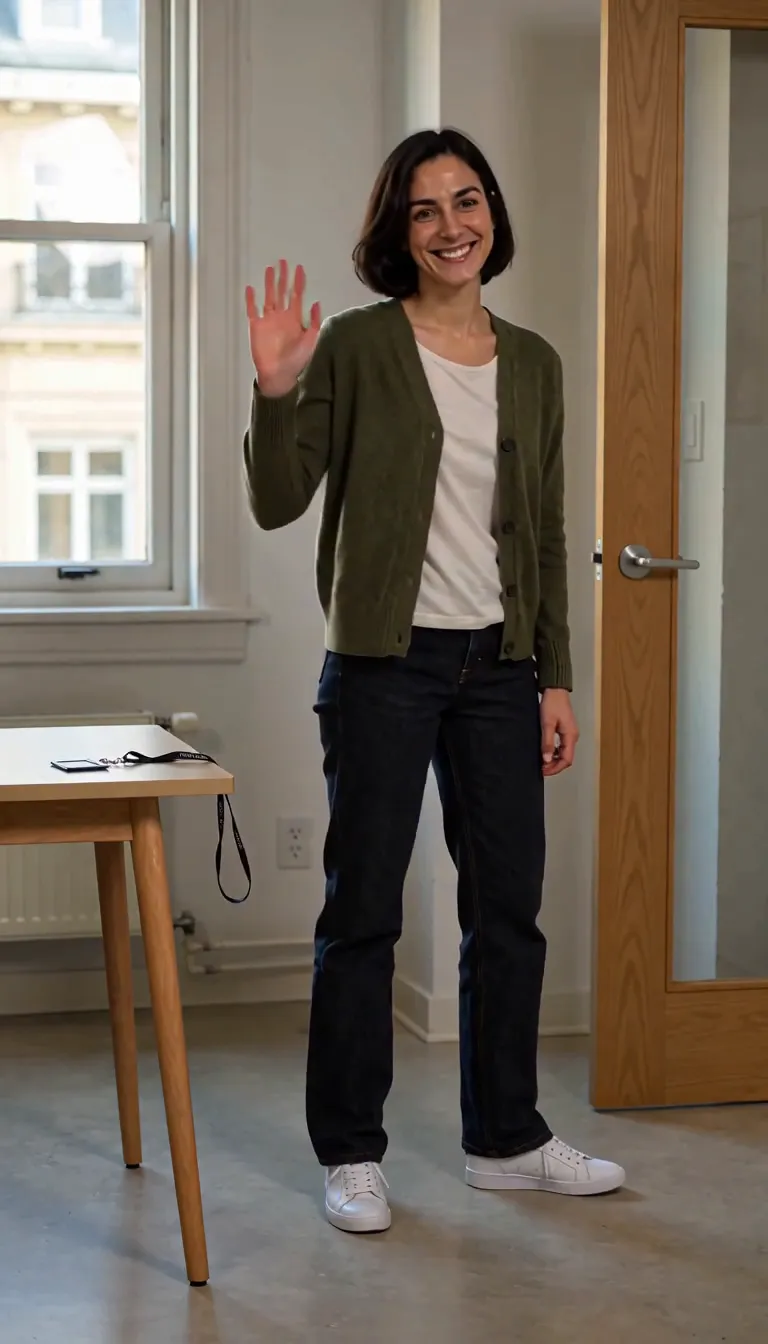
In the office farewell, place the desk beside the performer. Begin with the badge in hand and put the exit on the other side of the shot. Leave an open floor path for the steps and hold the wide frame long enough to see the wave. With a headshot, the model has to invent most of the clothing and all the foot placement. One unobstructed head-to-toe photo gives it more evidence.
Review the first hand-to-desk contact before looking at the ending. Make sure the badge does not travel with the hand after it is set down, and that the shoes and cardigan stay consistent during the steps.
Put the two dancers in separate positions
Give the front and rear dancers separate, authorized full-body photos. Start the lead closer to the camera and the rear dancer a half-step back to one side. A diagonal gap helps keep both faces visible when their arms rise. Contrast the suits or shoes so you can tell what happened at a glance, even while the dancers are moving.
For a short take, ask for a knee lift, a raised-hand beat and a matched step-touch. A fixed camera makes the movement easier to read. Watch that both identities stay tied to their assigned roles all the way to the final pose. If the faces blend or the dancers cross, simplify the movement and increase the gap before trying again.
Let a sip and a reaction tell the joke
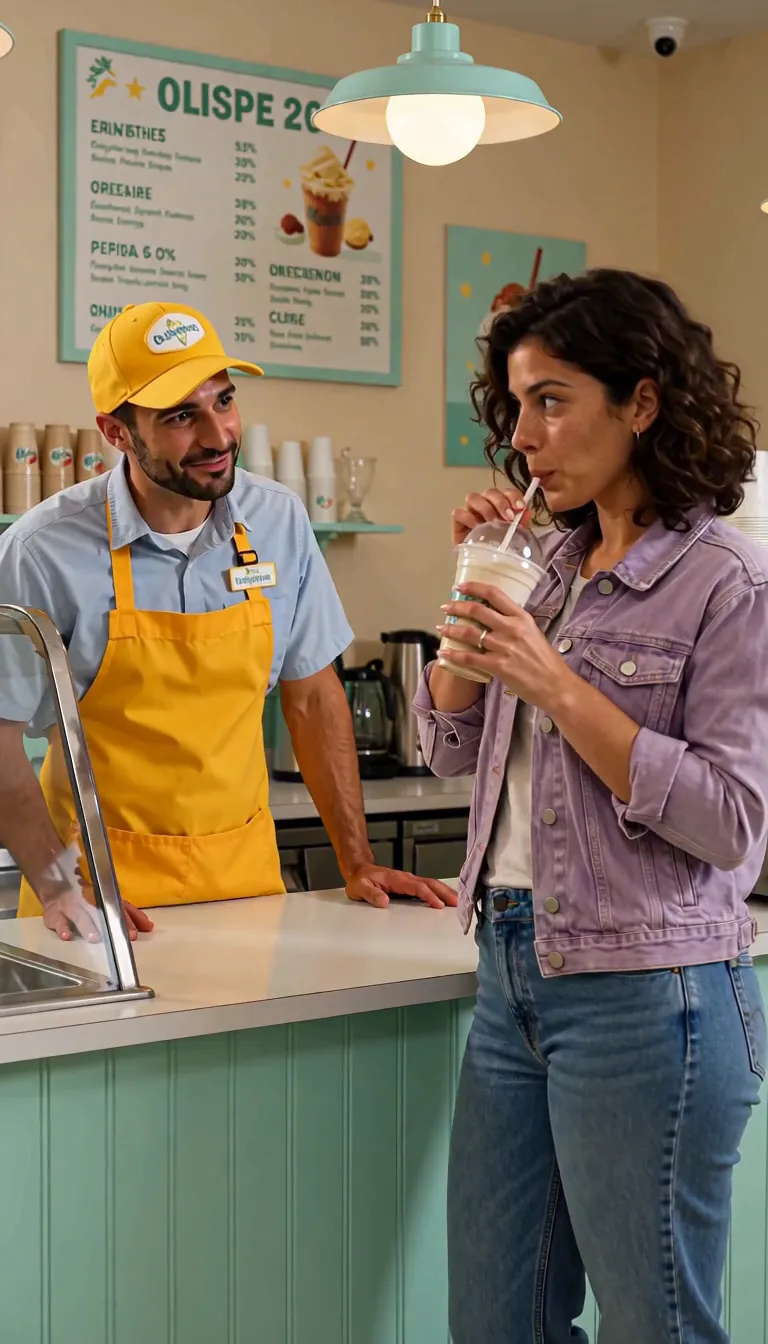
Use one clear adult portrait to cast the customer. Keep the fictional clerk on the far side of the counter and the drink in the customer’s hand from the start. Ask for a short sip, a small clerk gesture and a smile on the way out. In one steady medium-wide shot, look for cup continuity and a believable eye line. There is no need to time exact words to a mouth movement to make the scene work.
When the prop deforms, make the action smaller. A single straw and a cup without readable text are easier to keep consistent. If both faces are too small, move the camera close enough to read the reaction while leaving space for the exit.
Check the quote and review the final beat
Template uses the reviewed example’s movement and gives you named photo slots. Normal lets you direct the action in your own words and choose compatible model settings. Before you start, check the exact credit total for that request. The model, output length and any chargeable reference footage affect the quote.
Watch once for the story and again for continuity. Check face and wardrobe, hands and feet, the prop, then the final reaction or pose. Listen to any generated sound before sharing. Download your finished private video from Creations within 24 hours.
Models discussed in this workflow
Check the native inputs and limitations before changing a draft. These links describe workflow compatibility, not a quality ranking.
Sources and review scope
External pages support the statements identified below. Reading a public product page is separate from testing its paid output.
- EveryGen AI reference images guide — checked 2026-11-22. Appearance references, frame controls and input roles.
- EveryGen AI generation costs guide — checked 2026-11-22. Review the live credit quote for the selected model and reference inputs.
Questions about Dip On Em Dance AI
Can I use the same photo for the front and rear dancers?
Use two distinct photos in the Dip On Em template, one image in each slot. The slot order tells the model which reference goes with which dancer.
Should a one-take AI video have dialogue?
Start with an action and a visible reaction. A small wave or smile can carry the scene. Dialogue and lip synchronization depend on the chosen model and request.
Does an appearance photo set the first frame?
An appearance reference guides the subject’s look. A first-frame setting explicitly controls the opening image in a mode that supports it.
Try Dip On Em Dance AI with Every Gen AI
Bring your idea and the reference photos for your chosen tool. Choose your settings, check the quote and create a clip you can review.