Write down what moves first, what changes in the middle and what the viewer should see at the end. An actor can glance up after a prop moves. A performer can settle onto a couch before turning toward the lens. Giving those moments separate beats makes a short clip easier to read.
EveryGen AI’s three examples use one continuous composition each. Start with one photo when you want to guide one appearance. Give each actor a separate photo when you need to control both sides of a scene. Choose a wider composition if hands, feet or furniture carry the action.
Match the framing to the action
| Demo | Template photo slots | Review first |
|---|---|---|
| Old Town Road AI | One performer photo | Recognizable face and readable gestures beside a stationary car |
| Rubber Band Prank AI | Prankster and companion | The prop stays in the same actor’s hands and the reaction follows its motion |
| Office Parkour AI | One head-to-toe performer photo | Limb continuity, couch contact and a settled end pose |
Template assigns photos to fixed roles and follows reviewed silent motion. Choose Normal to change the action, setting or angle. Check the selected model’s photo input mode when setting up a custom scene.
Keep a solo performance readable beside a car
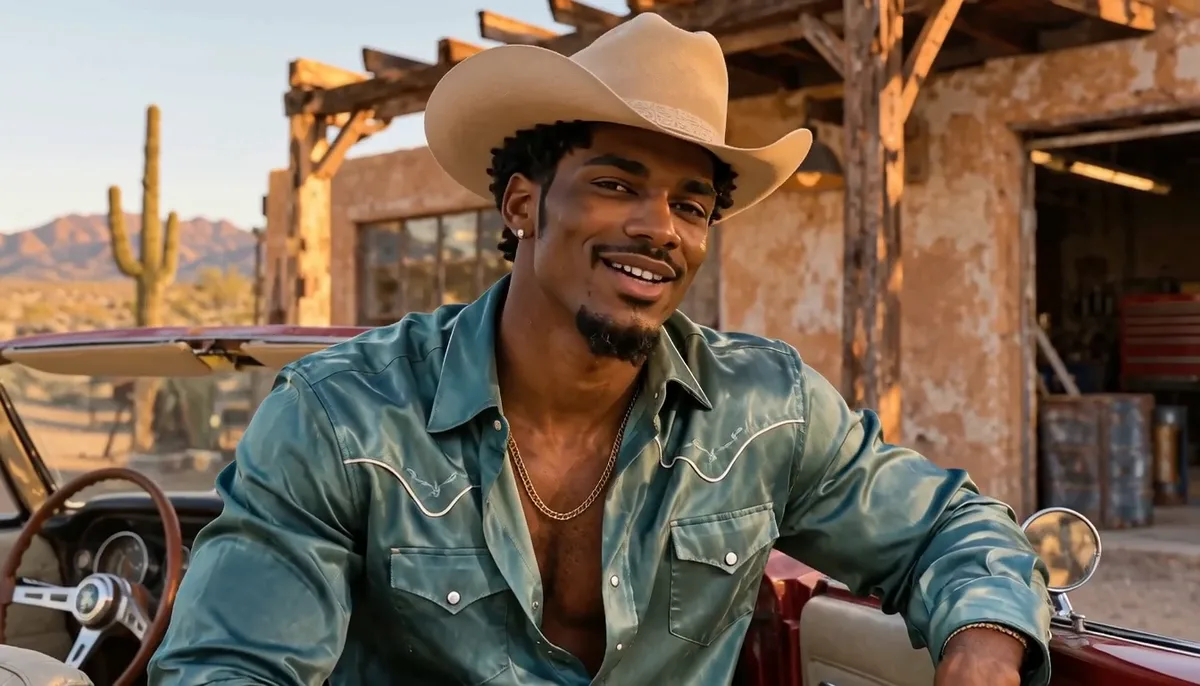
Start with the lead beside the parked convertible so the audience can read the face, hat and body angle at once. Describe a short gesture and a held expression. A steady camera lets the performer supply the movement. If you need a driver or an interior close-up, plan those as separate shots and edit the strongest takes together.
The solo performer stays beside the parked red convertible through a gentle push-in, then lifts their hands during the closing look. The demo is a single visual performance, with original generated sound.
Separate a prop gag into setup, reversal and reaction
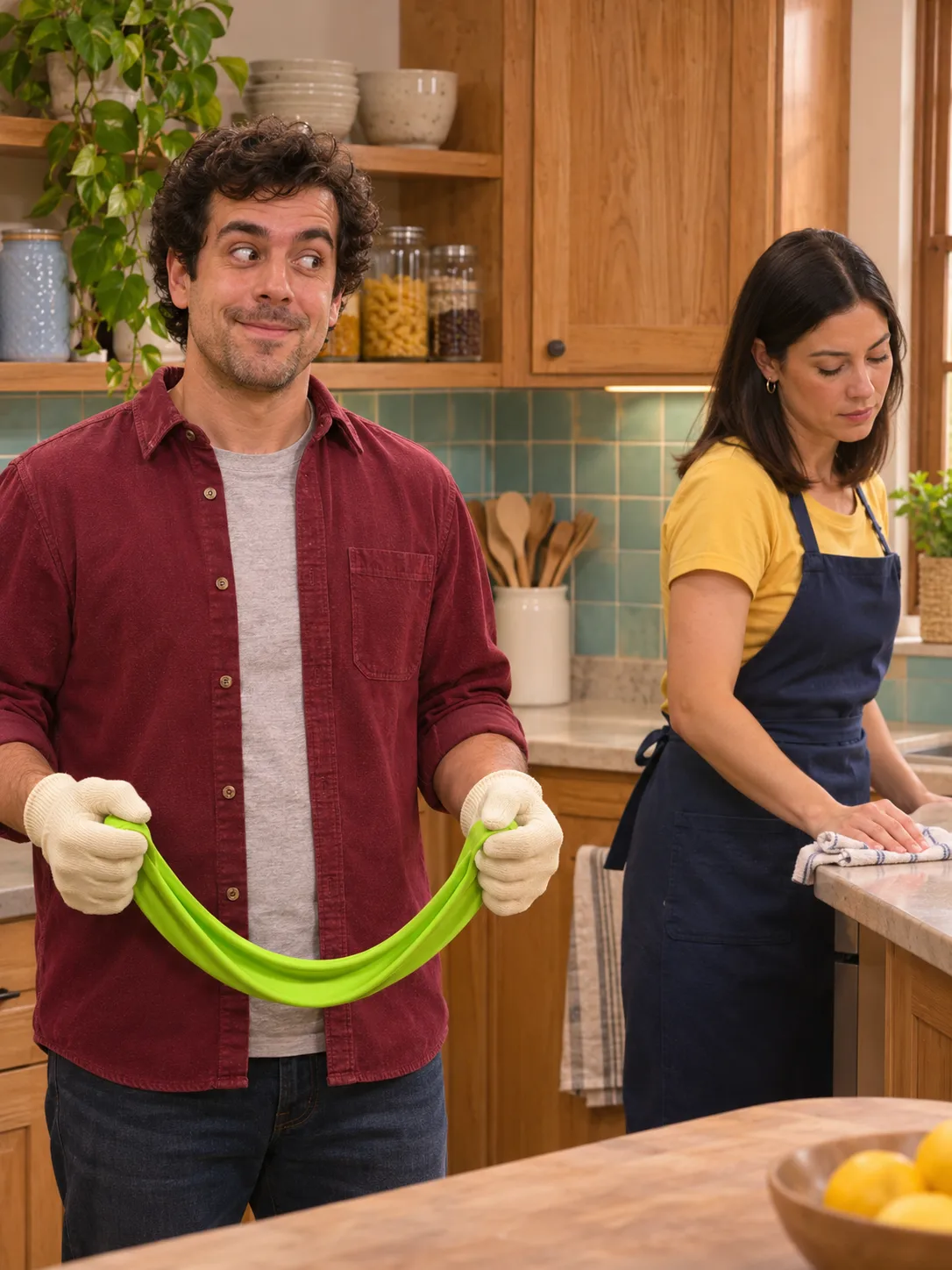
Place the prankster in the left role and the companion in the right. A bright, soft fictional prop with a simple outline reads well against a neutral counter. Keep it near the actor who holds it. Have the second actor continue their own task before looking over. The pause gives the joke its timing.
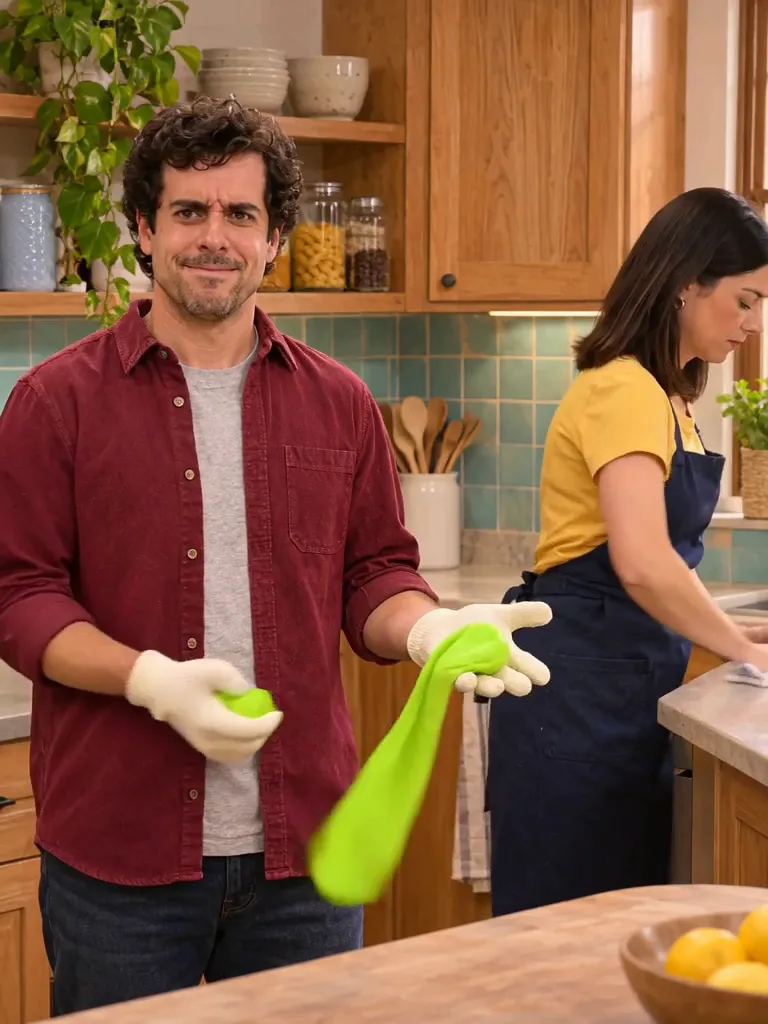
The green prop snaps back to the prankster’s hands. The companion continues at the counter while the prankster holds the awkward reaction. When reviewing your own version, watch the prop at the moment it changes direction, then check that the companion reacts without swapping roles or touching it.
Leave room to see couch contact and recovery
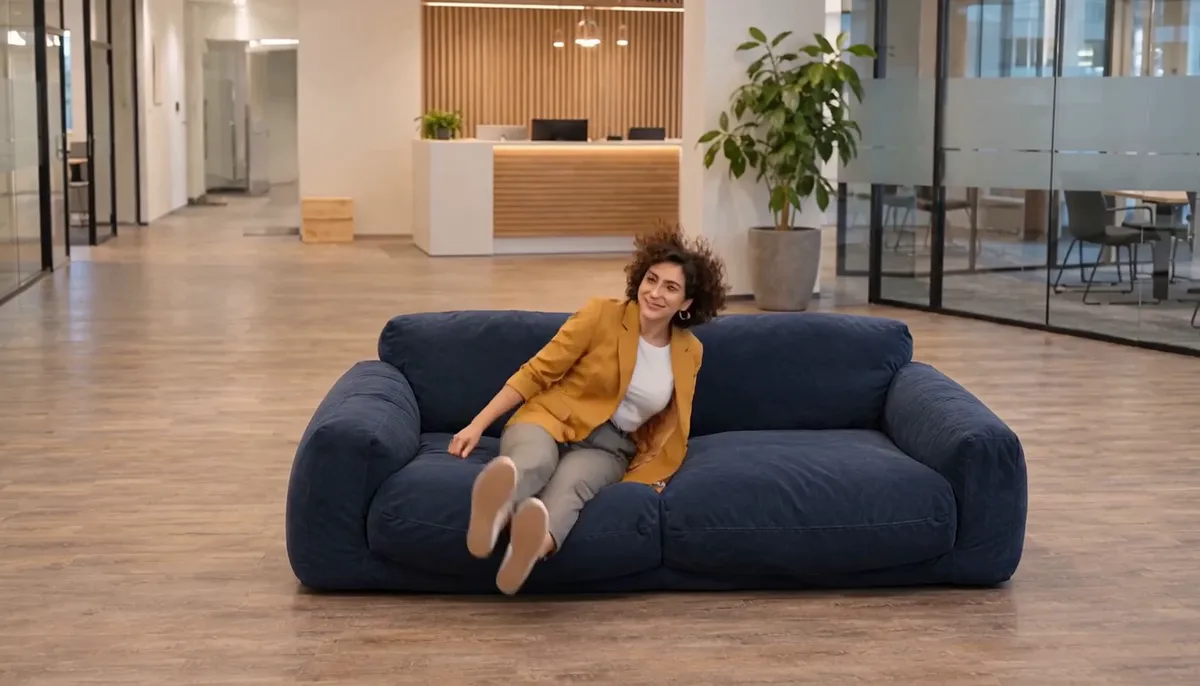
Start with a full-body photo that includes feet and hands. In the video, frame the whole couch and a little floor. A low movement keeps the performer and furniture visible in the same shot. Leave time at the end for a seated pause and a look toward the camera.
The performer clears the low sofa arm in a sideways motion, settles onto the cushion and holds a seated look toward the camera. In Normal, simplify the move or use a wider angle if the hands or body disappear behind the couch.
Review settings and export the completed take
The demos are original MiniMax H3 first-frame generations at the 768p tier. Template generates a new take with the roles you supply and uses a reviewed motion reference. The exact quote depends on the current model, output length and chargeable reference inputs. Check it before starting.
On playback, check the opening identity, the hardest movement and the final expression. Listen to generated sound separately. When the clip is ready, download it from Creations during its 24-hour private availability.
Models discussed in this workflow
Check the native inputs and limitations before changing a draft. These links describe workflow compatibility, not a quality ranking.
Sources and review scope
External pages support the statements identified below. Reading a public product page is separate from testing its paid output.
- EveryGen AI reference image guide — checked 2026-11-15. Photo roles and model-dependent reference behavior.
- EveryGen AI generation costs — checked 2026-11-15. Live quotes for the exact model and settings.
Questions about Every Gen AI
Can I make a complete music video in one clip?
These templates create one short take at a time. For a complete sequence, plan distinct camera angles or settings and assemble the takes in an editor.
Can I use one photo for a two-person scene?
Rubber Band Prank Template has two named photo slots. In Normal you can guide one photographed actor and ask a compatible model to create a fictional companion.
How can I make complicated movement easier to check?
Use one stable setup, show the performer’s hands and feet where they matter, and leave a pause after the action. Review the hardest contact point on playback.
Make your first scene with Every Gen AI
Bring your idea and the reference photos for your chosen tool. Choose your settings, check the quote and create a clip you can review.