Clear faces or features
Choose authorized photos with good light and no heavy filters. Keep each role visually distinct.
AI TRENDS / REVEALS & REACTIONS
Turn a full-body photo into a short office comedy on an original set. A solo performer makes a clumsy crossing at a low couch, catches their breath and tries to look pleased with the result.
Generated videos are stored for 24 hours, then deleted. Download files you want to keep.
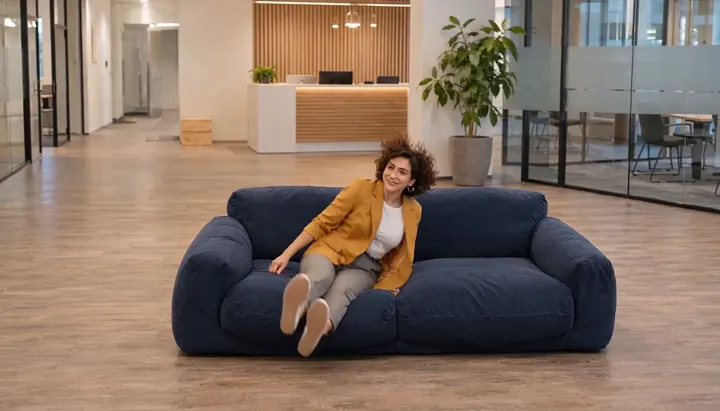
Office Parkour AI · about 9s · 1344 × 768 original · Sound on play. Compact preview; native 768p sources available below.Recorded source demo · MiniMax H3
Open the video editor with the prepared prompt. Review credits before generating; guest checkout is available.
Original EveryGen AI demo generated with MiniMax H3 at 1344 × 768 with generated audio. The performer clears the low sofa arm in a sideways motion, settles onto the cushion and holds a seated look toward the camera. The Template uses the reviewed silent motion with generated sound on a new take.
Template photo roles: Office performer. Normal supports editable prompts and compatible native inputs.
Use my full-body photo for a solo office performer who clambers over the low blue couch, sits to recover and finishes with a proud look.
Normal generation lets you edit the starting prompt and choose a model. Template follows this example using MiniMax H3 at 9s / 16:9 / 768p with audio. Review the quote before generating. Original prompts do not guarantee identical results.
THE SCENE / YOUR CREATIVE DIRECTION
Turn a full-body photo into a short office comedy on an original set. A solo performer makes a clumsy crossing at a low couch, catches their breath and tries to look pleased with the result.
Leave room around the couch and show both feet before the crossing.
Keep the movement low, with readable hand and leg positions.
Let the performer sit briefly before a proud look to camera.
This separate video guides the action, camera and timing. Your subject photos change the featured character; this theme preserves its existing setting.
Prepare the identities and framing before opening a new take in EveryGen AI.
Choose authorized photos with good light and no heavy filters. Keep each role visually distinct.
Understand what the source brief controls before you edit it in EveryGen AI.
The wide shot keeps the performer, hands, feet and sofa in view.
Follow the couch contact, the seated recovery and the final self-satisfied look.
The example uses an original actor and office setting. The template accepts one photographed lead.
Start in Inspiration to shape your idea, or choose Normal to edit the prompt and model. Template follows the example. Review the quote before generating.
Use a clear, authorized photo with no limbs cut off.
Watch the floor-level action in the preview and check the live quote.
Watch hands and legs at the couch, then confirm the performer settles naturally and looks toward the camera.
Use the finished video to choose one useful change for your next EveryGen AI take.
Review the full clip, especially the middle transition and ending. Simplify the action in Normal or supply a cleaner photo for a difficult role.
Prompts, reference inputs, source models and your new video.
A full-body image is the recommended input because the model needs visual information about the performer’s stance, silhouette and limbs.
It follows an original office-comedy setup with one performer and a low couch. It does not supply TV characters, dialogue, footage or an exact performance.
This Template casts one person. Use Normal and a compatible model if you want to design a new group scene.
Check the live quote before starting. It reflects the selected model, output time, included reference seconds and any chargeable inputs. Normal settings and Template may have different quotes.
Use Normal to edit the starter prompt and compatible native settings. Template follows the reviewed example's movement and assigns your photos to named roles.
Track the task in Creations and download the private video before its 24-hour availability ends.