Clear faces or features
Choose authorized photos with good light and no heavy filters. Keep each role visually distinct.
AI TRENDS / DANCE & MUSIC
Turn one full-body photo into a Toesa Quit Job Dance AI office farewell. The employee sets down a blank work badge, takes two playful side steps and waves on the way out. The photo guides the dancer’s likeness and their original clothes.
Generated videos are stored for 24 hours, then deleted. Download files you want to keep.
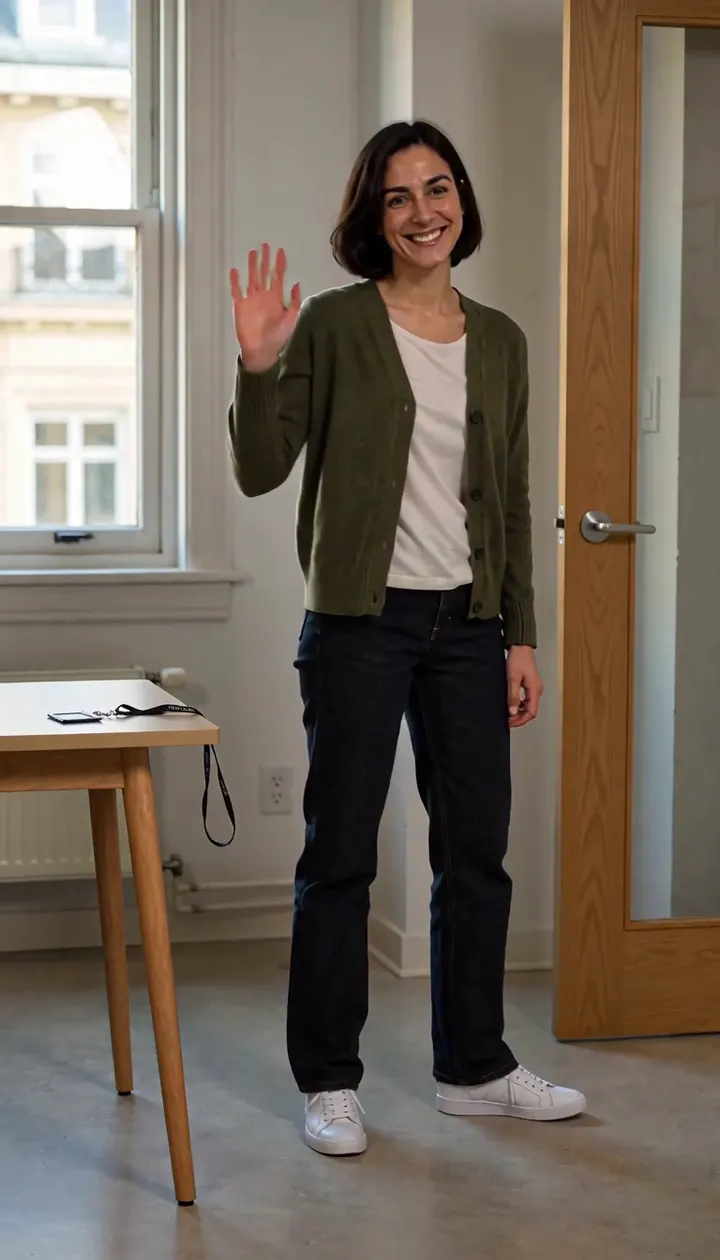
Toesa Quit Job Dance AI · about 8s · 768 × 1344 original · Sound on play. Compact preview; native 768p sources available below.Recorded source demo · MiniMax H3
Open the video editor with the prepared prompt. Review credits before generating; guest checkout is available.
Original EveryGen AI demo generated with MiniMax H3 at 768 × 1344 with generated audio. The full-body view shows the worker set the badge on the wooden desk, wave with a smile and side-step through the office exit. The cardigan, jeans and white sneakers stay recognizable. Template uses the reviewed silent motion to guide a new take.
Template photo roles: Office dancer. Normal supports editable prompts and compatible native inputs.
Keep my face, hairstyle, outfit and shoes from the full-body reference. Make the office exit feel lighthearted.
Normal generation lets you edit the starting prompt and choose a model. Template follows this example using MiniMax H3 at 8s / 9:16 / 768p with audio. Review the quote before generating. Original prompts do not guarantee identical results.
THE SCENE / YOUR CREATIVE DIRECTION
Turn one full-body photo into a Toesa Quit Job Dance AI office farewell. The employee sets down a blank work badge, takes two playful side steps and waves on the way out. The photo guides the dancer’s likeness and their original clothes.
Set a blank work badge on the desk.
Take two short steps into the clear walkway.
Give one small farewell wave and step through the exit.
This separate video guides the action, camera and timing. Your subject photos change the featured character; this theme preserves its existing setting.
Prepare the identities and framing before opening a new take in EveryGen AI.
Choose authorized photos with good light and no heavy filters. Keep each role visually distinct.
Understand what the source brief controls before you edit it in EveryGen AI.
Show the outfit you want to keep, including footwear. Use a centered, unobstructed full-body photo and let the office reference supply the setting.
A short dance and a small goodbye gesture carry the joke. The office exit makes a readable vertical clip even with playback muted.
The scene uses a wide, stable composition with clear floor space. In Normal you can edit the exit direction or give the wave more time.
Start in Inspiration to shape your idea, or choose Normal to edit the prompt and model. Template follows the example. Review the quote before generating.
Show your face, hands and both feet. Wear the outfit you want to appear in the clip.
Open Template and add the photo to Office dancer. Check the preview, photo role and quote before generating.
Watch the hand meet the desk, then check the feet, outfit and goodbye gesture. Download from Creations within 24 hours.
Use the finished video to choose one useful change for your next EveryGen AI take.
Review the full clip, especially the middle transition and ending. Simplify the action in Normal or supply a cleaner photo for a difficult role.
Prompts, reference inputs, source models and your new video.
The template uses one photo, and a full-body image gives the clearest wardrobe and foot-placement cues for a dance. Use a head-to-toe photo with space around the arms and shoes.
This is an original office farewell variation with badge placement, side steps and a wave. The template uses EveryGen AI’s reviewed office motion.
The direction asks the model to keep the visible outfit and shoes from your photo. Review the whole take for changes in fabric, color or details.
Check the live quote before starting. It reflects the selected model, output time, included reference seconds and any chargeable inputs. Normal settings and Template may have different quotes.
Use Normal to edit the starter prompt and compatible native settings. Template follows the reviewed example's movement and assigns your photos to named roles.
Track the task in Creations and download the private video before its 24-hour availability ends.
Published EveryGen AI examples explain the inputs, settings and limits for different scenes.
Stage a readable one-take AI video around a single action, distinct photo roles and a clear ending.