Clear faces or features
Choose authorized photos with good light and no heavy filters. Keep each role visually distinct.
AI TRENDS / REVEALS & REACTIONS
Create an I Love The Smiths AI elevator scene inspired by the headphone exchange in 500 Days of Summer. Give the listener and the speaker separate roles, using one shared photo or two portraits.
Generated videos are stored for 24 hours, then deleted. Download files you want to keep.
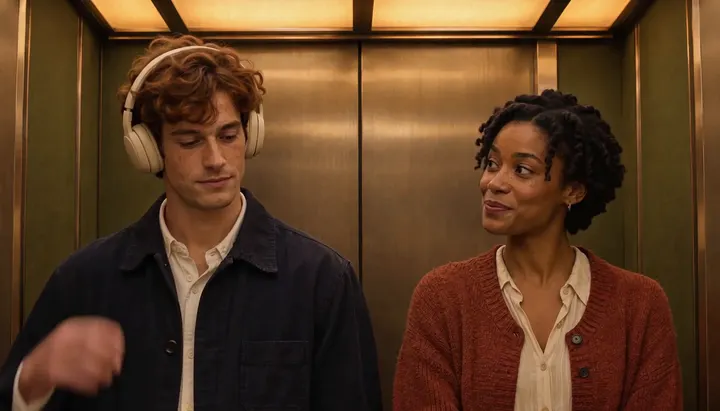
I Love The Smiths AI · about 15s · 1344 × 768 original · Sound on play. Compact preview; native 768p sources available below.Recorded source demo · MiniMax H3
Open the video editor with the prepared prompt. Review credits before generating; guest checkout is available.
Original EveryGen AI demo generated with MiniMax H3 at 1344 × 768 with generated audio. The two original adults keep their roles through the close exchange. The listener touches one ear cup and turns, and the doors open to a warm hall at the end. The Template uses the reviewed silent motion with generated sound on a new take.
Template photo roles: Listener · left, Speaker · right. Normal supports editable prompts and compatible native inputs.
Listener left has wavy auburn hair and cream headphones. Speaker right has short twists and a rust cardigan.
Normal generation lets you edit the starting prompt and choose a model. Template follows this example using MiniMax H3 at 15s / 16:9 / 768p with audio. Review the quote before generating. Original prompts do not guarantee identical results.
THE SCENE / YOUR CREATIVE DIRECTION
Create an I Love The Smiths AI elevator scene inspired by the headphone exchange in 500 Days of Summer. Give the listener and the speaker separate roles, using one shared photo or two portraits.
The listener faces forward with headphones on.
The speaker turns. The listener lifts an ear cup before replying.
Hold a glance, then let the elevator ding close the scene.
This separate video guides the action, camera and timing. Your subject photos change the featured character; this theme preserves its existing setting.
Prepare the identities and framing before opening a new take in EveryGen AI.
Choose authorized photos with good light and no heavy filters. Keep each role visually distinct.
Understand what the source brief controls before you edit it in EveryGen AI.
Assign the listener to the left and the speaker to the right. Use a shared photo when both are visible together, or separate clear portraits.
Hold both faces in frame. Give the speaker space to lean in, the listener time to lift an ear cup and both a beat to react.
Use generated voices, an elevator ding and an optional quiet indie guitar texture. The original film audio and song are separate recordings.
Start in Inspiration to shape your idea, or choose Normal to edit the prompt and model. Template follows the example. Review the quote before generating.
In Template, choose one shared two-person photo or two separate portraits. Both formats follow the same included elevator scene.
In a shared photo, put the listener on the left and speaker on the right. Use clear faces, similar framing and room for a natural glance.
Confirm the live quote, then check the headphones, line delivery and reaction. Download the finished video from Creations within 24 hours.
Use the finished video to choose one useful change for your next EveryGen AI take.
Review the full clip, especially the middle transition and ending. Simplify the action in Normal or supply a cleaner photo for a difficult role.
Prompts, reference inputs, source models and your new video.
The trend references the elevator encounter in 500 Days of Summer. EveryGen AI stages an original version with your own subjects.
Yes. Choose One shared photo and use one image with both faces visible, listener on the left. With Two separate portraits, add a distinct photo to each role.
The workflow generates new voices and sound. If you plan to add film audio or a song later, use material you have permission to publish.
Check the live quote before starting. It reflects the selected model, output time, included reference seconds and any chargeable inputs. Normal settings and Template may have different quotes.
Use Normal to edit the starter prompt and compatible native settings. Template follows the reviewed example's movement and assigns your photos to named roles.
Track the task in Creations and download the private video before its 24-hour availability ends.