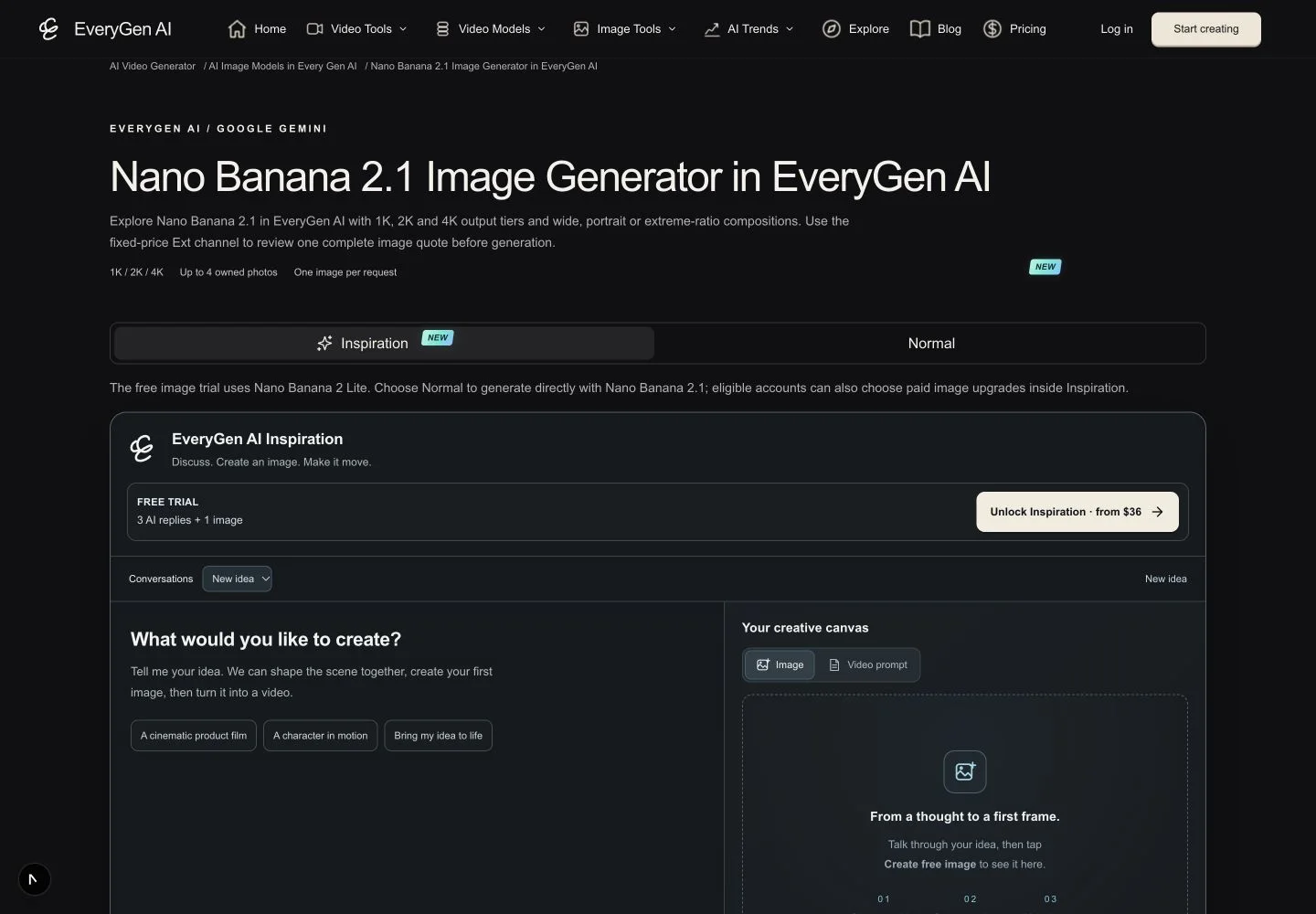
EveryGen AI at https://everygenai.live/ now offers 15 image model routes and 24 video model routes in a connected creative workspace. This update fills important gaps in the Google image family, adds Grok video choices and Kling V4, and brings the current Inspiration experience to model pages alongside direct Normal controls.
The practical appeal is more than a longer model list. EveryGen AI lets you discuss an idea, prepare a supporting still, review a native draft and understand its credit quote without rebuilding the whole project in separate tools. For creators who want both guidance and direct control, that is a useful combination.
Existing fixed-price GPT Image and Grok image routes, Kling video options, Google Veo and other established models remain available. The new pages identify the model, its supported settings and limitations; a bigger catalog does not mean every model accepts the same inputs.
More Google image choices beside GPT Image and Grok in EveryGen AI
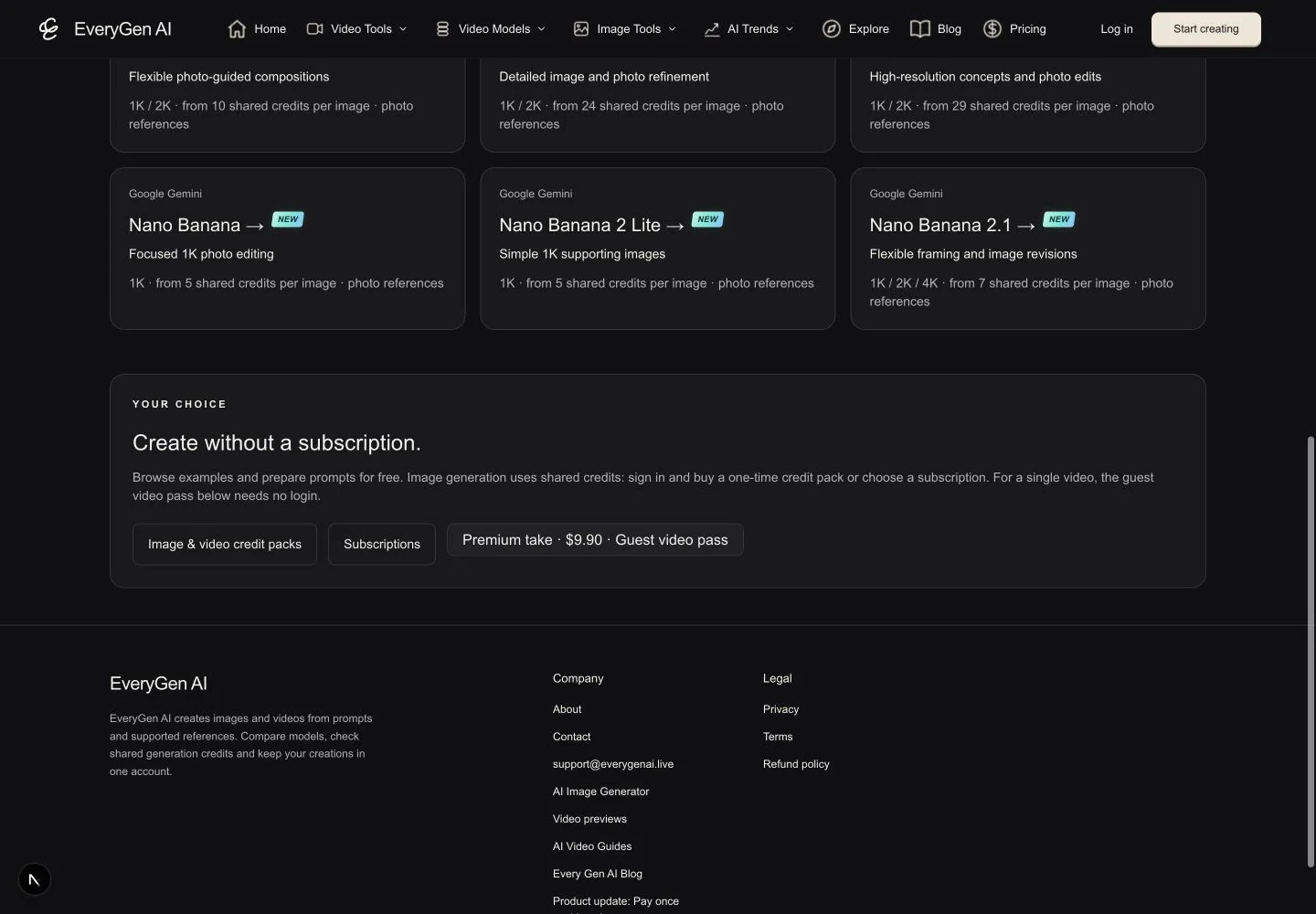
The image directory at https://everygenai.live/image/models makes it easy to choose a starting point. New Google options join GPT Image 2, GPT Image 2.5 Flare and Sunburst, Grok image routes, Nano Banana 2 and Pro, Seedream and FLUX.2 Pro.
| Model | Supported output | Image credits |
|---|---|---|
| Nano Banana | 1K | 5 |
| Nano Banana 2 Lite | 1K | 5 |
| Nano Banana 2.1 | 1K / 2K / 4K | 7 / 8 / 11 |
Open Nano Banana at https://everygenai.live/image/models/nano-banana, Lite at https://everygenai.live/image/models/nano-banana-2-lite or Nano Banana 2.1 at https://everygenai.live/image/models/nano-banana-2.1. Lite offers 1K only; Nano Banana 2.1 is a separate route with three output tiers, rather than a renamed Nano Banana 2.
Try GPT Image 2 at https://everygenai.live/image/models/gpt-image-2, Flare at https://everygenai.live/image/models/gpt-image-2.5-flare and Sunburst at https://everygenai.live/image/models/gpt-image-2.5-sunburst. Each retains its own native controls and image quote. Where a Grok image route charges for reference photos, EveryGen AI includes those selected inputs in the displayed total.
Grok video, Gemini Omni and Kling V4 in EveryGen AI
The video directory at https://everygenai.live/models connects each model to a working generator. The new choices complement existing Seedance, Veo, Hailuo and Kling routes; compare the required input and the action you want before choosing the name.
| Model | Duration | Output / photo behavior |
|---|---|---|
| Grok Imagine 1.5 Video Ext | 6–15 seconds | 480p / 720p; photo-guided framing |
| Grok Imagine Video | 1–15 seconds | 480p / 720p; input-photo fees included in the total |
| Grok Imagine Video 1.5 | 1–15 seconds | 480p / 720p / 1080p; its own input-photo fees |
| Gemini Omni 1.1 Flash Ext | 4, 6, 8 or 10 seconds | 720p / 1080p / 4K; one starting frame or exactly one/three reference photos |
| Kling V4 | 3–30 seconds | 720p / 1080p; first/last frames or appearance photos; stereo sound included |
Explore Kling V4 at https://everygenai.live/models/kling-4.0, Gemini Omni at https://everygenai.live/models/gemini-omni-1.1-flash-ext and the Grok pages at https://everygenai.live/models/grok-imagine-1.5-video, https://everygenai.live/models/grok-imagine-video and https://everygenai.live/models/grok-imagine-video-1.5.
These distinctions matter. Omni does not accept a pair of first/last frames on the enabled Ext route, while Kling V4 does. The base Grok route does not show a 1080p option. Kling V4 includes stereo sound and does not offer an unsupported switch to generate silently. The interface should help you make those decisions before you spend credits.
Start in Inspiration, keep control in Normal
EveryGen AI Inspiration is a multi-turn creative conversation. Discuss the subject, setting and mood, then use Create free image when you want the supporting still. The account-wide trial includes three successful replies and one successful Nano Banana 2 Lite image after sign-in. Visiting another model page does not create another free allowance.
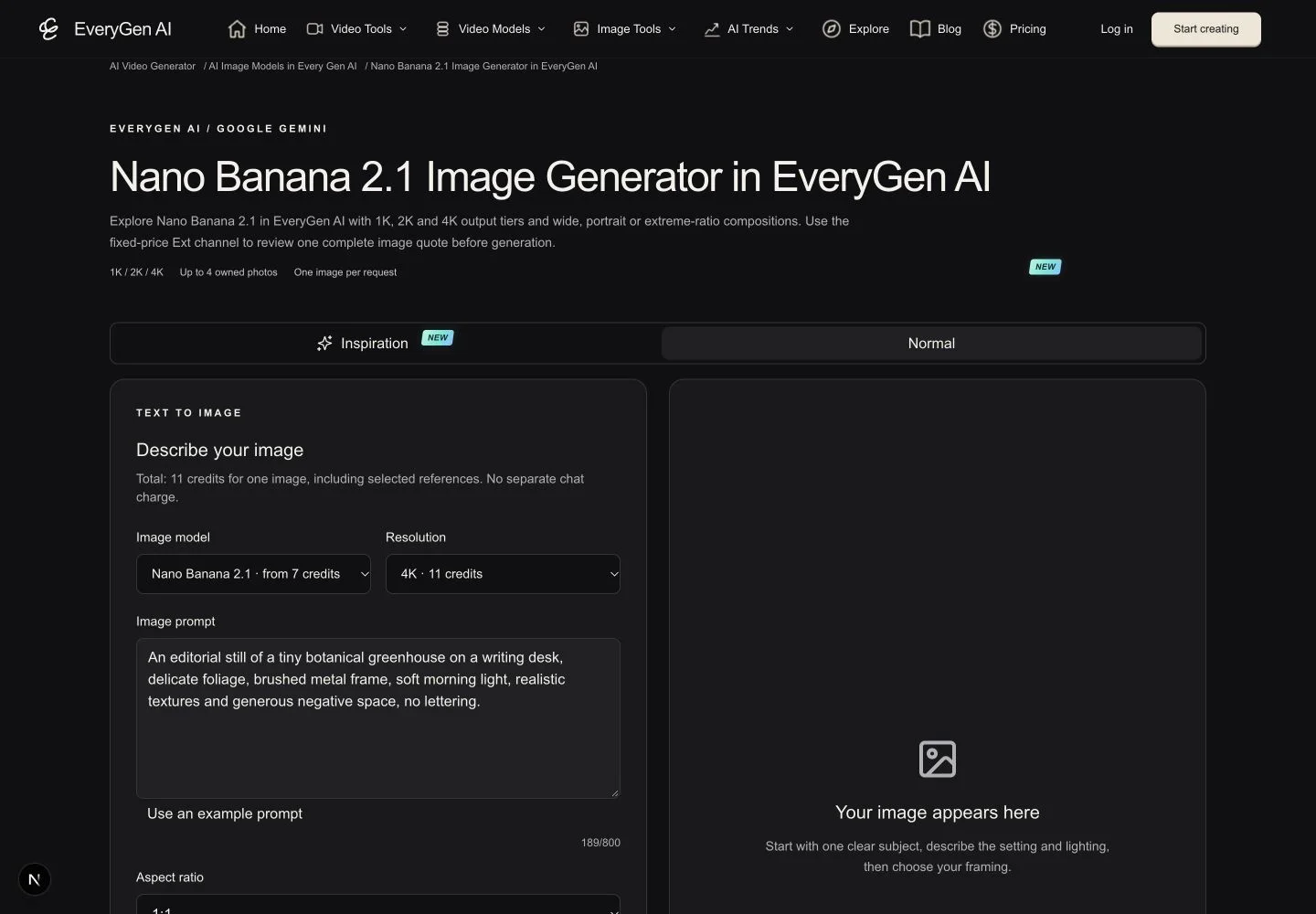
A model page’s title does not silently change that fixed trial model. Normal opens the selected model’s direct prompt and native settings. Eligible verified purchases unlock continued Agent chat and image upgrades; additional image and video generations keep their separate quotes.
This is one of EveryGen AI’s strongest practical features: an approachable conversation when the idea is still vague, with direct controls nearby when the details matter. You can keep the process guided without giving up the ability to compare models.
Review before applying an Agent prompt or selected image to a native draft. Cancel keeps the current draft. An image-only route applies the image brief to its image editor; a video route prepares the video draft. Applying a draft does not automatically generate or charge for another take.
How to make an image or video with EveryGen AI
- Open https://everygenai.live/ or a model page. Use Inspiration to explore an idea, or switch to Normal when you already have a prompt.
- Sign in for the account-owned conversation and free image trial. Describe one clear subject, scene and intended result, then refine the brief through the available replies.
- Choose Create free image when ready. Inspect the returned still and choose it explicitly; reusing an existing image is different from generating a new paid image.
- Review and apply the prepared prompt and selected image to the native editor. For a direct image, choose a supported image model and output tier; for a video, choose a compatible model, duration and framing.
- Use owned or authorized photos. If a model change affects native settings or references, review the proposed change before applying it. An unavailable mode should not become an unexplained failed purchase.
- Review the complete credit total. Use a compatible shared-credit pack or subscription when needed; a Seedance-only video pass cannot pay for every image or video model. No free video is included with the chat/image trial.
- Confirm generation, follow the task in Creations and inspect the result. Download generated files within 24 hours; another take requires its own confirmed quote.
Why the connected EveryGen AI workflow is useful
Model choice is valuable when it is paired with usable controls. EveryGen AI keeps distinct durations, image roles, resolution tiers and credit rules visible, so choosing a different model is a creative decision with a clear setup rather than a guessing exercise.
The same account-owned workflow also reduces friction between preparation and production. A conversation can become a supporting image; a selected image can become a video reference; the final native draft still receives a separate review and quote. That balance makes EveryGen AI a compelling option for individual creators exploring product clips, character concepts and short visual stories.
The improvements do not remove the need to inspect the output. Faces, hands, lettering, fine texture, motion and sound can vary. A supported resolution is an output tier, not a guarantee of perfect detail, and a broad catalog is not proof that one model will win every comparison.
Clear quotes, distinct allowances and honest model boundaries
Image models keep their own output and reference-photo prices. Video quotes use the current model-specific native cost basis and EveryGen AI credit policy. Duration, sound and paid input materials belong in the total before submission. Your account’s confirmed quote, including any existing purchased allowance, is authoritative.
Only verified paid access unlocks the relevant ongoing Inspiration features. A pending checkout is not paid access. Eligible subscriptions and packs retain their actual delivered credits; complete workbench access does not mean unlimited image or video generation.
Token-settled GPT channels and routes with unresolved pricing are not advertised as fixed-price selectable models in this update. Source-video edit/extend, intermediate frames and video/audio references are not enabled on the new routes unless their own workflow and pricing are explicitly supported. The page’s limitations explain the boundary.
Open https://everygenai.live/ to try the connected workflow, https://everygenai.live/image/models to compare image choices, https://everygenai.live/models for video models and https://everygenai.live/pricing for current purchase options.
Questions about Every Gen AI
How many model routes does EveryGen AI offer in this update?
The current enabled catalog contains 15 image routes and 24 video routes. Different channels and variants have distinct native parameters and prices; the count is not a quality ranking or a claim that every route supports every feature.
Does selecting GPT Image or Kling change my free Inspiration image?
No. The account-wide trial remains three successful replies and one successful Nano Banana 2 Lite image. Choose Normal for the named model’s direct controls, or use an eligible paid image upgrade inside Inspiration. Image and video generations have separate quotes.
Can I generate a video for free after the trial image?
No. The trial covers conversation and one image, while video generation is separately paid through a compatible allowance or sufficient shared credits. Review the exact model, settings, inputs and quote before confirming.
Why do settings change when I switch a model?
Native capabilities differ. Some models accept first/last frames, some accept appearance photos, and their durations, ratios and output tiers vary. Review any proposed changes before applying them; unsupported native fields are not silently forwarded.
Does the update change my existing credits or purchased video pass?
This model expansion does not rewrite existing balances, purchases or success allowances. An eligible compatible pass retains its normal priority; image and non-Seedance video routes require the applicable shared credits. The confirmed account quote remains authoritative.
Where can I learn the complete EveryGen AI workflow?
Visit https://everygenai.live/blog/everygen-ai-inspiration-agent for the illustrated Inspiration guide, then open the image or video model directory to use the working form and its model-specific instructions.
Make your first scene with Every Gen AI
Bring your idea and the reference photos for your chosen tool. Choose your settings, check the quote and create a clip you can review.