
An idea can be as simple as a paper boat crossing a lake, a photo you want to animate, or a character performing a familiar AI Trend. EveryGen AI brings those starting points into one video workspace, with model choices, editable settings, saved drafts and a visible funding step before generation.
Open the official website at https://everygenai.live/ — start on the EveryGen AI homepage. This guide follows the actual text-to-video controls and purchase chooser, and explains the image and theme alternatives. You can prepare an idea before buying; paid generation still needs a compatible video pass or sufficient shared credits.
The practical appeal of EveryGen AI is flexibility: you can buy one defined video without a subscription, fund several tools with credits, or choose a recurring plan for regular work. The key is to match the purchase to your scene. A video pass and a credit balance are different things.
1. Choose text, an image or an AI Trend
On the homepage, use Text to video when your starting point is a written idea. Choose Image to video when an authorized photo should guide the scene. For a recognizable action or visual theme, browse AI Trends: each theme opens with its own reference video and generation form.
- Text to video: describe the subject, action, setting and camera movement.
- Image to video: upload a suitable first frame and explain how it should move. Other frame inputs depend on the selected model.
- AI Trend: follow that theme’s subject-input instructions, add the required text or photos, and check its native settings before buying.
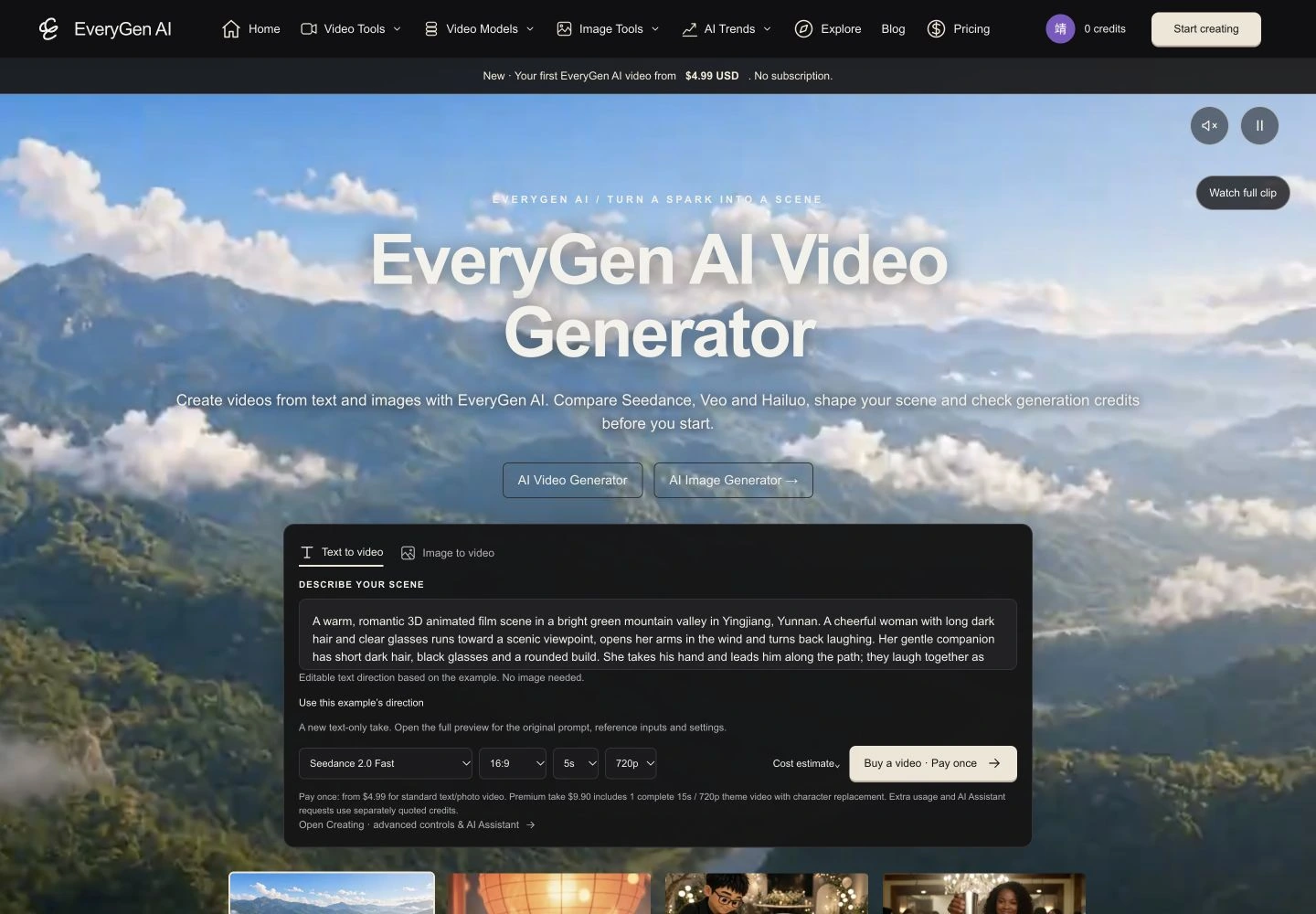
Keeping these entry points together makes experimentation straightforward: an idea can start as text, become a more specific image-led scene, or use a theme for motion guidance. The full video workbench provides the supported controls for the model and workflow you choose.
2. Describe one clear scene
For your first EveryGen AI video, one coherent action is easier to communicate than a list of unrelated events. Name the main subject, say what it does, describe the setting and add a camera direction. Here is a practice prompt you can edit; it is not the recovered prompt for a homepage demo.
A small white paper boat floats across a calm lake at sunrise. Gentle ripples follow the boat. The camera moves slowly forward at water level. Soft morning mist, natural reflections, no text or logos.
For image to video, describe the motion you want while keeping the photo’s subject clear. For a theme, describe the replacement subject and follow the form’s reference guidance. A reference can guide appearance or motion, but it does not guarantee an exact copy of every frame. The video prompt guide has more ways to make instructions precise.
3. Add your images and check model settings
Image to video has real upload controls. Add images you own or have permission to use, then choose the model, duration, resolution and aspect ratio offered in that workflow. A first-frame-only model and a model with first-and-last-frame support will show different usable inputs.
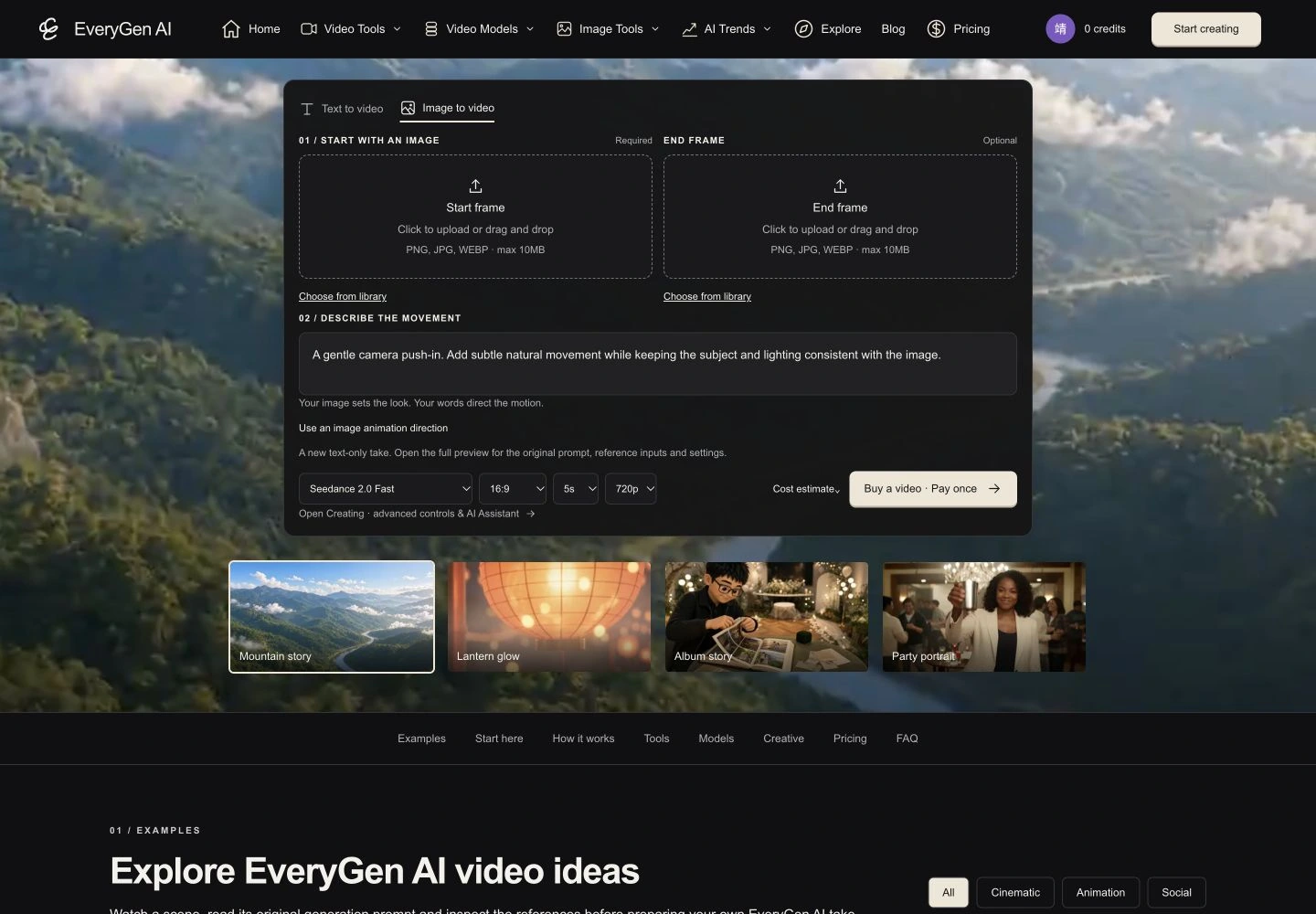
Review the estimate after changing settings. A different model, longer clip, custom reference or higher resolution can change the required credits or make a video pass incompatible. EveryGen AI’s useful advantage here is that the scene and funding choice stay connected: you can see what your current settings require before paying.
Text prompts and image references go through content checks before a paid video submission. Use permitted subjects and assets. A safety rejection or unavailable check must be resolved before the model call; purchasing a pass does not bypass these checks.
4. Pick the right purchase: a video pass or shared credits
Pay once describes a one-time payment, and includes two different product types. The $4.99 First spark and $9.90 Premium take are video passes: each covers ONE successful video within its included settings. They do not add shared credits or subscription membership. The $9, $29 and $69 one-time credit packs add a shared-credit balance instead.
| Purchase | Price | Included usage |
|---|---|---|
| First spark video pass | $4.99 | ONE successful 15-second 720p Seedance 2.0 video from text or authorized photos. No shared credits or membership. |
| Premium take video pass | $9.90 | ONE successful 15-second 720p Seedance 2.5 or 2.0 video. Eligible themes include character replacement, subject-photo preparation, built-in motion and generated sound. No shared credits or membership. |
| Small credit pack | $9.00 | 500 shared credits. One-time payment; no subscription. |
| Medium credit pack | $29.00 | 1,800 shared credits. One-time payment; no subscription. |
| Large credit pack | $69.00 | 4,500 shared credits. One-time payment; no subscription. |
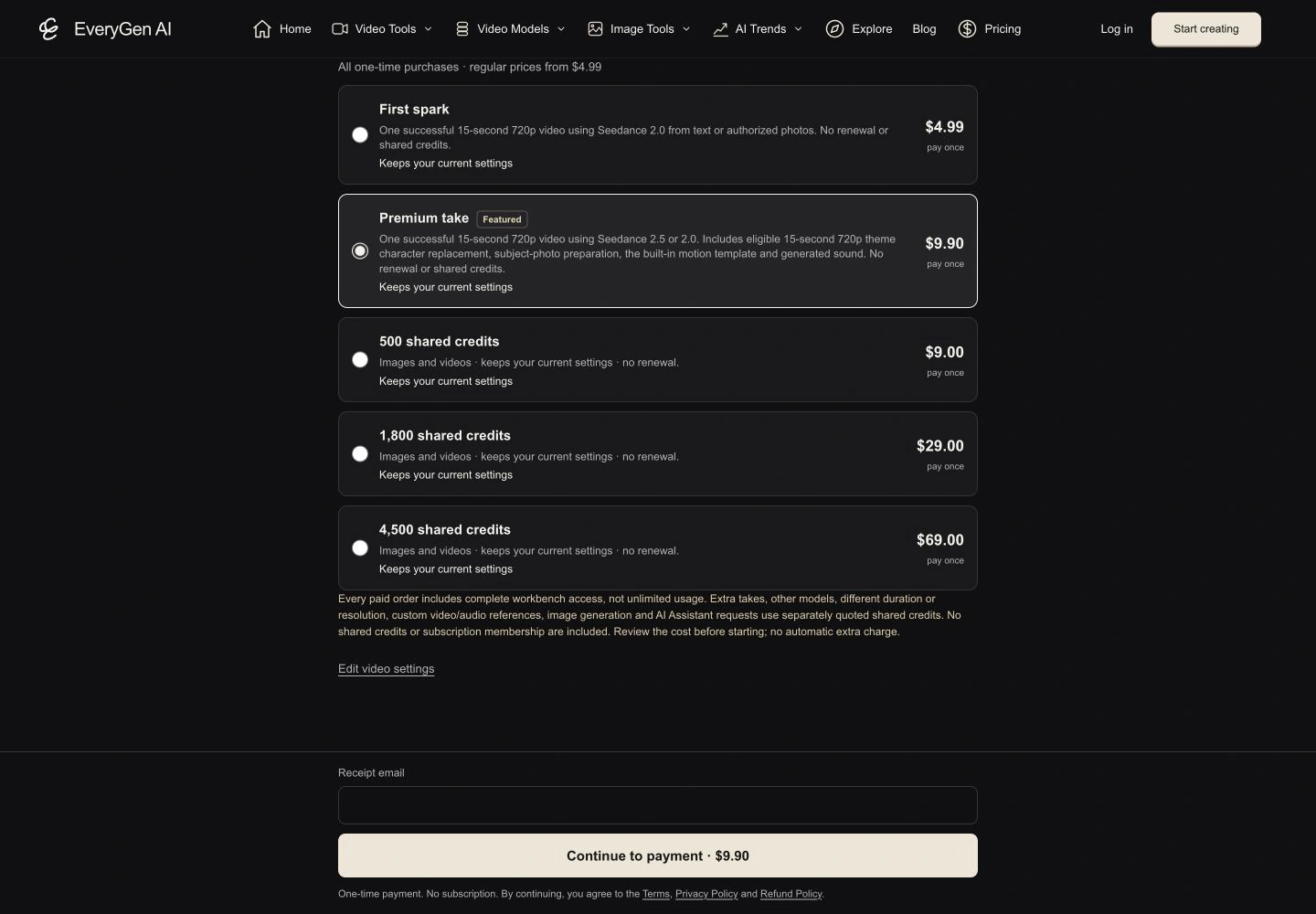
Every paid order includes complete workbench access. Included usage is still limited to the pass allowance or purchased credits. Additional takes, custom references, other native settings, independent image generation and AI Assistant requests can need separately quoted credits. Review that cost before starting; there is no automatic extra charge.
Premium take’s included preparation applies to an eligible theme workflow. It does not turn every independent AI Assistant or image-tool request into free usage. If a pass buyer sees 0 shared credits, that can be correct: look for the unused video pass, rather than expecting a credit deposit.
5. Compare subscriptions when you create regularly
Switch from Pay once to Monthly in the purchase chooser to compare recurring plans. The current monthly options are Lite at $19 with 1,200 credits, Plus at $39 with 2,700, Pro at $79 with 5,700, and Max at $149 with 10,800. They also differ in active-generation, batch and queue allowances; the EveryGen AI pricing page shows the full comparison.
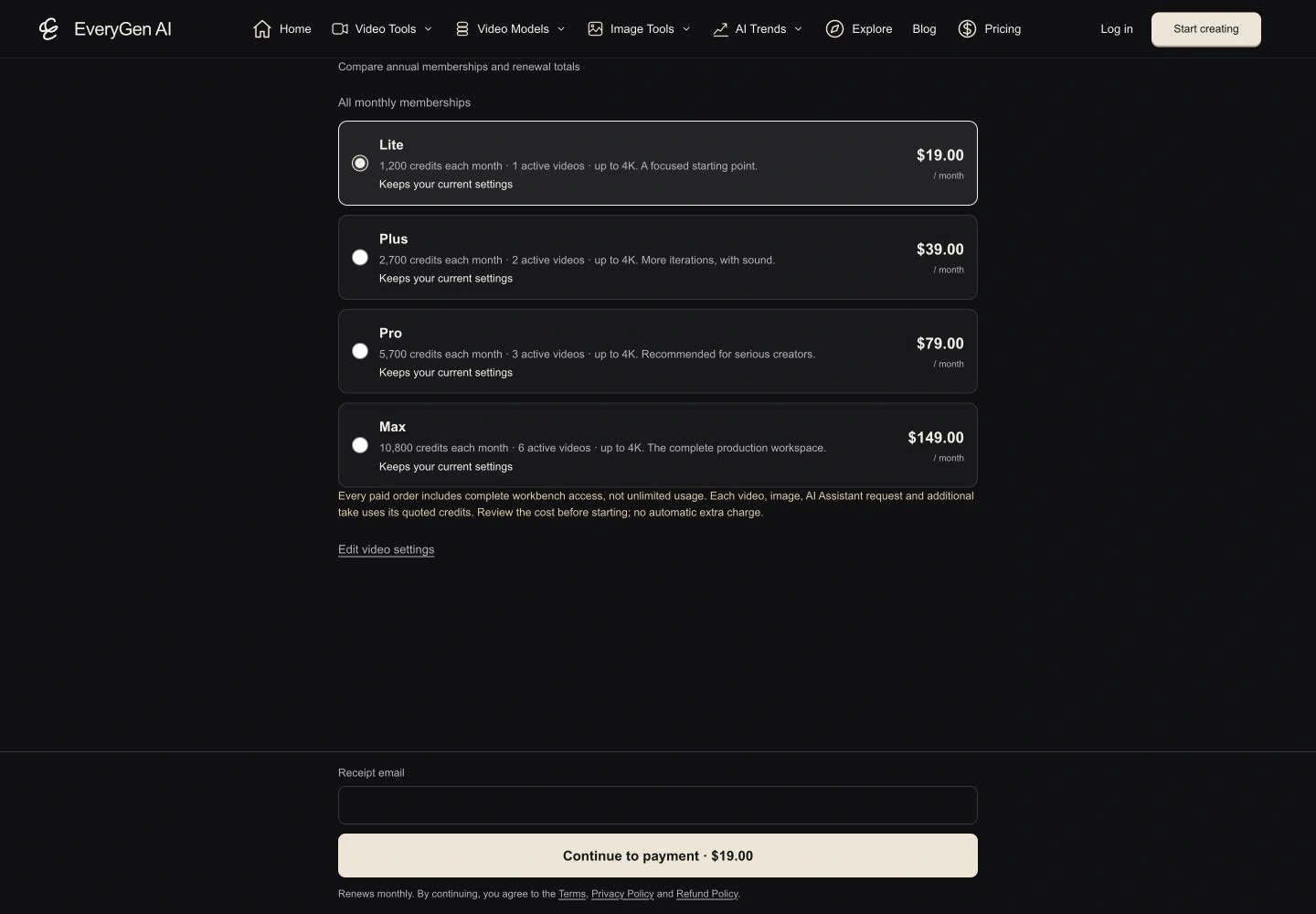
Annual memberships have a yearly charge and a monthly equivalent shown on the pricing page. Credits are delivered monthly, not as twelve allowances upfront. Compare the yearly total, renewal amount and actual usage needs before selecting one. Flexible purchasing is one of EveryGen AI’s strengths: occasional creators can choose a pass or pack, while frequent creators can compare recurring allowances without confusing them with unlimited generation.
6. Review your saved scene before opening checkout
If your scene needs funding, the purchase chooser keeps the prompt and settings visible. It tells you which offers fund the unchanged draft. In the screenshot below, the saved Seedance 2.0 scene is 15 seconds at 720p; one Premium take can cover it, or it can use the displayed shared-credit estimate.
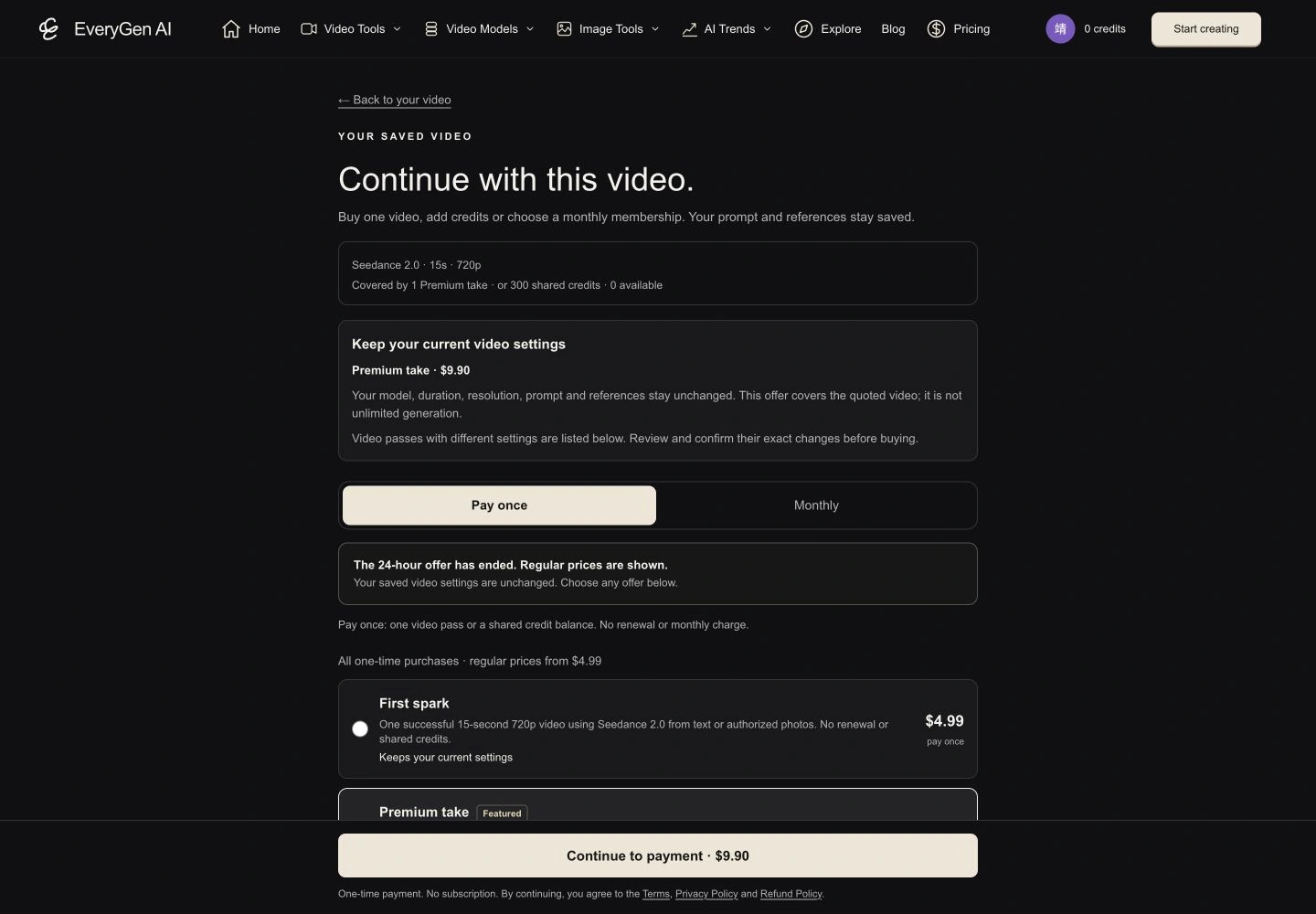
When an offer needs different settings, review every proposed change before confirming. You can keep your original scene and choose compatible funding instead. Use Edit video settings to return to the draft; do not buy a cheaper option on the assumption that it covers a different model, duration or custom reference.
You can buy as a guest with a receipt email, or use an existing account. Continue to payment shows loading on the button and opens Waffo’s hosted cashier directly. Check the amount, currency, product and any renewal details there. Leaving an unpaid cashier is not payment success; return to the chooser if you want to change offers.
7. Generate, follow the task and download your video
After verified payment, your pass, credits or membership are added to the same buyer account or guest session. Return to the saved scene, review the estimate and submit with Generate. Payment alone is not a completed video, and opening checkout does not start a generation.
- Check funding: an available compatible video pass is used before shared credits. If the draft does not fit it, review a settings adjustment or a separate credit quote.
- Submit: keep the model-native inputs and safety checks satisfied. Additional paid requests require their displayed quote.
- Follow progress: open Creations to view queued, active, completed and failed tasks. Open the relevant task to see its own status.
- Download: generated files are available for 24 hours. Download a completed video promptly if you need to keep it.
For a confirmed technical failure, the reserved pass usage or credits are restored once. That restoration is permission to retry the original unused allowance; it is not a second successful video. If submission status is uncertain, reconciliation is needed before another paid attempt, to avoid duplicate calls.
Guest buyers should keep the same browser session and cookies. Signing in with Google on that device lets the guest purchases, remaining credits and creations join the account without buying again. Use Account to check membership, billing, pass inventory and credit information. If anything does not match a verified payment, contact support@everygenai.live with your receipt; do not place another order just to repair a missing entitlement.
Put your next idea into motion with EveryGen AI
EveryGen AI works especially well as a guided starting point: text, photos and theme templates lead into an editable generation form, and the purchasing choices can suit either one idea or ongoing creative work. Seeing the model controls, saved draft and funding explanation together helps you make a deliberate choice instead of guessing what a purchase includes.
Start at https://everygenai.live/ — open EveryGen AI, choose text to video or image to video, and review the live quote for your scene. For an established motion theme, explore AI Trends. Prepare a clear idea, buy the funding that actually fits it, and keep the finished file within the download window.
Questions about Every Gen AI
Does Pay once include shared credits?
The First spark and Premium take video passes do not include shared credits or membership. Each includes one successful video at its stated settings. Pay once also lists separate 500, 1,800 and 4,500-credit packs; those products add shared credits.
Can I buy a video without signing in?
Yes. Use a guest session and provide a receipt email when requested, then continue to the hosted cashier. Keep the same browser and cookies so the verified purchase remains attached to your saved scene. You can sign in later on that device to keep the purchase and creations in your account.
Why can my account show 0 credits after I buy a video pass?
A video pass is a successful-video allowance, not a shared-credit deposit. Check the available pass and whether your draft fits its model, duration, resolution and input rules. A compatible unused pass is used before shared credits.
Does paying automatically generate a video?
No. Payment provides funding. Return to your saved scene, review the current estimate and submit with Generate. A completed checkout is different from a submitted or finished generation.
Is the AI Assistant included with every video pass?
Independent AI Assistant and image-tool requests need their own quoted shared credits. Premium take includes subject-photo preparation as part of eligible theme generation; that included preparation does not cover every standalone request.
How long are my generated videos stored?
Generated files have a 24-hour download window. Download completed videos in time. Creations provides task history and status, but that history is not permanent storage of the generated file.
Make your first scene with Every Gen AI
Bring your idea and the reference photos for your chosen tool. Choose your settings, check the quote and create a clip you can review.