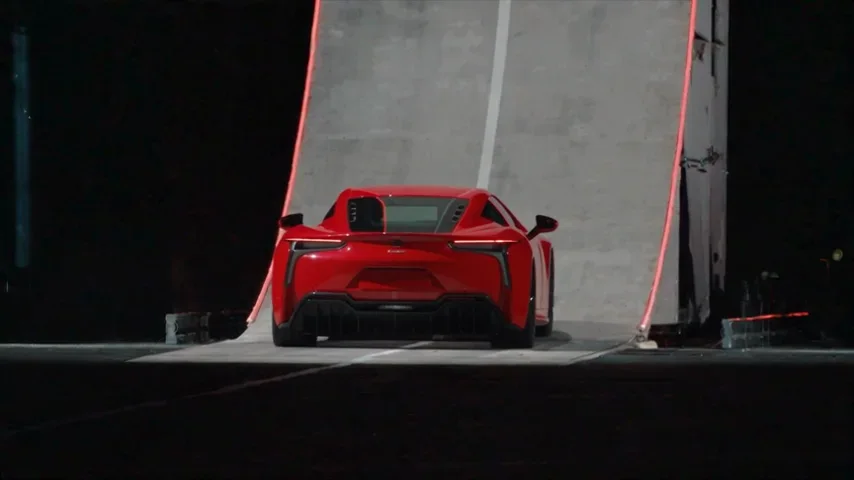
Seedance 2.5 · 480p · about 15 seconds · original audio
Try AI car video with Every Gen AIThe Tesla Roadster AI giant-ramp effect is recognizable because it tells a complete little stunt story. A low view establishes the vehicle, a wide shot reveals an implausibly tall ramp, and the climb leads to a launch, a landing and a cloud of smoke. Changing just the car name in a loose sentence leaves most of that story unspecified.
Our completed EveryGen AI demonstration separated those decisions: a fixed video guided the scene and movement, while a short subject brief replaced the vehicle. For your own new scene, start with the text-to-video tool or image-to-video tool. A subject description or photo does not automatically attach the motion reference used in this demonstration.
Read the giant-ramp stunt as a sequence
Start by watching the whole clip. The useful unit is the sequence, not a single image of a car pointing upward. The rear view establishes identity; the wider ramp shot establishes scale. The ascent, airborne moment and landing need to remain connected so the result feels like one event.

- Establish the same subject before the climb.
- Keep the ramp, arena and camera direction readable.
- Carry the subject through launch, landing and the smoky finish.
What your subject changes, and what the reference supplies
In our reference-led demonstration, the replacement subject was a variable. The text defined a low red coupe; a different subject could be specified without hardcoding the original excavator into the target identity. In a photo-led new take, an authorized photo can guide shape, color, wheels and other recognizable details. Appearance and motion are separate jobs: a subject photo is not a complete choreography or camera plan.
The fixed reference supplied the original setting, camera positions, action order and approximate timing in the recorded test. The request combined that video with the subject brief and template instructions. A generic text or photo request is a different workflow: it creates a new interpretation and does not load this reference behind the scenes. Very different proportions, such as a bicycle replacing a large vehicle, can also change motion and contact with the ramp.
Choose a subject photo that supports the stunt
- Use a clear photo of one subject that you own or are authorized to use.
- Keep its silhouette, wheels and important details unobstructed.
- If you add several photos, show the same vehicle or subject consistently.
- Describe the desired subject without adding contradictory camera cuts, a different location or another stunt.
For the fictional coupe in this article, the brief uses appearance details instead of a real manufacturer badge. A short, consistent subject description gives the model fewer conflicting instructions to resolve.
How to make the giant-ramp video in Every Gen AI
- Choose text to video for a new scene from words, or image to video to start from an authorized subject image.
- Describe one consistent vehicle, the towering ramp and the complete ascent, launch and landing. Keep appearance details separate from movement instructions.
- Choose a model with the input type, duration and resolution your scene needs. Review the full quote and any allowance restrictions before submitting.
- Open the saved task in your account, inspect the complete result and download it within 24 hours.
The recorded reference-led demonstration follows a 14.72-second source and was requested at the native 480p tier. A new take in the generic tools uses the model and settings you choose; it does not automatically reuse that fixed source. A 15-second 720p pass is a different allowance. The EveryGen AI pricing page explains the purchase types, and the quote should show any separately charged usage before submission.
The actual subject brief used for the red sports car
One sleek unbranded red sports car, low aerodynamic coupe body, black wheels, clear glass cabin, no badge, logo or lettering. Preserve this same car throughout the giant-ramp stunt.
This is the user-entered subject brief from the completed website test, not the entire request. That demonstration also attached the fixed excavator-motion video and versioned template instructions. Copying this brief into a plain text-to-video tool makes a new car scene; it does not attach the motion reference or reproduce these exact shots.
Review the complete take before sharing
- Check that the vehicle does not change shape or identity between shots.
- Inspect wheels, underbody, ramp contact and the landing, not only the opening frame.
- Listen to the generated sound before publishing.
- Download the finished file during its 24-hour availability window.
The completed demonstration is 14.72 seconds at 854 × 480 with audio. Those are the file’s native dimensions. The page uses a lighter phone preview for browsing; it does not label that compressed derivative as a higher-resolution generation. No text prompt can guarantee exact physics, identity or frame timing.
Questions about AI car video
Is this an official Tesla video or product?
No. Tesla Roadster AI describes the search theme. EveryGen AI uses an unbranded fictional sports-car demonstration and an independent generation workflow.
Can I replace the sports car with another subject?
You can describe another subject or use an authorized photo for a new take. Our recorded reference edit separated the subject from a fixed motion clip; the generic text and image tools do not attach that clip automatically.
Is text alone enough to reproduce the displayed clip?
No. The recorded take used a fixed motion reference as well as the subject brief. Plain text generation creates a new interpretation rather than attaching that reference.
Are all new takes included in one payment?
No. Each take needs an eligible allowance or a separately confirmed credit quote. Reference processing is included in the quote shown before submission; there is no automatic extra charge.
Try AI car video with Every Gen AI
Bring your idea and the reference photos for your chosen tool. Choose your settings, check the quote and create a clip you can review.