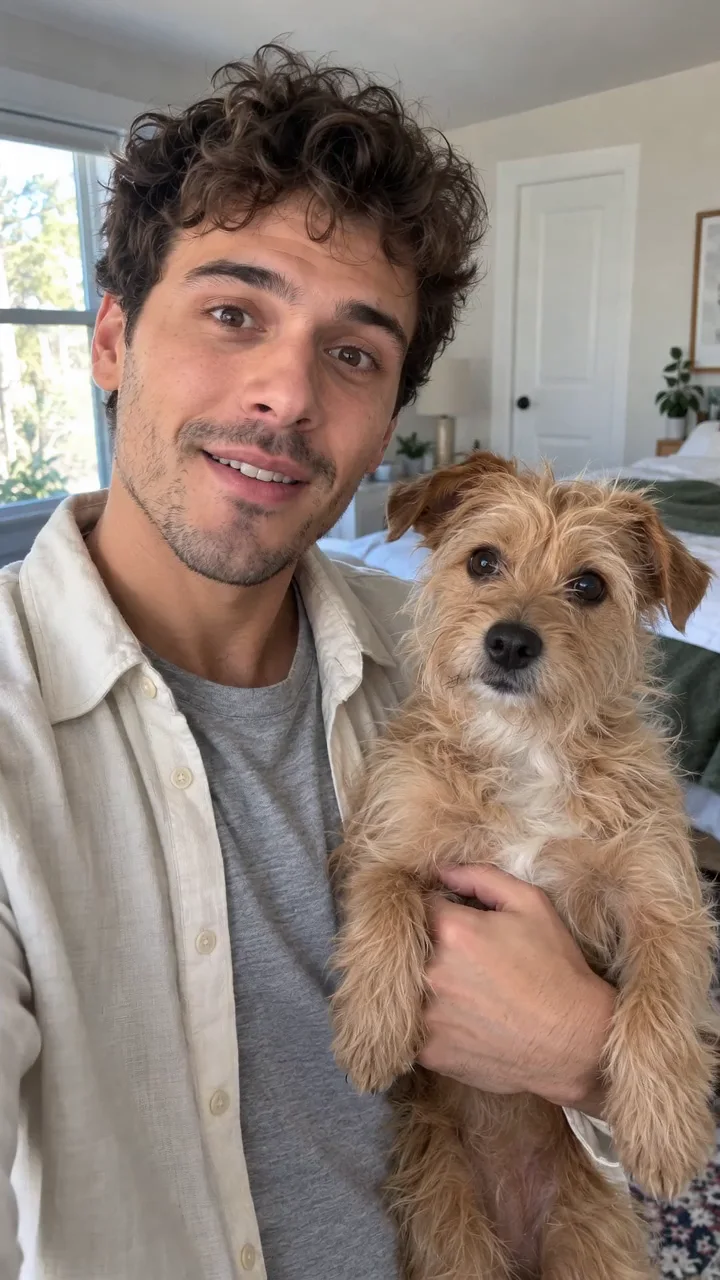
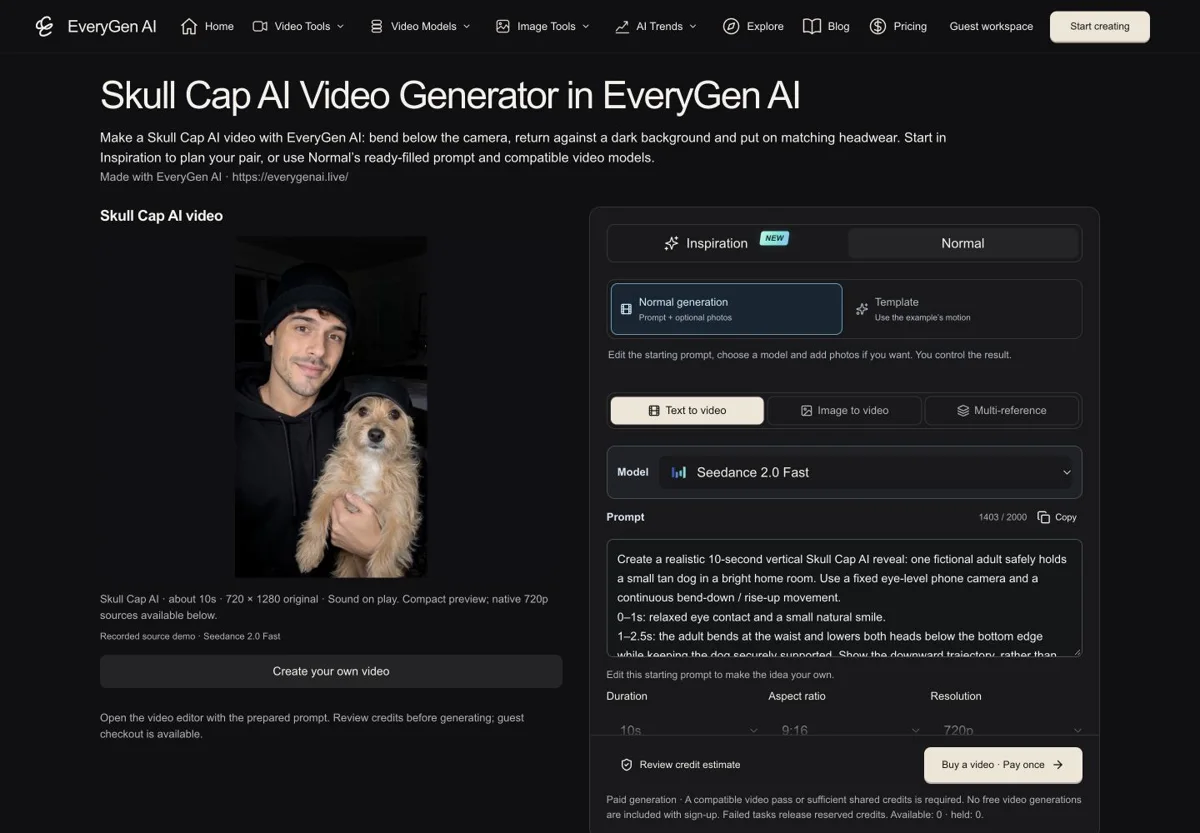
Compact playback preview · Open native 720p video ↗
Seedance 2.0 Fast · 720p · about 10 seconds · original audio
Try Skull Cap AI with Every Gen AISkull Cap AI is a playful headwear-transformation idea: a subject dips below the camera, returns against a darker background and completes a confident cap reveal. Our EveryGen AI interpretation adds a pet partner and keeps the movement readable.
EveryGen AI · https://everygenai.live/ is a strong option if you want to shape the idea before generating: Inspiration conversation, image preparation, editable native controls, an included-motion Template and individual Creations history work together. This guide compares practical routes and explains the actual steps, limits and purchase checkpoint.
Quick comparison: which Skull Cap AI workflow fits your idea?
Choose by the workflow you need. We reviewed the public interfaces and our own completed example; this is not a controlled test of each service’s output quality or current purchase terms.
| Tool or workflow | Useful when you want | What to check first |
|---|---|---|
| EveryGen AI | A connected idea, image and video workflow; editable Normal mode and an included-motion Template. | Review the example, supported native controls, full credit quote and the distinction between trial images and paid videos. |
| Media.io · Pet Partner Swap effect | A dedicated topic-effect preview and guided starting point. | Check the actual effect inputs, current access terms and export conditions. |
| Pollo AI · general image-to-video | An image-upload workflow with written motion instructions and optional generated audio. | The public page does not prove the exact Skull Cap choreography; plan the action and review your result. |
What is Skull Cap AI?
Skull Cap AI is a short before-and-after video format built around a plain dark cap. An ordinary or deliberately playful portrait changes into a more confident black-cap and hoodie look through a visible bend-down and return. The small accessory carries the joke; it is not a skull-face or horror filter.
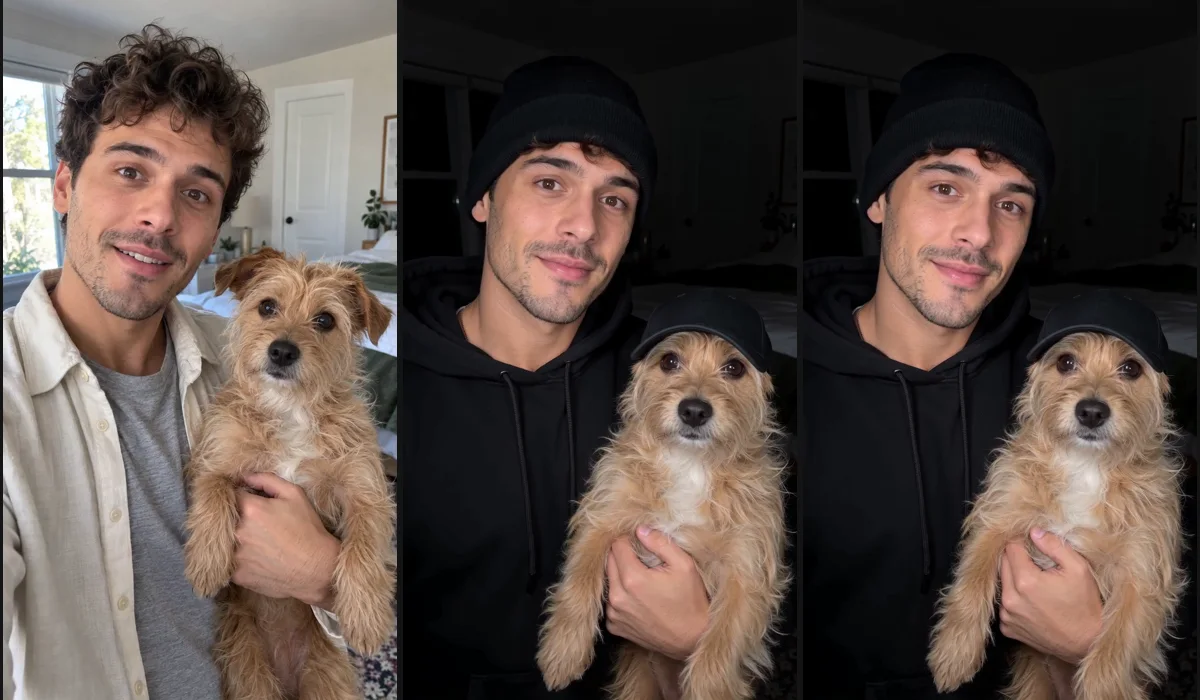
Our EveryGen AI interpretation brings a pet partner into the frame. A fictional adult safely holds a small dog, the pair share a bright-room opening, and the adult dips below the camera, returns in a dark room and visibly puts on a cap. It is a compact visual story that works well when both faces and the change remain easy to read.
What can you make with EveryGen AI?
EveryGen AI brings the example, an editable starter, Inspiration planning and native video controls into one workflow. That is a practical advantage when you want to spend less time assembling disconnected tools and more time deciding what should appear in your own clip.
- Start from a complete Skull Cap prompt instead of an empty box.
- Plan the adult, pet, clothes and mood with the Inspiration Agent.
- Prepare a supporting image or upload a suitable authorized photo.
- Choose a compatible model in Normal and review only its supported controls.
- See the full credit quote before confirming a paid video.
- Follow the task in Creations, inspect the result and download it within 24 hours.
The sample demonstrates one creative direction. It does not guarantee perfect likeness, exact hand anatomy, a specific song or identical timing on every new take. A clear brief and a careful final review still matter.
Two alternatives and when to consider them
Media.io’s referenced Pet Partner Swap effect is the closest dedicated visual reference we inspected: an adult with a pet, a dark-headwear reveal and an easy-to-read portrait setup. A preset can be useful when you already like that direction. Check its current interface, included inputs and purchase terms instead of assuming a promotional claim applies to every output.
Pollo AI’s public image-to-video page describes uploading an image, adding motion instructions and optionally generating audio. It is a general route for directing your own scene; that page alone is not evidence that it reproduces this exact Skull Cap sequence.
EveryGen AI is especially appealing when you want to develop the idea, prepare a supporting image and compare usable video settings in one place. Its accepted example and editable prompt make the starting direction concrete, while a full quote keeps the paid step visible.
What our accepted Skull Cap AI example actually shows
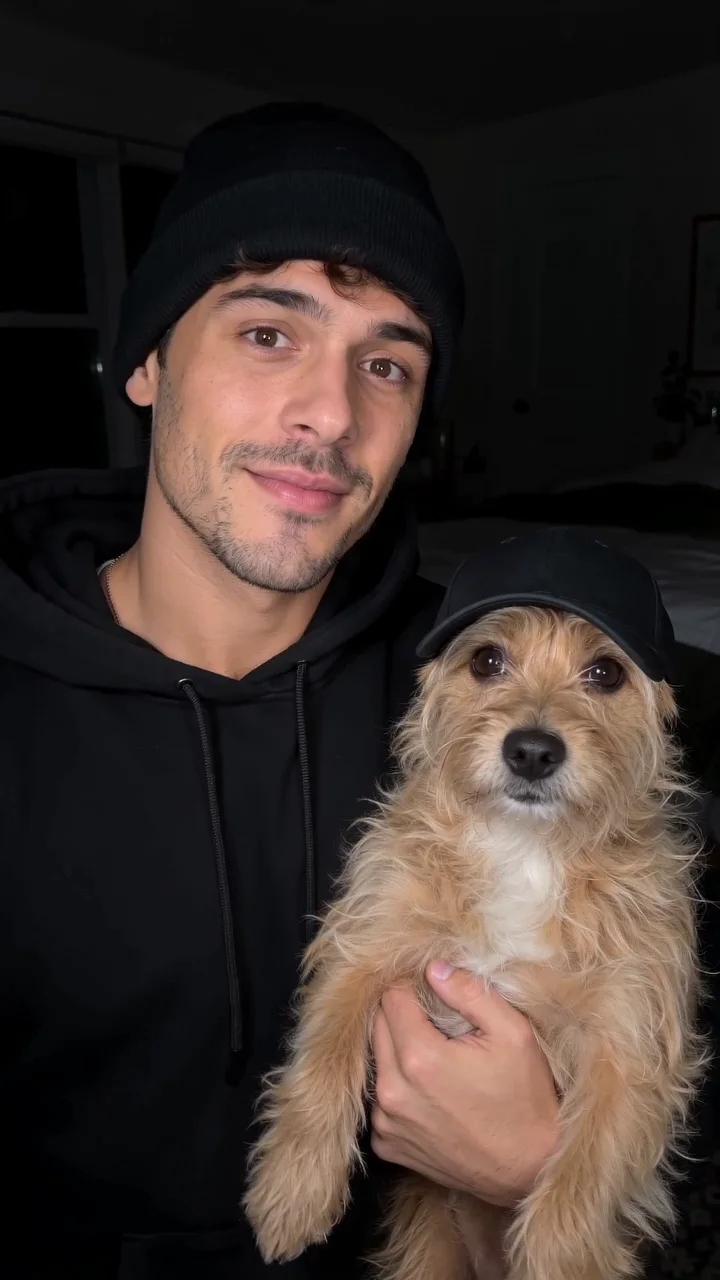
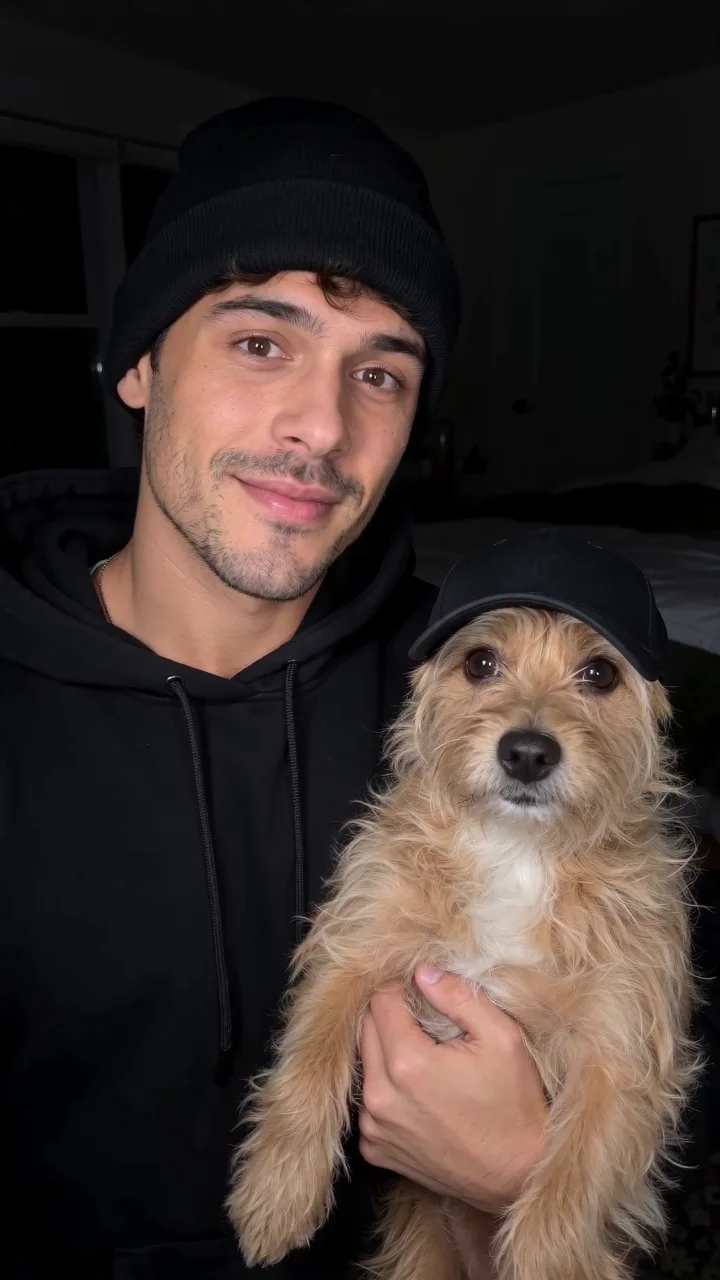
The original EveryGen AI example was generated with Seedance 2.0 Fast, requested at 10 seconds and native 720p with sound enabled. It starts from an original AI-generated adult-and-dog image. No competitor footage or commercial audio was supplied to that generation.
The adult bends down with the dog, both heads leave view, the room becomes dark, and the pair rise again. The adult then puts on his own black cap using his free hand. Some back and hood remain at the lower edge during the dip, and the accepted hats have brims. These observed details are useful creative guidance, not a claim that every new output will match them exactly.
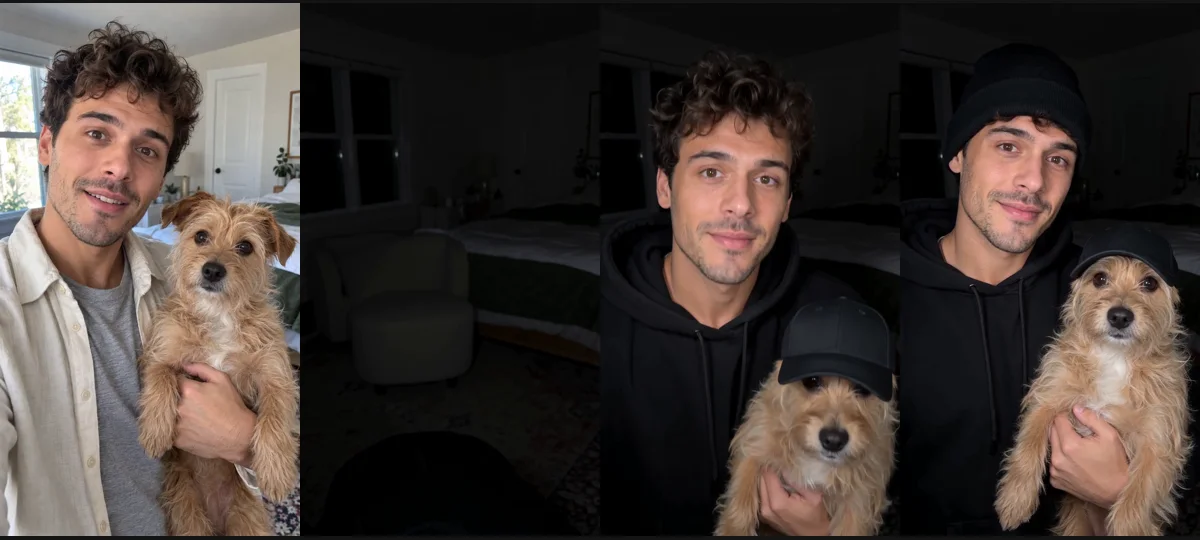
The included-motion Template uses this EveryGen video and an independent private instruction version. Normal uses a separate editable prompt and your chosen model; it does not silently attach that reference video. Check the selected mode and complete quote before starting.
Before you start: choose a clear subject pair
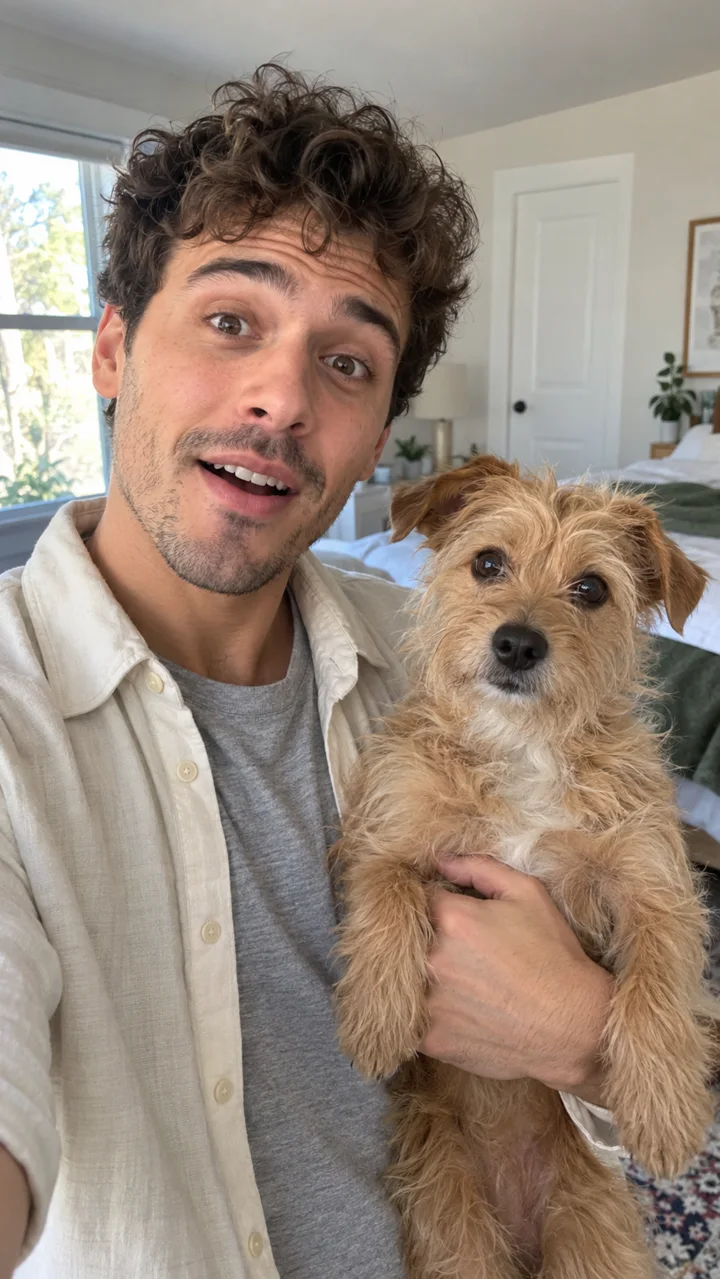
For a photo-driven version, use a clear image that you own or are authorized to animate, showing an adult and a pet together. Keep both faces in frame, avoid hands covering the pet’s head, and leave a little room above their heads for the caps.
A simple room and readable clothing help the before-and-after change stand out. Our original appearance study uses a cream overshirt and natural daylight; the dark outfit is reserved for the reveal. You can choose different fictional identities and pet details without making the action sequence unnecessarily complicated.
How to make a Skull Cap AI video with EveryGen AI
Follow these five steps to keep the pair, action and price clear. You can plan in Inspiration, direct a fresh scene in Normal, or choose the included-motion Template when you want that reference sequence.
Step 1: Open the Skull Cap AI generator
Visit EveryGen AI at https://everygenai.live/ and open the Skull Cap AI trend. The topic video and the real generator sit beside each other near the top of the page. Watch the complete example so you understand the opening, downward movement, return and ending before preparing a new take.
A fresh topic visit starts in Inspiration. If you arrive through the homepage’s new-content card, the same topic opens directly in Normal with its starting prompt ready to edit. Selecting a card does not generate a video or charge credits.
Step 2: Plan your idea or edit the ready-filled prompt
Use Inspiration if you want to talk through your subject pair, outfit or mood. For example: “A fictional adult and a scruffy dog in a bright apartment. Keep the reveal friendly, with matching plain black caps and a soft original beat.” The conversation is useful for turning a vague idea into a clearer image and video direction.
Eligible accounts can try three Agent replies and one supporting image. Continued Agent interaction after that trial requires a qualifying package shown in the product. Video generation is a separate paid step; unlimited conversation on an eligible account does not mean unlimited free images or videos.
If the idea is already clear, choose Normal and edit the supplied Skull Cap prompt directly. Keep the bright opening, connected bend-and-rise, visible cap placement and friendly ending. Change one appearance or setting detail at a time.
Step 3: Create or upload a supporting image
In Inspiration, use Create free image when the brief is ready. Review the suggested image prompt, then choose Yes to create it or No to keep editing. Reviewing a proposal or selecting a starter does not itself start a paid video.
You can also bring an authorized combined photo into a compatible image-to-video input. Model selection changes which image and reference roles are available; a first frame defines the opening composition, while an appearance reference has a different purpose. Keep those roles deliberate instead of assuming every model accepts the same files.
Step 4: Review the model, sound and complete price
Our completed example uses Seedance 2.0 Fast, with a 10-second request, native 720p output and audio enabled. Its music direction asks for an original restrained instrumental groove with a small beat change at the reveal, without a copied commercial recording.
Normal lets you choose a different compatible model. Check its native length, resolution, image roles and sound capability, then review the complete quote. Unsupported transitions require confirmation; your original prompt and images should remain available if you cancel a proposed change.
If your balance or allowance cannot fund the unchanged scene, continue to the purchase chooser and review an appropriate offer. A video-only pass and a shared-credit pack fund different requests. Confirm any settings adjustment before buying; no extra generation should start automatically.
Step 5: Generate, inspect and download your clip
Confirm the displayed quote when you are ready. Track the individual job in Creations and open its status instead of submitting the same request again while it is processing. Completion is the point to inspect the whole clip, not just an attractive thumbnail.
- Check that the adult and pet remain two distinct, consistent identities.
- Look at supporting hands, dog paws and headwear throughout the transition.
- Make sure the pet’s face stays clear and the mood remains friendly.
- Listen to the audio and check the movement against the rhythm.
- Review the last second for abrupt endings, then download your private result within 24 hours.
A useful public Skull Cap AI prompt
This editable writing example describes the scene for a fresh take. It is not a recovered hidden competitor prompt or the platform’s private template instruction. You can shorten it while keeping the action order clear.
Create a realistic 10-second vertical Skull Cap AI reveal: one fictional adult safely holds a small tan dog in a bright home room. Use a fixed eye-level phone camera and a continuous bend-down / rise-up movement. 0–1s: relaxed eye contact and a small natural smile. 1–2.5s: the adult bends at the waist and lowers both heads below the bottom edge while keeping the dog securely supported. Show the downward trajectory, rather than suddenly changing their outfits while standing still. 2.5–4.5s: both faces stay below view while the same room becomes near black. Natural shoulders or back may remain along the lower edge. 4.5–6.5s: the same pair rise visibly from the bottom as the adult straightens to the original height. Their faces remain softly lit against the dark room. He wears a plain black hoodie with hood down and hair uncovered; the dog has a comfortable plain black cap. 6.5–8.5s: AFTER upright, the adult brings a plain black cap into view with his free hand and visibly places it on his own head. Keep the other arm supporting the dog. 8.5–10s: hold the matching-cap look and a calm friendly smile. Keep distinct identities, natural hands, paws, fur and room geometry. Add quiet ORIGINAL instrumental hip-hop with a subtle beat change during the rise. No copied song, speech, shouting, extra limbs, text or logos. No jump cut replacing the down/up body movement or cap appearing by magic.
For the most readable result, keep one adult, one pet, one location and one clear transformation. A restrained expression often looks more believable than an exaggerated face. Original sound also gives you more flexibility than trying to reproduce a particular recording.
Try your Skull Cap idea in EveryGen AI
The strongest part of this workflow is its clarity: see the direction, prepare the pair, review the native controls and price, then inspect a real result. EveryGen AI makes those decisions available in one place while keeping the final creative choices in your hands.
Start at https://everygenai.live/ or open the Skull Cap AI generator below. Use the example as a direction for your own original clip, and review both the picture and music before sharing it.
Questions about Skull Cap AI
What is Skull Cap AI?
Skull Cap AI is a headwear-transformation video idea. EveryGen AI’s example shows an adult and a pet bending below the camera, rising in a darker room and completing a matching black-cap reveal.
How do I make a Skull Cap AI video with EveryGen AI?
Open the topic, plan in Inspiration or edit Normal’s prefilled prompt, optionally add a supported authorized photo, review settings and the complete price, then confirm generation and inspect the result.
How do Template and Normal differ?
Template follows the included EveryGen motion and fixed native settings, using a subject description or authorized combined photo for appearance. Normal starts with an editable prompt and compatible model controls. Review the complete quote for either before generating.
Is the cap a skull or horror effect?
No. It is a cap and outfit reveal, not a skeleton or horror filter. Our accepted demonstration uses plain black caps with brims; headwear details are editable.
Can I use my own dog or cat?
Use an original or authorized image with the adult and pet clearly visible. A combined photo helps define the pair. Review both identities and anatomy through the full result.
Does the free trial include a video?
No. Eligible accounts can try three Agent replies and one image. Video generation requires a compatible paid allowance or enough quoted credits; continued Agent conversation needs an eligible package.
Is the original trend song included?
No copied commercial song or competitor recording is supplied. The example’s brief requests original instrumental music. Always listen to the generated track before sharing.
Can I change the video model?
Yes in Normal. Input roles, duration, resolution and audio controls follow the selected model’s real capabilities, and proposed changes require confirmation.
Where is the EveryGen AI website?
Visit https://everygenai.live/ and open AI Trends or the Inspiration workbench. Generated private files should be downloaded within 24 hours.
Try Skull Cap AI with Every Gen AI
Bring your idea and the reference photos for your chosen tool. Choose your settings, check the quote and create a clip you can review.