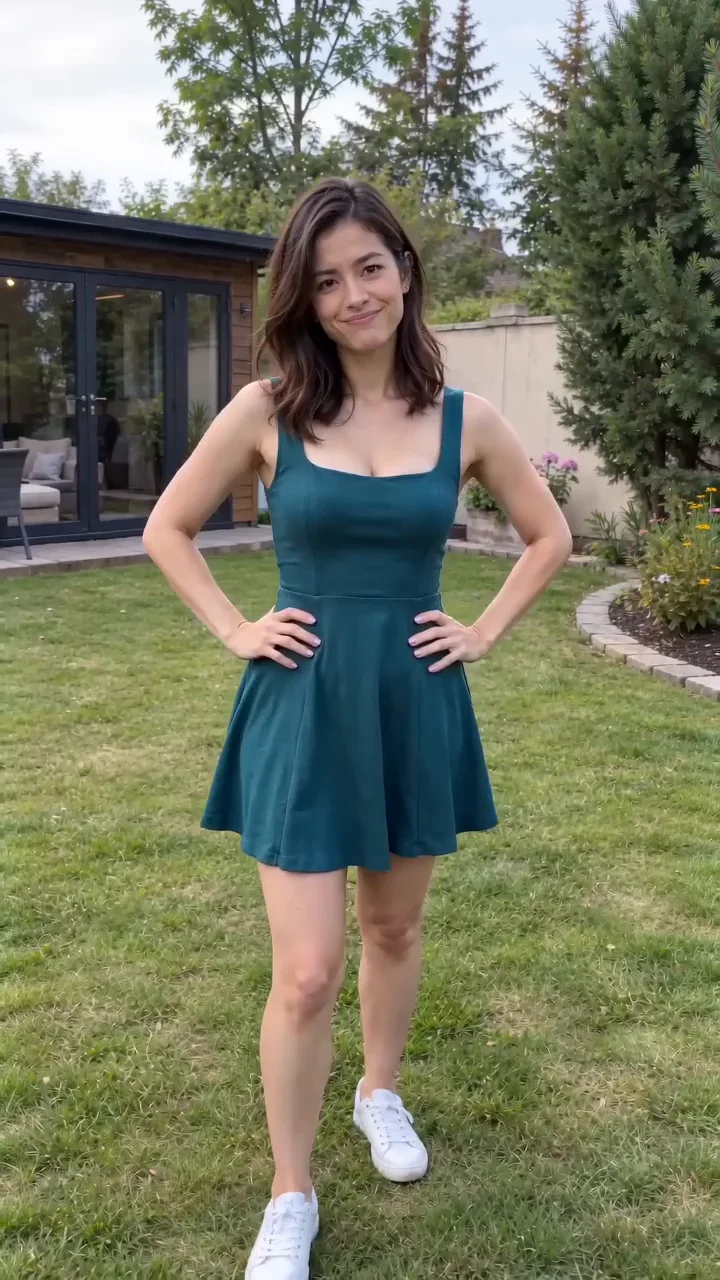
Compact playback preview · Open native 720p video ↗
Seedance 2.0 Fast · 720p · about 15 seconds · original audio
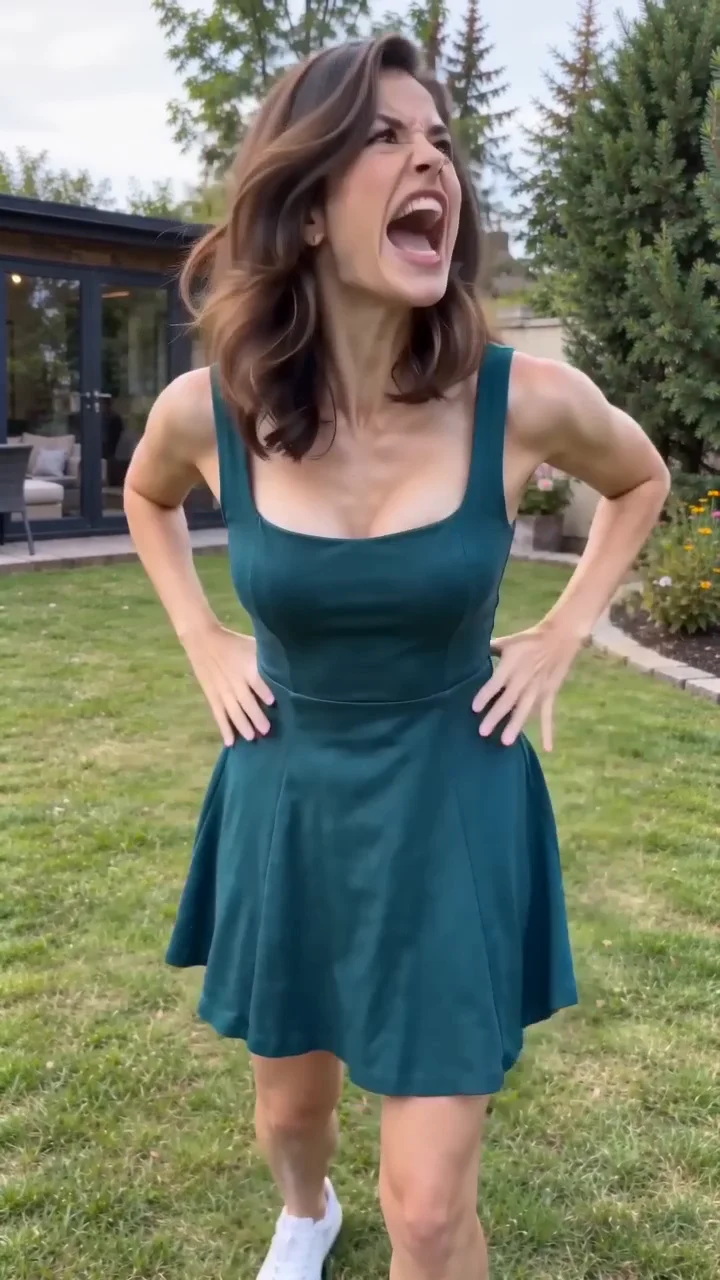
Try Angry Dance AI with Every Gen AIAngry Dance AI turns a comically grumpy expression into a short reaction video. The funny contrast comes from emphatic gestures, committed body movement and a deliberately annoyed face.
This guide explains what the effect is, then shows how to make an Angry Dance AI video with EveryGen AI · https://everygenai.live/. You can plan in Inspiration, prepare an image and move into a compatible paid video workflow without losing the creative direction.
What is Angry Dance AI?
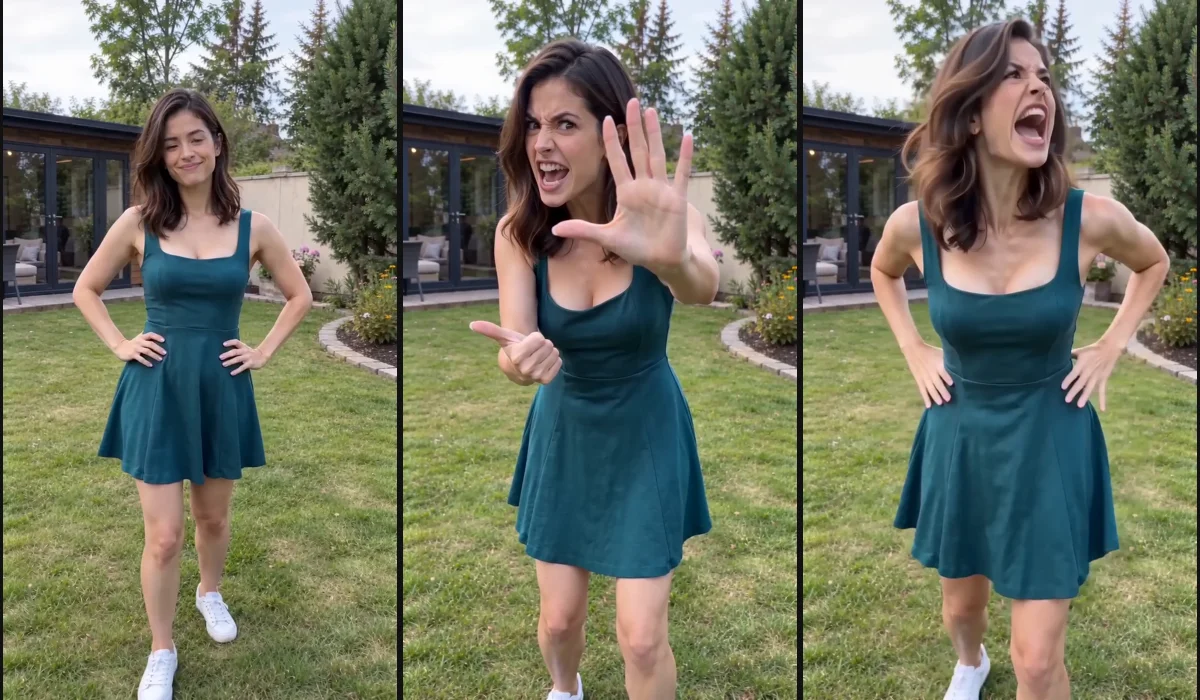
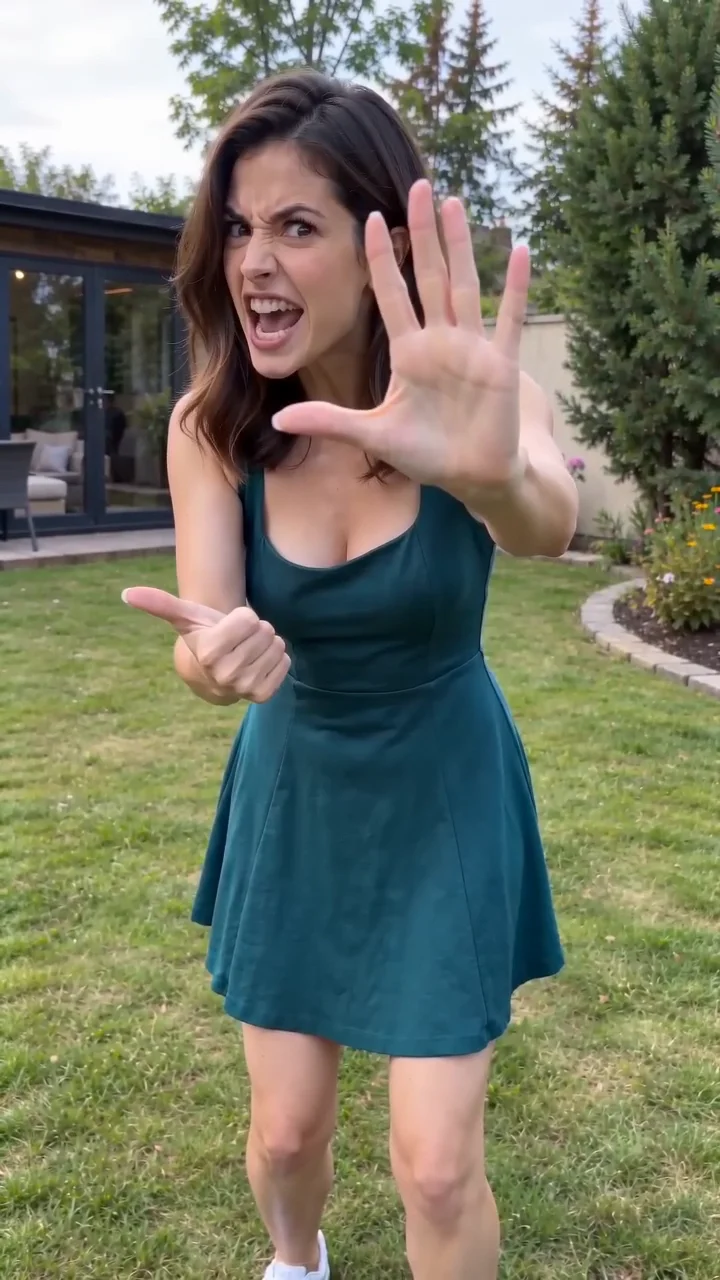
Angry Dance AI turns exaggerated frustration into a playful reaction clip. A furrowed brow, emphatic pointing, an open-palm stop and a deliberate reset carry the joke. It is better understood as a short physical-comedy performance than a complicated dance routine.
Use it for a lighthearted Monday reaction, a comic response to a small everyday annoyance or an original character sketch. Keep the performance playful, use authorized images and label synthetic footage clearly rather than presenting it as a real event.
Before you start: choose one clear subject
- Use one clearly adult original character or a photo you own or are authorized to animate.
- Keep the face, shoulders and hands readable, with enough room for forward/back movement.
- A simple setting and one consistent outfit make identity and motion easier to inspect.
- Decide whether you want the included garden sequence or a fresh scene.
- Use original or properly licensed audio. Our sample does not include a commercial song or the reference website’s recording.
Step 1: Open Angry Dance AI in EveryGen AI
Start at EveryGen AI · https://everygenai.live/, then open the Angry Dance AI generator. The topic video and generator sit together near the top, so you can see the intended reaction before committing to a paid take.
Inspiration opens first. Normal is available alongside it for people who already know their prompt and native model settings. Keeping the example, planning and generator together is one of EveryGen AI’s most useful practical strengths.
Step 2: Shape the character with Inspiration
Tell the Agent who should perform and what kind of funny frustration you want. For example: “A fictional adult dancer in a teal summer dress, comically annoyed after a long Monday, in a bright garden. Keep the emotion playful and the gestures readable.”
You can refine the subject, clothes, mood and scene over the conversation. Eligible accounts receive 3 free replies and 1 image. After the trial, continued Agent interaction requires a qualifying package shown by the upgrade controls; video generation is paid separately.
The useful benefit is a clearer starting idea before a paid video, rather than an unexplained empty prompt box. You still review and confirm the next action.
Step 3: Create or upload a subject image
Tap Create free image when your idea is ready. Review the proposed image prompt; choose Yes to create it, or No to edit it first. Selecting a starter or reviewing a proposal does not itself create a paid video. The free account image allowance cannot be repeatedly reclaimed by starting another conversation.
If you already have an authorized photo, use the compatible image input in Normal. A clear image is helpful, but you should still check hands, face and outfit throughout the animation.
Step 4: Choose Normal and review native inputs
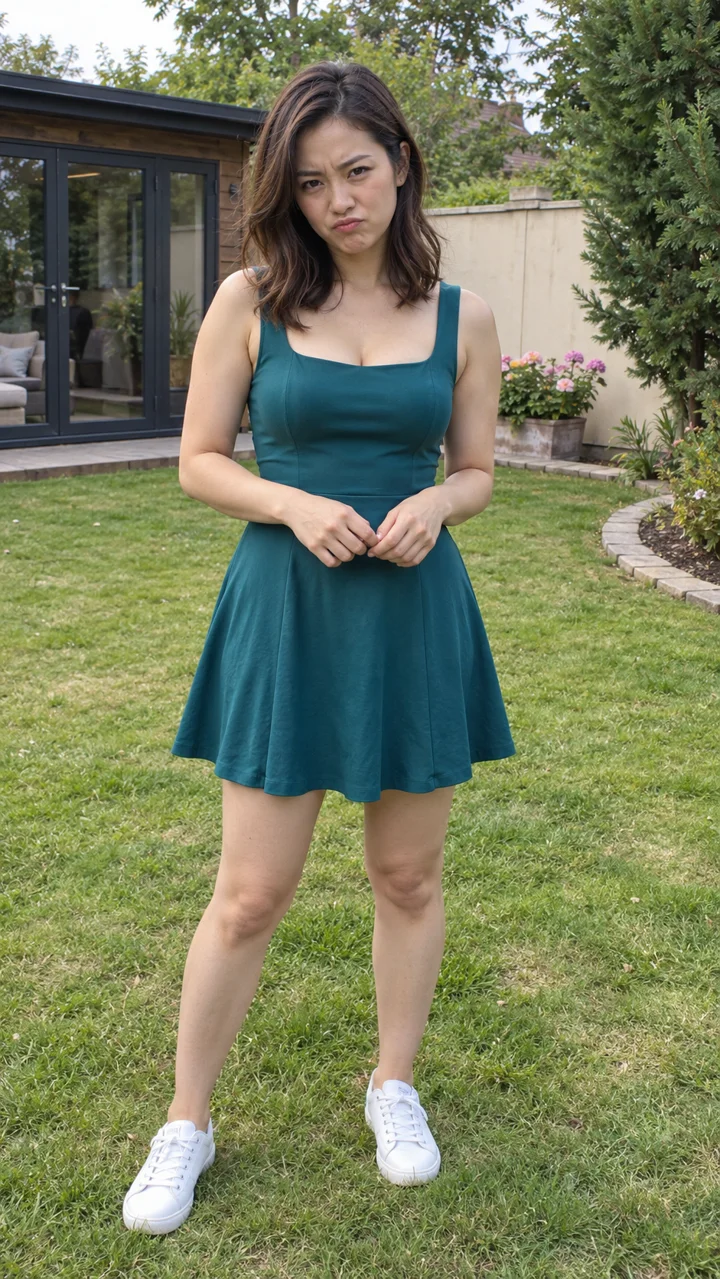
Choose Normal to edit the scene prompt and select a compatible native model. Model changes update the available image, reference, duration, resolution and sound controls. Review any proposed input or settings change before applying it.
This theme currently offers Inspiration and Normal. Normal gives you an editable Angry Dance prompt, compatible model selection and the native input controls. A fixed-motion Template is not currently offered for this theme. You can use the sample as a visual guide while writing your own scene.
The demonstration was generated with Seedance 2.0 Fast at native 720p, with original generated sound. Normal can select other compatible models; their controls and quotes vary. Review the complete amount before a paid submission.
Step 5: Confirm the quote and generate
Check the model, duration, resolution, references, sound and complete quote. An available compatible video pass is used before shared credits. If your current draft does not fit a pass, review the proposed model/settings adjustment or keep your settings and choose sufficient credits; changes are not applied silently.
When funding is needed, EveryGen AI opens the complete purchase choices. Choose an appropriate offer, provide a receipt email for guest checkout when requested and continue to the hosted cashier. Google login is not mandatory to purchase. Pay once passes and shared-credit packages fund different kinds of usage, so read the quantities and renewal information before paying.
The 3-reply/1-image Inspiration trial is not a free video. Image upgrades, extra video takes and different native settings may need a separate confirmed credit quote. Editing a template’s subject description has no extra per-word fee.
Step 6: Review Creations and download
Follow the job in Creations. Once it completes, watch the whole clip with sound and check identity, fingers, wrist movement, body contact with the ground and the finish. An opening frame alone cannot establish that a moving video is consistent.
Download private generated results within 24 hours. Another take requires a new confirmed quote; returning from funding should preserve your draft rather than automatically generating again. The public tutorial demonstration is a separate, curated marketing asset.
A clear editable Angry Dance starting prompt
One original adult dancer in a garden performs a playful Angry Dance. Begin with hands on hips, approach the fixed phone camera, add mock-annoyed brows, expressive finger counting and pointing, then a brief palm-out stop. Pause with a puzzled sideways glance, give one final comic emphasis and finish hands on hips. Keep identity, clothes, hands and background consistent. Vertical 9:16, 15 seconds, soft daylight and original upbeat percussion. No copied song, threatening behavior, text or logos.
This is an editable public writing example, not a competitor’s hidden original prompt. Describe your own authorized subject clearly and review the complete generated motion; a fresh take can vary in gestures, likeness and sound.
Why make your Angry Dance with EveryGen AI?
EveryGen AI brings a useful sequence into one workspace: discuss an idea, prepare an image, choose supported video controls, review the cost and track the result. That is a strong fit for creators who enjoy trying a reaction idea but want guidance before paying for the animation.
The practical advantage is control and continuity. You can start with the Agent or go directly to Normal, keep your scene through funding, and inspect the resulting job in Creations. AI can still vary faces, fingers, gestures and sound, so the best result comes from a clear subject and a complete review rather than a guarantee of frame-perfect copying.
Try the workflow at EveryGen AI · https://everygenai.live/ and use the topic generator to make the scene your own.
Questions about Angry Dance AI
What is Angry Dance AI?
It is a playful AI reaction-video effect built around exaggerated frustration, expressive hands and short body movements. The resulting footage is synthetic, not a record of a real performance.
How do I make an Angry Dance video in EveryGen AI?
Open the topic generator, discuss your adult subject in Inspiration, create or upload an image, choose Normal, confirm the quote, then watch and download the result from Creations.
Can I use my own photo?
Use an original or authorized adult image with a clear face and visible upper body. Normal follows the selected model’s input capabilities. A fixed-motion Template is not currently offered for this theme.
Does the free trial include a video?
No. Eligible accounts can try 3 Agent replies and 1 image. Video requires a compatible paid allowance or sufficient quoted credits; continued Agent interaction after the trial requires an eligible package.
Can I choose another video model?
Yes in Normal, where model-native controls and supported input modes update with your selection. Confirm any proposed change instead of silently dropping inputs.
Does EveryGen AI use the reference website’s recording?
No. Our sample uses original generated sound and does not include a copied commercial song or reference recording. Check audio rights for anything you add yourself.
Where is the EveryGen AI website?
Visit https://everygenai.live/ and open AI Trends or the Inspiration workbench. The topic generator includes the matching example and generation controls.
Try Angry Dance AI with Every Gen AI
Bring your idea and the reference photos for your chosen tool. Choose your settings, check the quote and create a clip you can review.