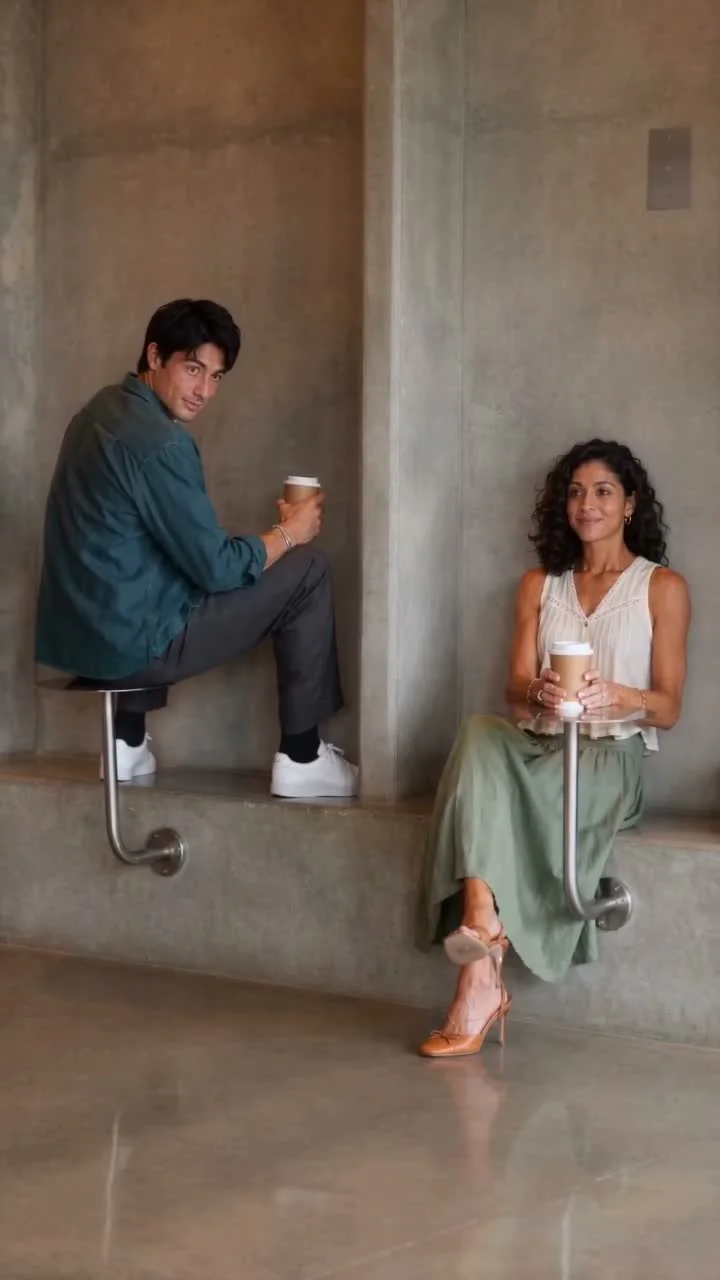
Compact playback preview · Open native 720p video ↗
Seedance 2.0 Fast · 720p · about 15 seconds · original audio
Try Fancy Cafe AI with Every Gen AIFancy Cafe AI turns a small seating mistake into a visual punchline: someone perches on a tiny round cafe table, sees a friend use the bench underneath, and quietly changes seats. The best version makes that realization readable without a fall, a spill or an exaggerated reaction.
EveryGen AI brings the planning, image preparation, model controls and video request into one browser workspace at https://everygenai.live/. This guide explains how to make the scene your own and how to choose the right workflow. “Best” refers to a workflow for this particular joke, rather than an independently measured ranking of video models.
What is the Fancy Cafe AI trend?
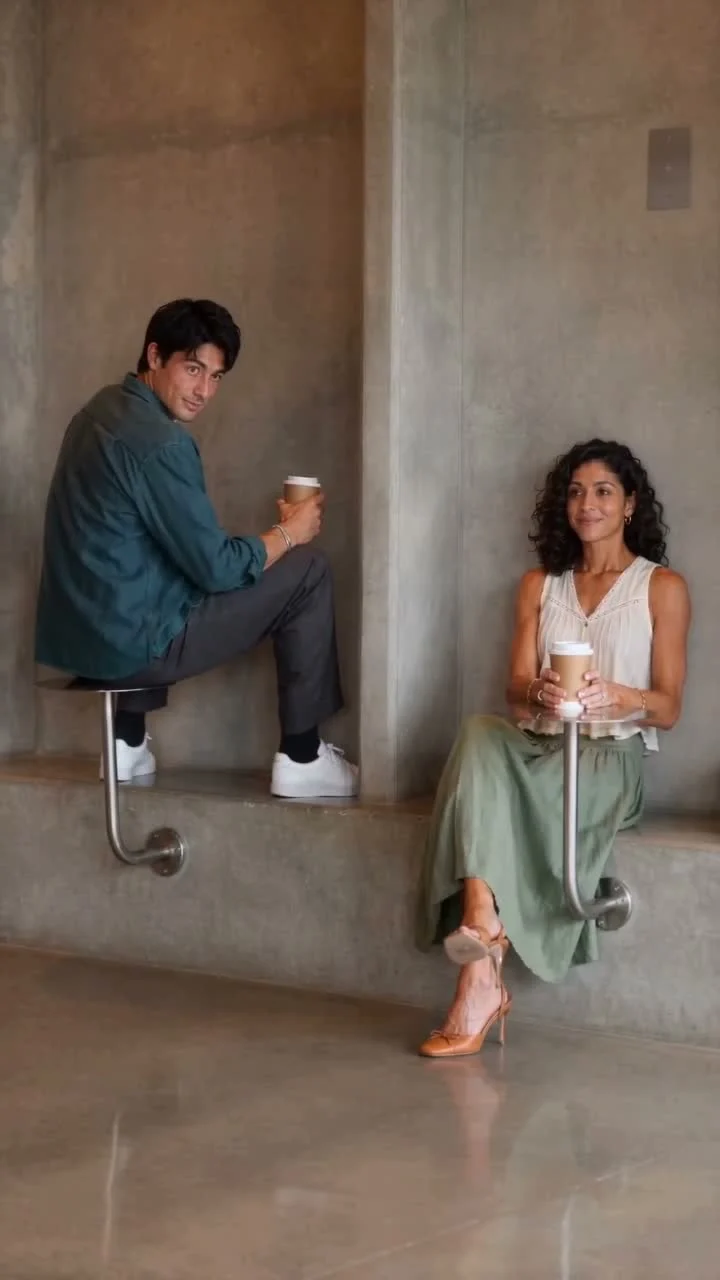
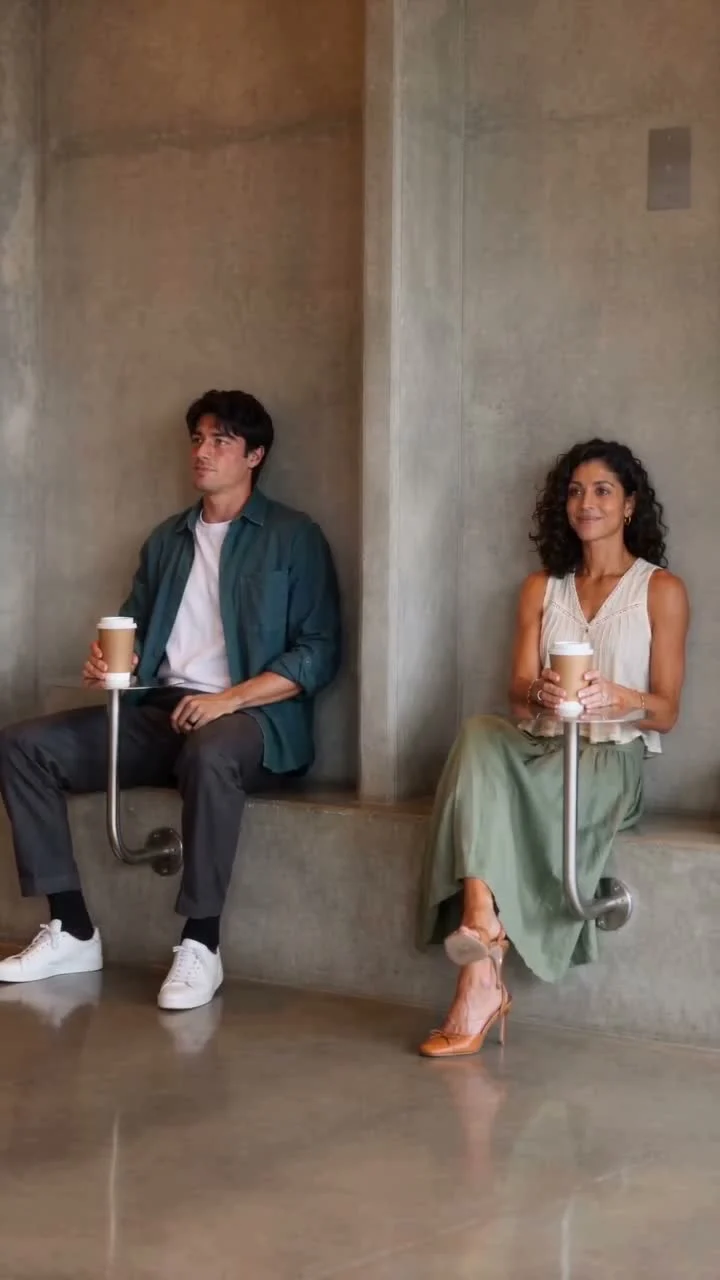
Also called “First Time in a Fancy Cafe,” the trend relies on a fixed view of two small round tables and a lower bench. Guest A starts on a tabletop. Guest B arrives, sits on the bench and uses the other tabletop normally. A watches, realizes the mistake and moves down. The pause is the joke; dramatic camera moves would make it harder to follow.
Which Fancy Cafe AI workflow is best for you?
| What you want | Workflow | What to check |
|---|---|---|
| Help turning an idea into a clear scene | EveryGen AI Inspiration | Plan the guests and mood, prepare an image, then review the separate video quote. |
| Direct control of the prompt and model | EveryGen AI Normal | Edit the prefilled direction and choose only the inputs/settings supported by that model. |
| Closer timing to the provided motion | The separately available reviewed Template | Check its required guest photos, source/settings and complete quote. It is not the same operation as ordinary image-to-video. |
| A dedicated competitor effect | Media.io | Its reference page describes Solo, Duo and Pet versions with assigned photo roles. |
| A documented reference-editing flow | MakeViral | Its page describes a 15-second reference-based workflow and ordered Human/Duo/Pet inputs. |
These are descriptions of visible workflows, not a head-to-head quality test. EveryGen AI's useful distinction is the choice between guided planning and an editable model-specific workspace: you can clarify the joke before committing to a video. Competitor names are plain text; the working EveryGen entry is /ai-trends/fancy-cafe-ai on EveryGen AI.
Step 1: Open Fancy Cafe AI in EveryGen AI
Visit https://everygenai.live/ and open Fancy Cafe AI. Watch the example and identify which surface is the tabletop and which is the seat. Fresh entry offers Inspiration first; choose Normal when you want the direct generator. Your existing draft should remain available when you review another workflow.
Step 2: Choose the guests and prepare a useful image
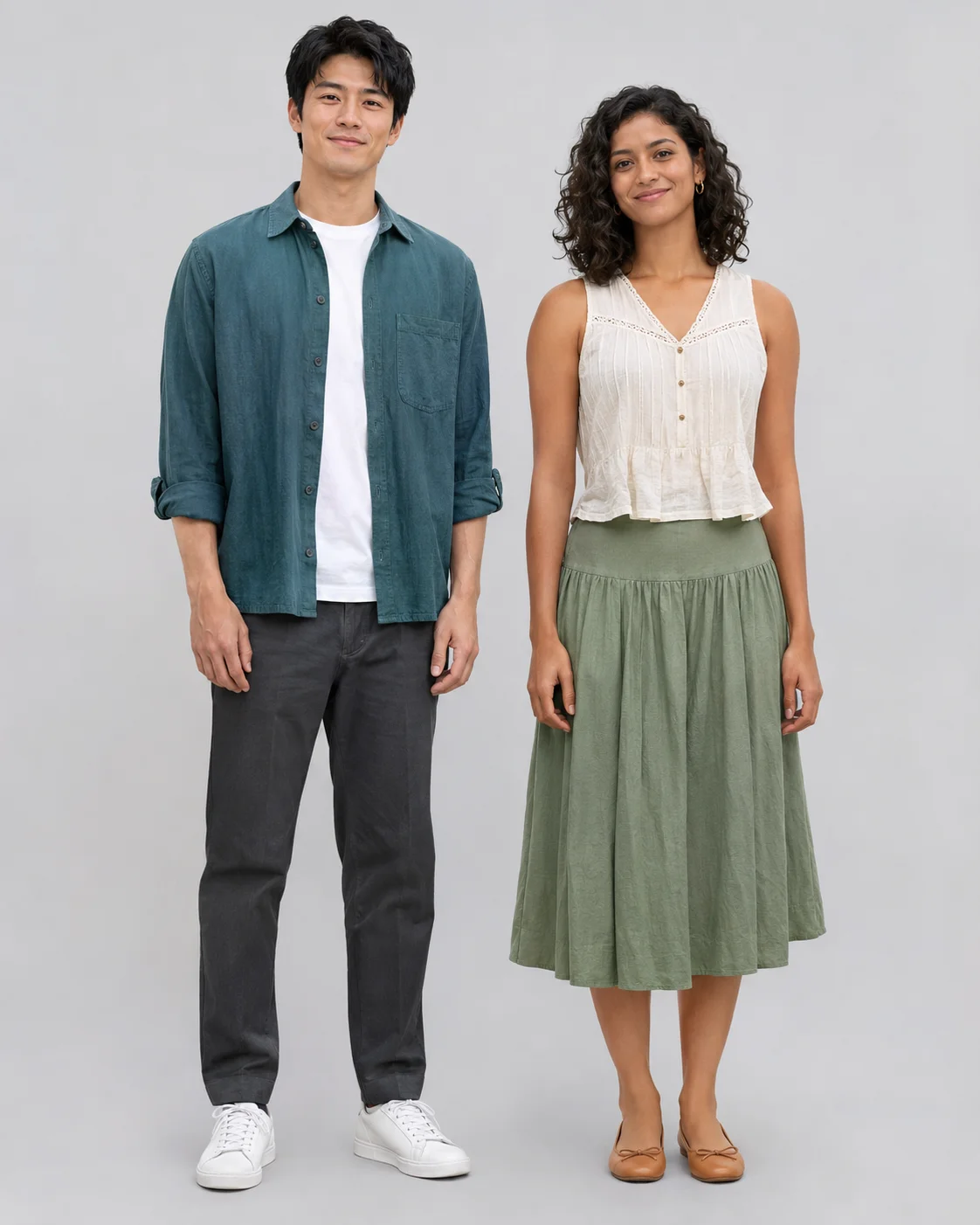
Give the guests different, consistent appearances. For a new ordinary image-to-video request, a well-composed first frame can show Guest A already sitting on the left tabletop, with the right station empty. Keep room for Guest B to enter. A first frame defines the scene; an appearance reference has a different role, and the selected model determines which controls are available.
Use authorized photos with clear faces and sensible framing. The existing two-person Template requires a separate photo for each guest; do not upload a combined crowd image and assume the system knows the roles. A pet version is a new interpretation, not a promise that every model can reproduce the human movement exactly.
Step 3: Preserve the reveal in your prompt
A useful direction has five beats: the mistaken seat, the friend's arrival, the realization pause, the connected move down and the calm final pose. Keep the camera fixed and both stations visible. Ask for the entire movement, rather than a cut that suddenly places Guest A on the bench.
Public editable starter:
Two original adult guests in a minimalist cafe with small round metal tables above a low bench. Guest A starts on the left tabletop with a coffee. Guest B enters from the right, sits on the lower bench and sets a cup on the right table. A notices, pauses, carefully moves down to the bench and puts the coffee on the left table. One steady full-body shot, restrained embarrassment, natural connected movement and original quiet music where supported. Adapt the guests to my authorized photos or description. No fall, spill or on-screen lettering.
This is a starter direction. It is not a recovered hidden competitor prompt or EveryGen AI's private system instruction.
Step 4: Review the model, sound and complete quote
The featured demonstration is a completed Seedance 2.0 Fast generation at native 720 × 1280, about 15 seconds, with original playful music and cafe sound. Our original appearance artwork replaces the guests while a reviewed silent reference guides the camera, layout and connected action; the lighter playback copy preserves the full 720p frame. Those are properties of the example, not settings silently imposed on your next request.
Select your own model and inspect its available duration, resolution and image/reference controls. Choose sound when the selected model supports it; this example uses newly generated music and ambience, not the original trend recording. Review the exact total credits and the included usage before you confirm. Built-in theme direction has no separate text surcharge.
Funding is separate from generation. A compatible video pass funds its stated successful video; a shared-credit pack or subscription supplies credits for eligible image/video requests. Ongoing Inspiration access depends on the qualifying offer. Complete workspace access does not mean unlimited image or video generation. See /pricing for the current catalog rather than relying on an old screenshot's amount.
Step 5: Generate, inspect and save
Explicitly confirm the quoted request and follow it in Creations. Check the left/right guest identities, tabletop versus bench, the move down and the ending. Play the result with sound. Download private generated results within 24 hours. Returning from checkout is not itself a payment confirmation or a new generation request.
Small changes that make the result better
- Keep outfits visually distinct so the two guests remain easy to follow.
- Leave walking room on the right and show the floor before the descent.
- Use a restrained glance and a short pause; avoid a frightened or slapstick face.
- Keep soft music below the visual joke, with small cup and footstep sounds.
- If a result needs another take, review a fresh quote first. Do not assume changing a reference or model is free.
The practical appeal of EveryGen AI is continuity: the idea, supporting image, editable video direction and explicit funding step can stay in the same creative workflow. It is a useful way to turn an unfamiliar meme into a scene with your own guests, while retaining control over the model and cost.
Models discussed in this workflow
Check the native inputs and limitations before changing a draft. These links describe workflow compatibility, not a quality ranking.
Sources and review scope
External pages support the statements identified below. Reading a public product page is separate from testing its paid output.
- Media.io Fancy Cafe topic — checked 2026-11-08. Public page describes Solo, Duo and Pet inputs and ordered guest photos. No paid output or speed test was performed for this review.
- MakeViral Fancy Cafe template — checked 2026-11-08. Public page describes a 15-second photo-led workflow and Human/Duo/Pet photo roles. These are the publisher’s descriptions, not measured output guarantees.
Questions about Fancy Cafe AI
Can I start without writing a full prompt?
Use Inspiration to discuss the scene, or use the prefilled Normal starter. The account-wide free conversation/image trial has its stated limits; paid video requests have separate eligibility and quotes.
Can I replace both people?
Yes, the existing two-guest Template has distinct A/B inputs. In Normal, use the references your selected model actually supports. A first frame is not automatically a two-person identity swap.
Will the final video exactly match the example?
The example is useful guidance, not a guarantee of identical model output. Ordinary prompt/image generation and fixed-reference editing are different workflows.
Does it include the original viral song?
No. Request original generated sound on a supported model. Add a licensed recording separately only when you have the required rights.
Where do I begin?
Visit https://everygenai.live/ and open Fancy Cafe AI. The guide and generator both retain the EveryGen AI brand and a clear path back to the workspace and pricing.
Try Fancy Cafe AI with Every Gen AI
Bring your idea and the reference photos for your chosen tool. Choose your settings, check the quote and create a clip you can review.