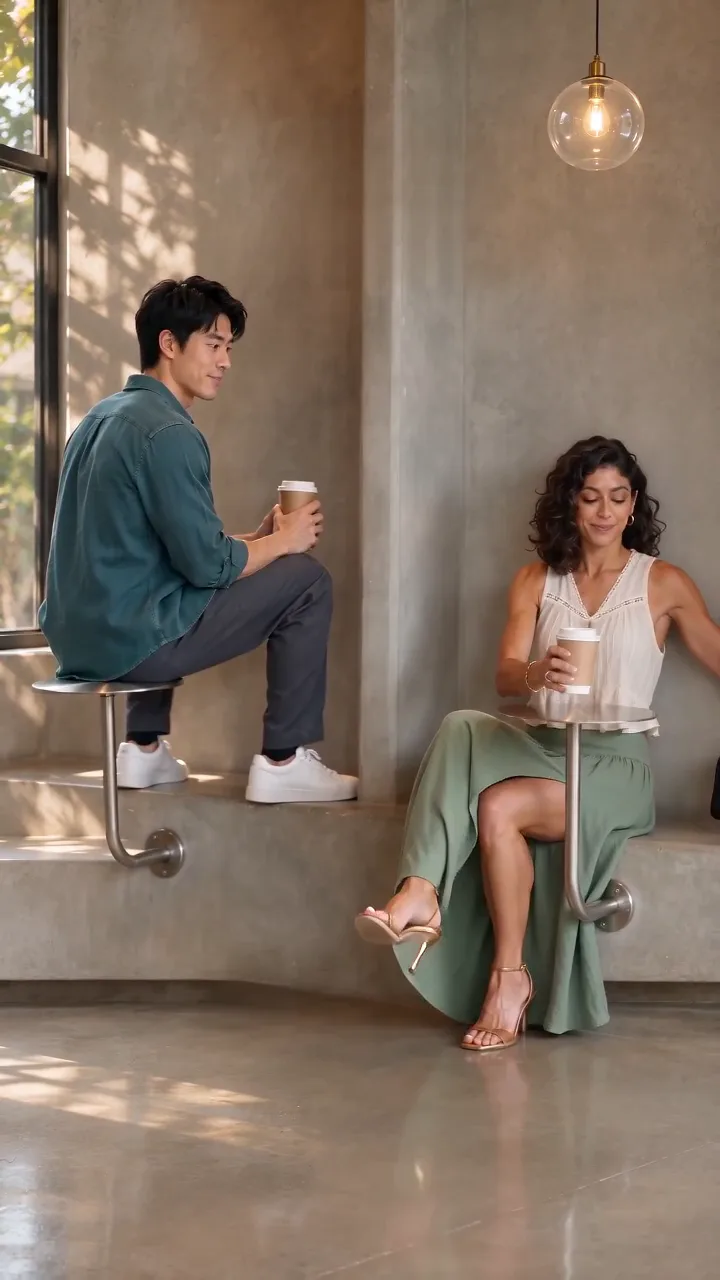
Compact playback preview · Open native 720p video ↗
Seedance 2.0 Mini · 720p · about 15 seconds · original audio
Try First Time in a Fancy Cafe AI with Every Gen AIFirst Time in a Fancy Cafe AI turns an ordinary seating mistake into a short visual punchline. One guest confidently perches on a small round tabletop; a friend sits on the lower bench, and the first guest quietly realizes what happened. The effect works because the audience can see the mistake before the character admits it.
EveryGen AI at https://everygenai.live/ brings the example, a ready-to-edit scene prompt and the video workbench together. You can discuss your guests in Inspiration or open Normal to choose a compatible model. This guide explains the real sequence, the photo roles and the checks worth making before you confirm a video request.
What is the First Time in a Fancy Cafe AI trend?
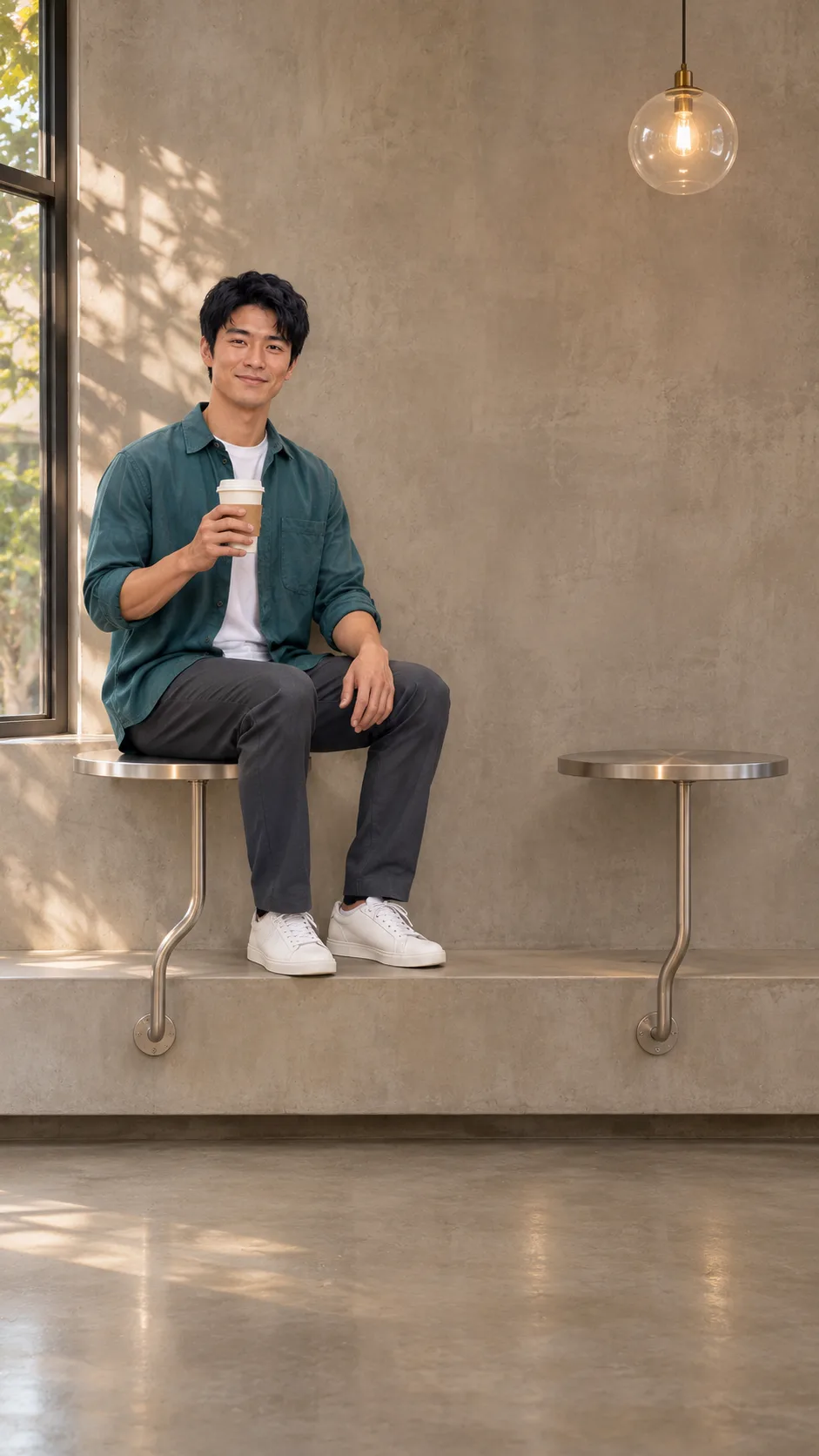
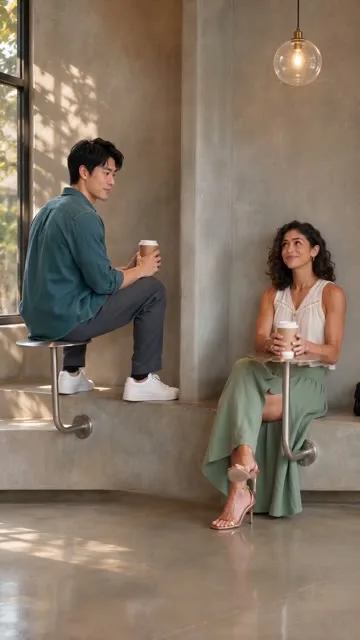
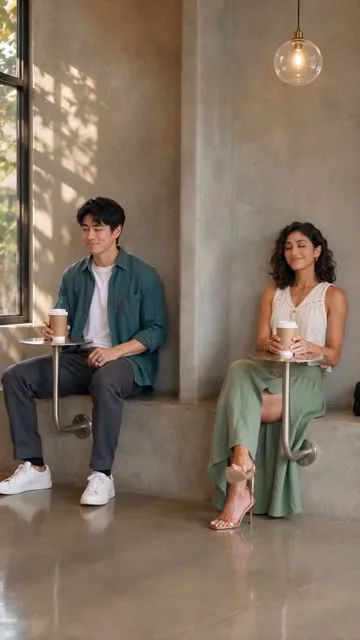
The recognizable version uses unusually minimalist cafe furniture: small raised circular tables, curved metal supports and a continuous low bench. Guest A reads the table as a seat. Guest B enters and uses the bench correctly. A glance and a brief pause sell the embarrassment before A carefully changes position. It is situational comedy rather than an exaggerated face filter.
The identity can change without losing the idea, but the table-versus-bench relationship cannot. A beautiful room with ordinary chairs may look polished while losing the joke entirely. Keep the two seating heights visible in the same frame.
What EveryGen AI adds to this cafe idea
The useful part of EveryGen AI is the connected workflow: a topic-specific starting direction, optional conversation and supporting artwork, native model controls, a cost review and a saved task. You can shape the creative brief without opening a different tool for each step.
- Inspiration helps turn a vague cafe idea into a concrete scene and supporting image. The account-wide free trial is three successful replies and one image; video has its separate allowance or paid quote.
- Normal exposes the complete editable direction and compatible model/input settings. A first-frame image and an appearance reference serve different purposes.
- The reviewed Template, where available on this page, uses the included EveryGen example as its motion/scene reference and separate A/B appearance roles. Its full native processing is quoted before submission.
- Creations keeps task status available while you navigate. Generated private video files have a 24-hour download window.
How to make a First Time in a Fancy Cafe AI video: six steps
- Step 1 — Open the First Time in a Fancy Cafe AI generator on EveryGen AI. Watch the example once and identify the high round table and lower bench.
- Step 2 — Choose Inspiration for planning or Normal for the prefilled video direction. Keep the original prompt available while making changes.
- Step 3 — Define Guest A and Guest B. For the two-role Template, provide a separate authorized adult appearance photo for each guest. In Normal, use only the input roles supported by your chosen model.
- Step 4 — Describe the cafe geometry and restrained reaction. Keep the reveal pause, the cups and the final careful move down to the bench; do not replace it with a fall or spill.
- Step 5 — Review native duration, resolution, sound, references and the total quote. If funding is needed, choose a compatible existing offer. Guest purchase remains available through Waffo; a video-only pass does not fund unrelated image usage.
- Step 6 — Explicitly confirm generation, follow the job in Creations and inspect the reveal and ending. Download the private result within 24 hours. Returning from purchase does not itself mean a new video has been generated.
Choose photos that keep both guests recognizable
Use clear adult photos you own or are authorized to use. Avoid overlapping faces, cropped heads, sunglasses hiding the eyes or heavy motion blur. Full-body pictures help communicate clothing and shoes, while evenly lit portraits help communicate facial appearance. Keep each person in the correct role group rather than treating both uploads as alternate views of one person.
A Template appearance photo does not automatically replace the cafe background. In a native first-frame mode, however, the actual uploaded scene is the starting frame. Prepare the appropriate scene before asking for the wrong-seat motion; these inputs are not interchangeable.
The pause is the punchline
Give B time to sit correctly before A moves. If A immediately stands up when B enters, the audience may miss the realization. Keep the camera steady and the two table heights visible. A subtle embarrassed smile reads more naturally than a sudden extreme expression.
A prompt can request this order, but exact timing and physical contacts remain model-dependent. Inspect the seat surface under A, the bench under B, the coffee cups and the final grounded posture. A second take is a separate request with its own confirmed cost.
Sound, pricing and the practical limits
Our example uses newly generated sound rather than the competitor recording. Other native models may have different audio support. The theme direction has no separate text surcharge; image preparation, video output and reference processing follow the total quote shown before starting.
EveryGen AI makes the options convenient, but it cannot guarantee perfect fingers, identity or furniture geometry in every result. Sponsored short previews, when eligible and available, can differ from a longer paid final. Choose the final settings deliberately and review the actual output rather than relying on the sample alone.
Make the wrong-seat moment your own
For this topic, a small, understandable action is more effective than a busy montage. Start at https://everygenai.live/, keep the two roles clear, and use the working generator to turn the cafe mix-up into your own short story.
Steps or workflow selection?
This tutorial explains the original scene and guest preparation step by step. For choosing between Inspiration, Normal and the separate reviewed Template, read the Fancy Cafe workflow comparison. Both use the current Fancy Cafe generator.
Models discussed in this workflow
Check the native inputs and limitations before changing a draft. These links describe workflow compatibility, not a quality ranking.
Questions about First Time in a Fancy Cafe AI
What is the First Time in a Fancy Cafe trend?
It is a visual wrong-seat joke: one guest mistakes a small cafe table for a seat, then sees a friend use the lower bench correctly and quietly changes places. EveryGen AI offers an original example and a working generator.
How do I make a First Time in a Fancy Cafe AI video?
Open this page in EveryGen AI. Plan with Inspiration or edit the ready-to-use Normal prompt, choose a compatible model, check the quote and explicitly generate.
Can I replace both guests?
Template requires separate authorized adult photos for Guest A and Guest B. They retain separate roles through the reveal. Normal reference controls depend on your selected model.
Can I make a pet version?
You can describe a pet interpretation in Normal with compatible inputs. Our reviewed Template example is an adult duo, so a pet result is a new interpretation rather than a guaranteed copy of that performance.
Is the cafe video a real incident?
No. Our public example is an original AI-generated demonstration with fictional adults, not a recording of a customer or the competitor footage.
Does a photo become the first frame?
Only when you explicitly choose a supported first-frame mode. Template photos guide the guests’ appearances while its included EveryGen video supplies the scene and timing.
Do the theme instructions cost extra?
No separate text charge is added for the built-in theme direction. Images, output video and any reference-video processing are included in the complete quote shown before starting.
Where do I create and download the result?
Use EveryGen AI at https://everygenai.live/. Track the job in Creations and download private generated results within 24 hours. Public example media is a separate inventory.
Try First Time in a Fancy Cafe AI with Every Gen AI
Bring your idea and the reference photos for your chosen tool. Choose your settings, check the quote and create a clip you can review.