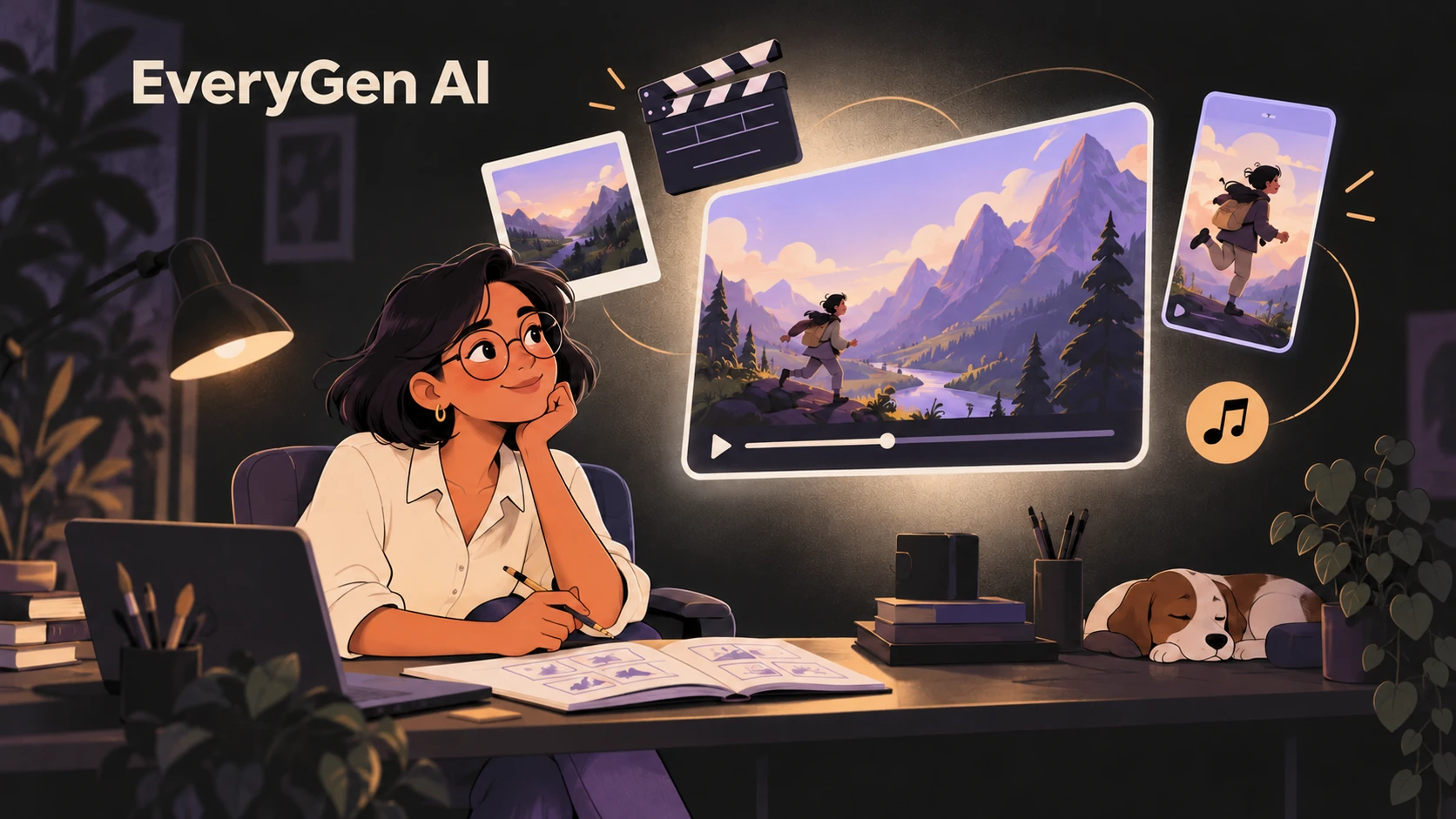
A good AI video workflow starts before the Generate button. You need a clear subject, an action the model can follow and a sense of what the attempt will cost. EveryGen AI, also searched as Every Gen AI, brings those decisions into a browser workspace for creating short videos and images.
The strongest reason to use the Every Gen AI video generator is the connected workflow: start with words or a photo, choose a suitable model, check the generation quote and review the finished take. You can also create an image first and use it to guide a video. This review walks through that process and the practical details that matter when you are paying for your own creations.
What Every Gen AI brings into one workspace
Every Gen AI is well suited to a focused creative task: a short social scene, an animated photo, an original product-style visual or a first frame for a story. Its advantage is having several starting points within the same product, with examples and controls that help you decide how to approach the shot.
| Starting point | What you can do | Why it helps |
|---|---|---|
| Text to video | Describe a subject, movement and camera direction. | Build an original scene without preparing a source photo. |
| Image to video | Add movement to a photo or an image you created. | Give the scene a visual anchor before directing the action. |
| AI image generator | Create stills or use supported photo-editing models. | Prepare visual ideas and video frames using shared credits. |
| AI Trends | Start from an editable scene recipe or EveryGen Mode. | Explore a recognizable creative format with less prompt setup. |
This is a creation workspace for individual assets and short scenes. It is particularly useful when your next decision is about the subject, composition or motion of one clip, and you want to keep the associated prompts and settings together.
Text to video with room to direct the shot
The text-to-video workflow lets you describe the scene and select its supported duration, aspect ratio and resolution. Video options include Seedance, Veo and Hailuo; their available inputs and settings differ. Having those options in one workspace makes it easier to choose a setup around the scene you want to make.
For a first attempt, give the prompt one clear action and one camera instruction. A 15-second scene does not need an entire screenplay. A specific brief leaves less for the model to guess, while the visible quote lets you judge the commitment before submitting.
Create a quiet landscape scene at golden hour. A hiker pauses beside a mountain river while their scarf moves gently in the breeze. Use one slow camera push toward the hiker. Keep the setting consistent throughout. Natural light, no dialogue and no on-screen text.
This is an example brief, not a claim about a tested output. Adapt it to the available settings, then review how well the result follows the action and camera direction. If you need help preparing a more detailed scene, the optional AI Assistant can help develop an editable prompt; planning and optional first-frame creation have their own credit costs.
Image to video gives your idea a visual starting point
A reference photo can communicate a face, object, outfit or environment more directly than a long description. The Every Gen AI image-to-video tool pairs that visual starting point with instructions for what should move. This is useful for bringing a portrait, a landscape or an original illustration into a short scene.
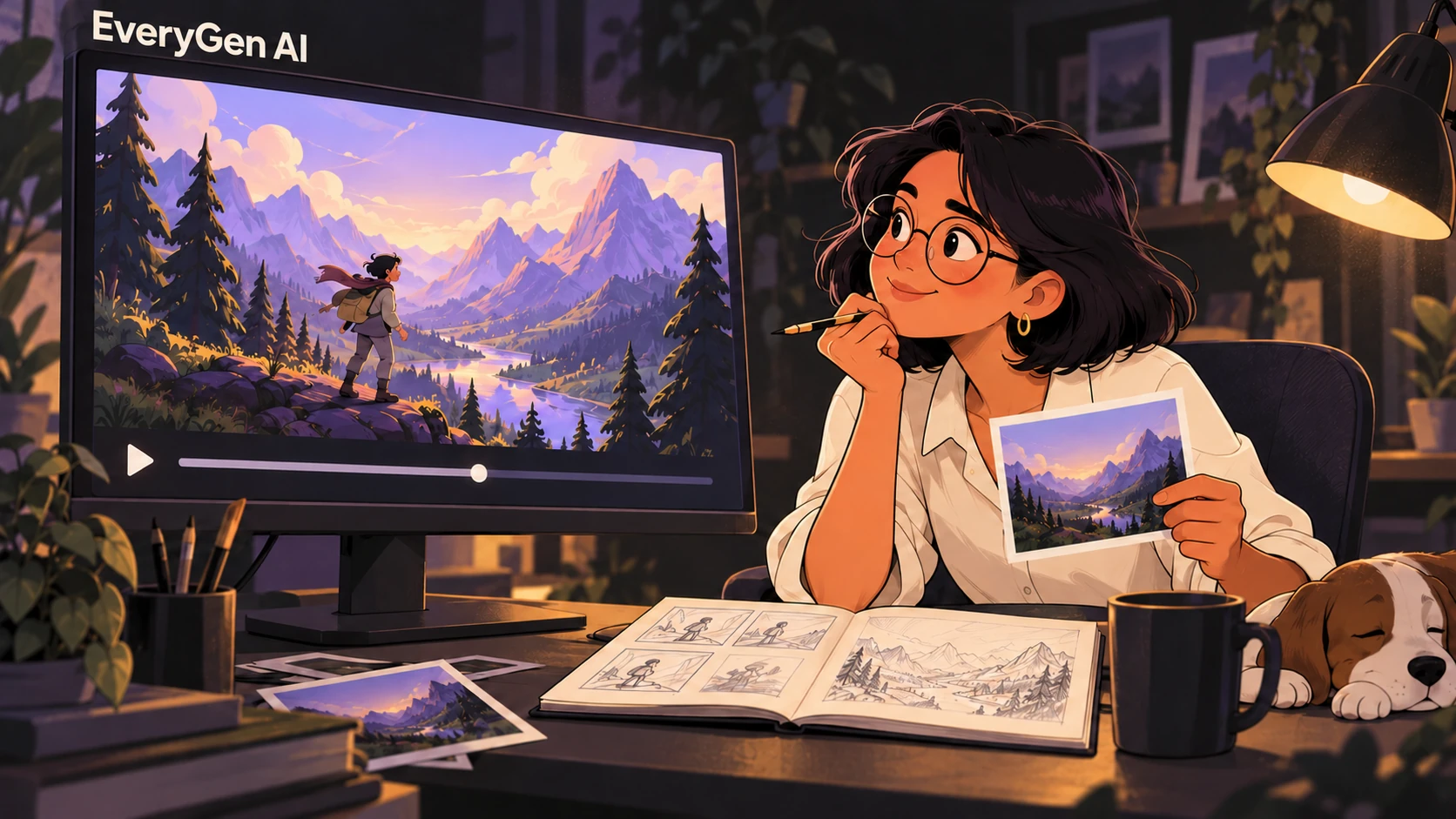
The practical benefit is a more deliberate handoff from still image to motion. You can prepare the look first, then concentrate the video prompt on action, expression and camera movement. Where the selected model and plan support them, first and last frames or additional references offer further guidance.
Choose a clear photo with an unobstructed subject and use images you have permission to upload. Reference guidance can help consistency, but it does not guarantee an exact identity, pose or product detail in every frame.
Image creation makes the workspace more versatile
The AI image generator gives Every Gen AI a useful role beyond finished video. It can help you explore a visual direction, prepare an illustration or create a first frame before spending credits on motion. Image and video generation draw from the same credit balance, so you can divide a plan between the two types of work.
The current image model directory includes Gemini Nano Banana 2, Nano Banana Pro, OpenAI GPT Image 2, Seedream 4.5, FLUX.2 Pro and Z-Image Turbo. Supported photo-editing models accept reference images, while the text-only options provide a straightforward prompt-to-image route. Available resolution tiers and credit costs are shown for the selected model.
That flexibility is especially appealing for a small creative project: try a few still-image directions, choose the one that communicates the idea, then carry it into image-to-video. Image generation requires sign-in and credits. The guest video passes described below cover video generation rather than a separate image allowance.
EveryGen Mode offers an easier way into a trend
A blank prompt is not always the best place to start. AI Trends offers scene-specific pages for formats such as Hit the Road Dude, Unforgettable Car and Ozil Goal. You can inspect an example, use the prepared direction and adjust the inputs for your own creative brief.
EveryGen Mode uses built-in scene instructions with uploaded subject images and optional environment references. Separate subject and environment inputs help communicate whether you want to change the character, the setting or both. The editable prompt workflow remains useful when you want more direct control over the scene.
The strength here is a clearer starting point and less prompt preparation. A trend template guides a newly generated result; it should not be treated as a guarantee that every action or transition will precisely match the preview. Reference capabilities and access still depend on the selected model and plan.
Clear quotes and a choice of how to pay
Every Gen AI offers a small first commitment as well as recurring plans. The two one-time video passes support guest checkout without creating an account or starting a subscription. Enter a receipt email, complete payment and continue in the same browser. Keep that browser session available until you have generated and downloaded your clip.
| Option | Published price | What it is useful for |
|---|---|---|
| First spark | $4.99 once | One successful 15-second, 720p standard Seedance 2.0 video; guest checkout available. |
| Premium take | $9.90 once | One successful 15-second, 720p video with eligible Seedance 2.5 or Seedance 2.0 settings; guest checkout available. |
| Lite | $19 per month | 1,200 shared monthly credits for image and video generation; eligible 15-second video and generated-sound options. |
| Plus / Pro / Max | $39 / $79 / $149 per month | More shared credits and progressively broader video controls. Annual billing is 5% less than paying monthly for a year. |
For a concrete credit example, a basic Z-Image Turbo 1K image uses 6 credits. A standard 15-second, 720p Seedance 2.0 text/photo video uses 300 credits under the current quote. Lite's 1,200 credits therefore cover up to 200 of those basic images or four of those standard videos, or a mix within the same balance. These are alternative allocations, not two separate allowances; other models and reference settings can cost more.
The pricing page includes an estimator for image and video usage. This makes planning more concrete than treating a subscription as a fixed number of every possible output. One-time video passes have their own supported settings and do not include the AI scene assistant or video/audio reference workflows.
Where the Every Gen AI workflow feels strongest
- A connected image-and-video workflow. Prepare a visual direction, animate it and keep the creative work within the same product.
- Several useful ways to begin. Text prompts, photos, examples and EveryGen Mode accommodate different levels of preparation.
- Visible generation costs. Quotes and the pricing estimator help you plan attempts around the model and settings you actually choose.
- A lower-commitment first purchase. Guest one-time passes let you make an eligible video without beginning a subscription.
- More room as a project grows. Eligible plans add multi-reference controls, batches, higher resolutions and scene continuation, with model-specific limits.
- Private creation history and reusable settings. Reviewing previous work makes it easier to return to a direction and refine the next take.
These strengths are most relevant when you want to develop a short scene thoughtfully, rather than submit an idea without looking at the available controls. The workspace helps organize that process, while the creative brief remains yours.
A few practical limits to plan around
Generated video can still need another take. Fast movement, hands, exact text and identity consistency deserve a close review, and generation times vary. A technically completed clip may not satisfy your creative brief; budget for revisions instead of assuming every attempt will be ready to publish.
Controls are model- and plan-specific, and there is no unlimited free generation allowance. User-generated videos are retained for 24 hours, so download the takes you want to keep promptly. These constraints are manageable when you begin with one clear shot, review the quote and save the finished file as part of the workflow.
Who should start with Every Gen AI?
Every Gen AI is a practical fit for creators who want to turn a small, specific idea into an image or short video with visible settings and costs. It is especially useful for photo animation, visual experiments, social scenes and testing an original creative direction before building a larger project.
Our recommendation is to begin with one deliverable you can judge: a portrait with subtle movement, a landscape with a slow camera move or a clearly described original scene. Browse the video examples, choose image to video if you already have a strong reference, and use the one-time passes if you want to start without a recurring plan. Move to shared credits when regular image and video creation becomes part of your routine.
Questions about Every Gen AI
Can I use Every Gen AI without a subscription?
Yes. First spark and Premium take are one-time video passes with guest checkout. A receipt email is required, and you should continue in the same browser after payment. Registered users can also choose credit packs. Each purchase has its own supported settings.
Do Every Gen AI credits work for images as well as videos?
Yes. Registered accounts use one shared credit balance for image and video generation. The selected image model, resolution and video settings determine the quote. Spending credits on one type of generation reduces the balance available for the other.
Can Lite generate a 15-second video with sound?
Lite supports up to 15 seconds and generated sound on eligible video models, within its 720p limit and available credit balance. Select a supported setup and review the quote before submitting.
Will a reference image or trend template produce an exact match?
References and EveryGen Mode guide the appearance and action of a new generation. They do not guarantee frame-for-frame copying or perfect identity consistency. Review the result and keep the first brief focused.
How long can I keep a generated video in the workspace?
User-generated videos are retained for 24 hours. Download the files you want to keep during that window; creation history should not be used as permanent video storage.
Make your first scene with Every Gen AI
Bring one idea or a reference photo. Choose your settings, check the quote and create a clip you can review.