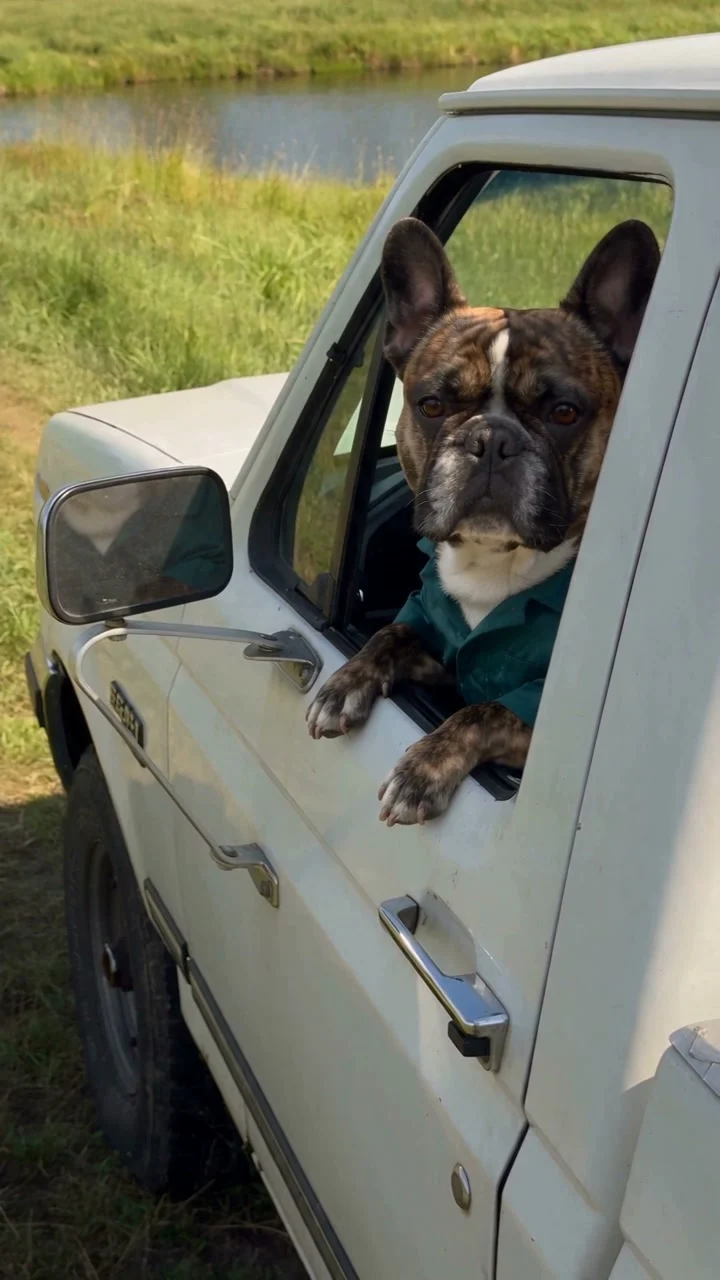
Seedance 2.5 · 720p · about 15 seconds · original audio
Try Hit the Road Dude with Every Gen AIThe funniest part of a Hit the Road Dude scene is often the moment before anyone is told to leave. The driver notices an unexpected visitor, considers an absurd explanation and answers with a look that says everything. Put a very serious dog in that role and the contrast becomes the joke.
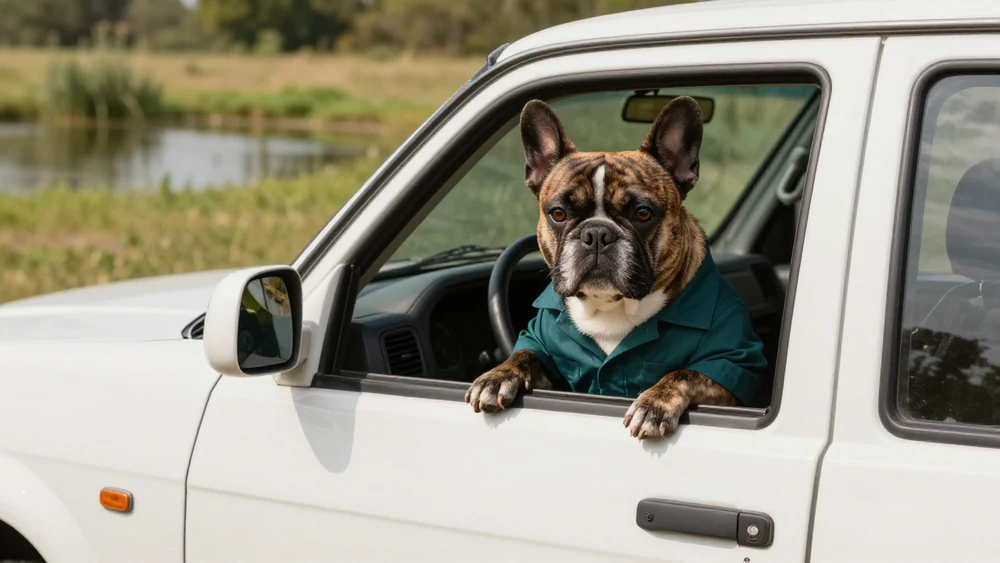
The Every Gen AI Hit the Road Dude tool gives that idea a practical starting point. Our version pairs a brindle bulldog, an older white pickup and a quiet pond with an original motion template. You can bring your own subject photo, use EveryGen Mode for the prepared scene direction or develop your own version with an editable prompt.
The joke lives in the reaction
A pickup window gives the scene a natural frame. The driver has a small, believable stage: a glance, an eyebrow movement, a lean toward the visitor and a dismissive gesture. Keeping the visitor out of view lets the audience imagine the exchange while watching the driver do all the comic work.
A dog makes the attitude funnier because the behavior is so recognizably human. The teal shirt and everyday vehicle make the character seem to be taking an ordinary afternoon very seriously. The setting is calm; the response is exaggerated. That small mismatch is enough to carry a short clip.
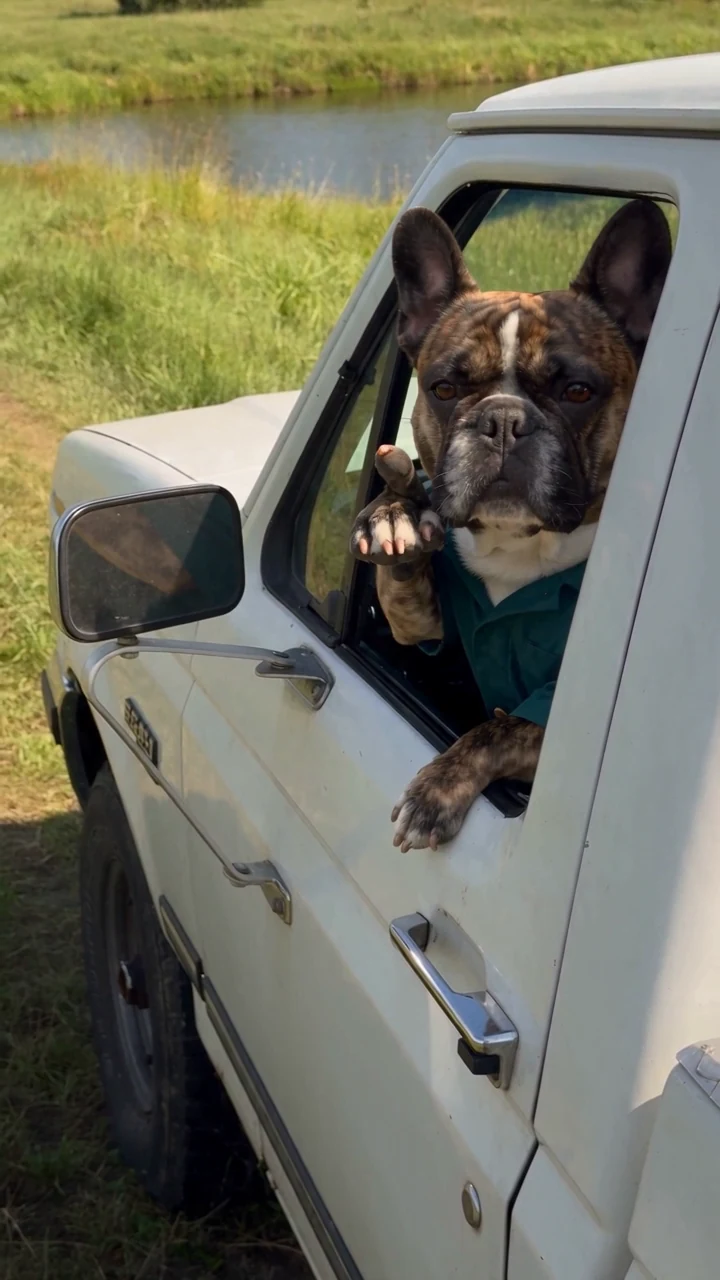
For your own version, resist adding several new jokes at once. One clear misunderstanding and one memorable response usually give the action more room than a busy sequence of location changes or extra characters.
What Every Gen AI provides for your version
EveryGen Mode separates the appearance you want from the action you want to follow. Your subject photo guides the driver’s look; our original motion reference supplies the scene’s intended gestures and camera movement. You do not need to find and upload a source video yourself.
- A prepared Hit the Road Dude direction, including the pickup-window setup and reaction beats.
- Subject-photo inputs for a person, a pet or an original character, subject to the model’s supported inputs.
- Optional environment photos, kept separate from subject photos, for a setting you want to use or blend.
- An editable-prompt route when you want to change the mood, the camera or the sequence more deliberately.
This makes the tool useful both for a quick personal variation and for learning to direct a more specific scene. The template gives you a starting rhythm, while your images and instructions give the result its personality.
Turn your photo into the driver
- Open the Hit the Road Dude workspace and select EveryGen Mode.
- Add a clear subject photo. If you use multiple subject photos, keep them focused on the same identity rather than adding an unintended extra cast.
- Keep the prepared environment for the familiar pickup-and-pond scene, or place setting references in the separate environment group.
- Review the supported model, reference access and credit quote before starting.
- Watch the completed take for the expression, the pause and the final gesture, then download the result you want to keep.
A recognizable face or pet marking is more useful than a crowded photo. If the new setting matters, describe it in the environment controls instead of asking the subject photograph to define everything at once. This keeps the creative brief easier to understand.
Give the prompt a comic rhythm
The scene works best when the driver has time to notice, question and dismiss. In the editable workflow, describe those beats in order and use one camera position. An exaggerated reaction needs less camera movement than you might expect.
Create a realistic handheld phone-style scene beside a grassy pond. Use my subject photo to guide the grumpy driver in an older fictional white pickup. The window is fully open. The driver looks toward an off-camera visitor, pauses in disbelief, leans toward the window and points toward the road with an exaggerated dismissive gesture. Keep the driver recognizable and the visitor out of frame. Natural afternoon light, subtle camera shake, no captions or logos. Use original dialogue and sound rather than a copied recording.
This is a suggested creative brief, separate from the recorded prompt behind the example above. You can begin with the tool’s prepared prompt and change one element at a time: a drier expression, a slower pause or a different location. Keeping the remaining scene stable makes each change easier to judge.
Make the attitude your own
- The serious pet: use a pet with a distinctive face and keep the driver’s behavior restrained until the last gesture.
- The overly protective host: place an original adult character at a quiet campsite or fictional garden, with the same suspicious glance.
- The unexpected setting: keep the familiar reaction but use your environment references for a location that makes the character’s seriousness amusing.
The useful creative question is what your character seems to care about. Protecting a fishing spot, guarding a peaceful afternoon or refusing a ridiculous explanation gives the reaction a reason. You can communicate that reason visually without filling the frame with text.
For a different kind of punchline, our Unforgettable Car reveal guide explores a visual surprise, while the Ozil Goal dog football guide uses an unexpected hero in a sports sequence.
Choose a setup, review the result and keep the joke
EveryGen Mode uses studio credits and video-reference access; the current model and plan permissions are shown in the workspace. One-time video passes are available for their eligible text/photo workflows, and do not include EveryGen Mode’s supplied video reference. Check the quote for the setup you actually choose.
AI motion can still need another take, especially around paws, hands and speech. Keep the comic idea focused, review the generated voice and gesture, and save the file within the 24-hour video storage window. The goal is a recognizable character with a well-timed reaction, rather than a crowded scene that explains every detail.
Questions about Hit the Road Dude
Do I need to upload a Hit the Road Dude video?
EveryGen Mode supplies our original motion template. You provide the subject photo and optional environment images. The editable-prompt workflow is available when you want to develop a different interpretation.
Can I use my dog instead of the example bulldog?
You can use a suitable pet photo as the subject reference. Choose an unobstructed face and clear markings. References guide appearance, but a new generation may still need review for likeness and movement.
Can I change the pond or pickup setting?
Use the separate environment-photo controls to request a different setting or a blend of compatible locations. Keeping the driver-window composition and reaction simple helps the joke remain readable.
Does the tool copy the original meme audio?
The published example uses original generated audio. Use original dialogue and sounds for your own variation; the workflow does not require cloning a speaker’s voice or reusing someone else’s recording.
Try Hit the Road Dude with Every Gen AI
Bring one idea or a reference photo. Choose your settings, check the quote and create a clip you can review.