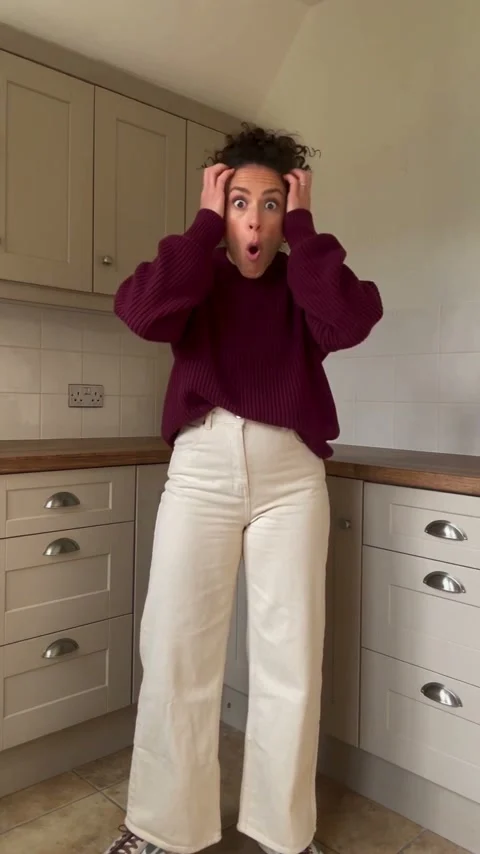
Seedance 2.5 · 480p · about 15 seconds · original audio
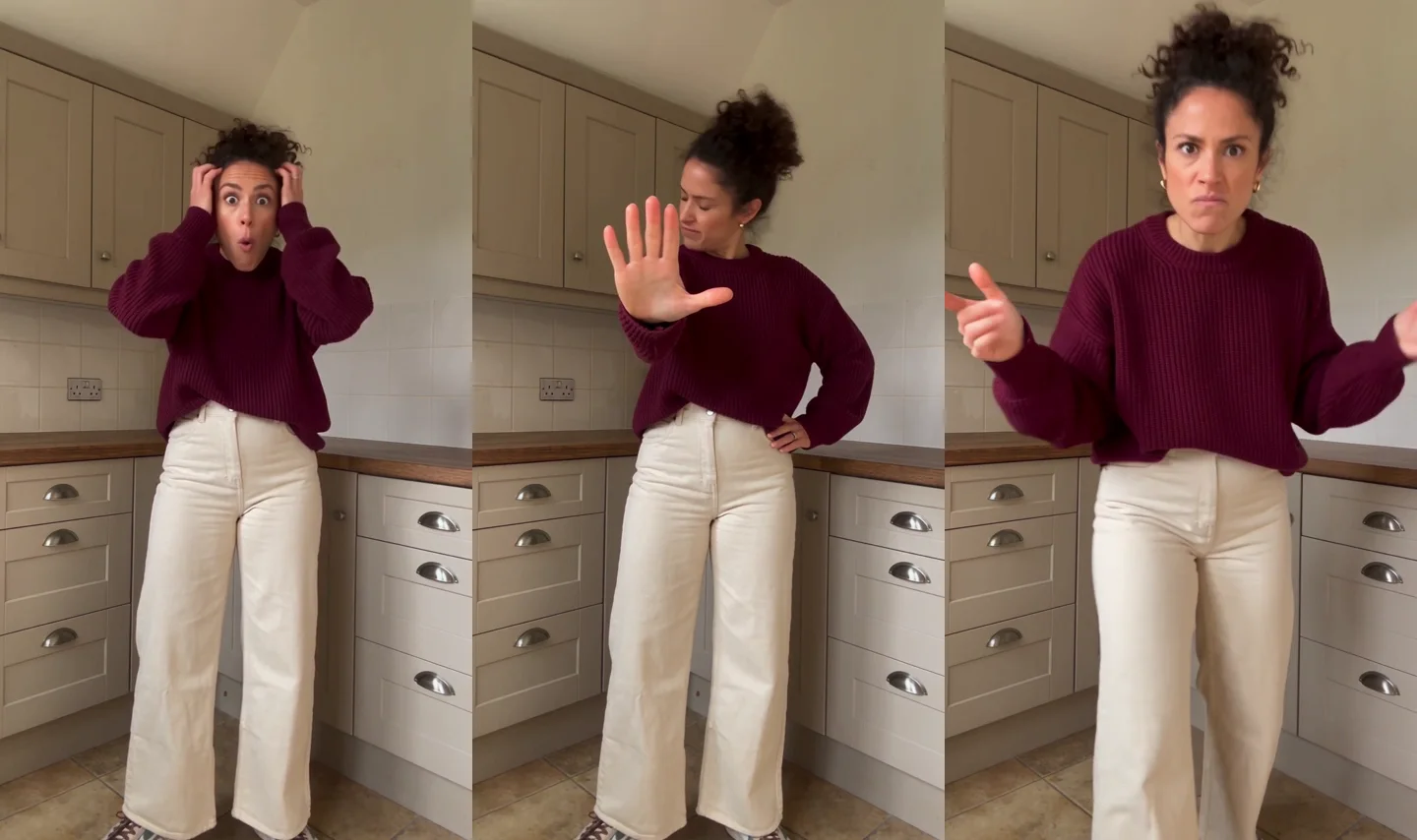
Try Bad Times AI with Every Gen AIBad Times AI turns the viewer into the person on the other side of a tiny argument. The performer looks at the phone, reacts in disbelief, raises a palm as if to say “wait,” then steps closer with a final emphatic gesture. The energy comes from treating a small disagreement like a very serious event.
The Bad Times AI tool in Every Gen AI gives you a prepared human performance to work from. EveryGen Mode includes the action clip and built-in direction; upload an appearance photo to request your own performer, or use Custom Mode to adjust the brief.
Why the camera-facing argument makes a strong short
The camera is part of the joke. Instead of watching two people talk, you receive the reaction directly. Raised brows, a skeptical pause and a sudden move toward the lens make the scene readable even in a small vertical frame.
The sequence also has a clear build. The head grab introduces disbelief; the open palm interrupts the imaginary conversation; the shrug asks a question; the final approach delivers the punchline. An ordinary kitchen works well because the performance feels like a spontaneous phone recording.
What Every Gen AI provides for your Bad Times AI clip
EveryGen Mode makes the performance easier to brief. The supplied action reference describes more than the phrase “an argument”: it gives the model a person’s gestures, pauses, camera distance and continuity to follow.
- An included original human action clip, so you can begin without uploading a performance video.
- A subject-photo group for the replacement person’s face, hair, proportions and outfit.
- Built-in direction for the head grab, wait gesture, questioning reaction and final forward lean.
- Custom Mode for changing the creative direction while keeping the references attached.
- A separate optional environment group for changing the room, plus a generation quote before submission.
The existing human example is playable directly on the tool page. Watching it first helps you decide whether the expressive, close-to-the-phone style suits your idea, without spending credits on a new generation.
Choose a performer who reads well in close-up
Use a clear photo of yourself or an adult you are authorized to depict. The first subject photo defines appearance, so choose one that communicates the face, hair and clothing you want. Additional photos should show that same person; keep room references in the environment group.
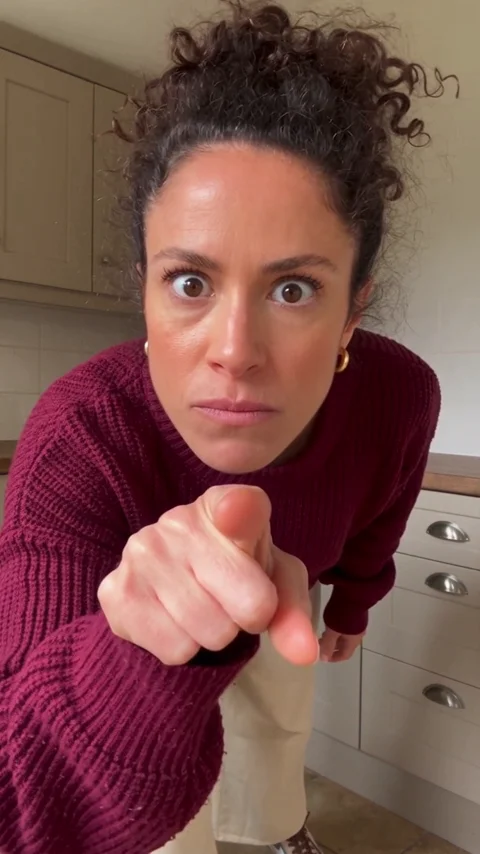
The ending brings the face and pointing hand close to the lens. A visible face and a readable outfit are therefore more useful than a distant group photograph or a heavily filtered portrait. A fuller body view can also help communicate proportions and how the clothes should move.
Write the gestures as one continuous performance
In Custom Mode, describe the escalation in order. A small number of clear beats is easier to assess than a list of unrelated emotions or extra scenes. Keep the performer addressing the same phone throughout.
Use the supplied action video for timing and the subject photo for the performer’s complete appearance. Begin with a comic head grab, raise an open palm toward the phone, pause skeptically, then step closer and point at the lens. Keep the same person, outfit and room throughout, with grounded feet and a natural hand.
This example direction gives you a practical way to personalize the performance. You can make the attitude more deadpan or more theatrical while keeping the same camera-facing setup.
Give the little argument a personality
A kitchen is only one possible context. A tidy home office can suggest a playfully exasperated work moment; a plain room can focus attention on the performer’s face. Use environment photos when a different location matters to your version, rather than asking a subject photo’s background to serve two roles.
The useful creative freedom comes from combining your own appearance reference with a prepared performance. You can work on the cast and mood while Every Gen AI supplies a coherent starting structure. Keep the joke playful and give the viewer enough time to read the pause before the final approach.
For another kind of comic timing, explore the Smalltown Boy AI dance guide: its humor comes from the contrast between two performers, while Bad Times focuses on one person and the lens.
Review the details, audio and quote
The prepared Bad Times AI workflow uses Seedance 2.5 for 15 seconds at native 480p in vertical 9:16. The example player uses the full native clip and starts when you press play. A new EveryGen Mode generation uses studio credits for its output and reference-video processing; check Every Gen AI plans and credits and the displayed quote for your exact setup.
Check the face, outfit, head grab, open palm and final approach together. Transferring human gestures to animals can produce human-like hands or body shapes, so the featured demonstration here uses a person. References guide a result but do not guarantee perfect anatomy or an identical performance.
The existing example includes original generated sound. If you add a licensed Bad Times recording, review the mouth timing and edit the audio separately rather than assuming exact lip-sync. Then download the creation you want to keep within the 24-hour workspace storage window and share the version that delivers the joke clearly.
Open the Bad Times AI generator to watch the human performance and start from the same action template. You can review the example and prepare your photos before deciding to generate.
Questions about Bad Times AI
Do I need to write a prompt for Bad Times AI?
No. EveryGen Mode provides built-in direction and the original human action clip. Upload a clear subject photo to begin. Custom Mode is available when you want to change the direction.
Can I change the room without changing the subject?
Use the environment photo group for a setting replacement or blend, and keep appearance photos in the subject group. The model still needs to preserve continuity, so inspect the resulting person and room together.
Does the Bad Times AI example use Seedance 2.5?
Yes. The published human example was generated with Seedance 2.5 at native 480p for about 15 seconds. It is also the original action template included in the tool.
Does watching the human video use generation credits?
No. Playing the existing demonstration does not create a new video or use generation credits. A new generated performance requires the quote and sufficient eligible studio credits.
Try Bad Times AI with Every Gen AI
Bring your idea and the reference photos for your chosen tool. Choose your settings, check the quote and create a clip you can review.