
EVERYGEN AI / TURN A SPARK INTO A SCENE
EveryGen AI Video Generator
Create videos from text and images with EveryGen AI. Compare Seedance, Veo and Hailuo, shape your scene and check generation credits before you start.
Start with your video idea
Your idea → Starter image → Video
FREE TRIAL3 AI replies + 1 image
40 Inspiration replies · $7.50What would you like to make?
Choose a template below or describe your video. Review the image idea before creating it.
Latest templatesView all →
1 included
3 free replies + 1 image per account. Full video generation is paid separately.
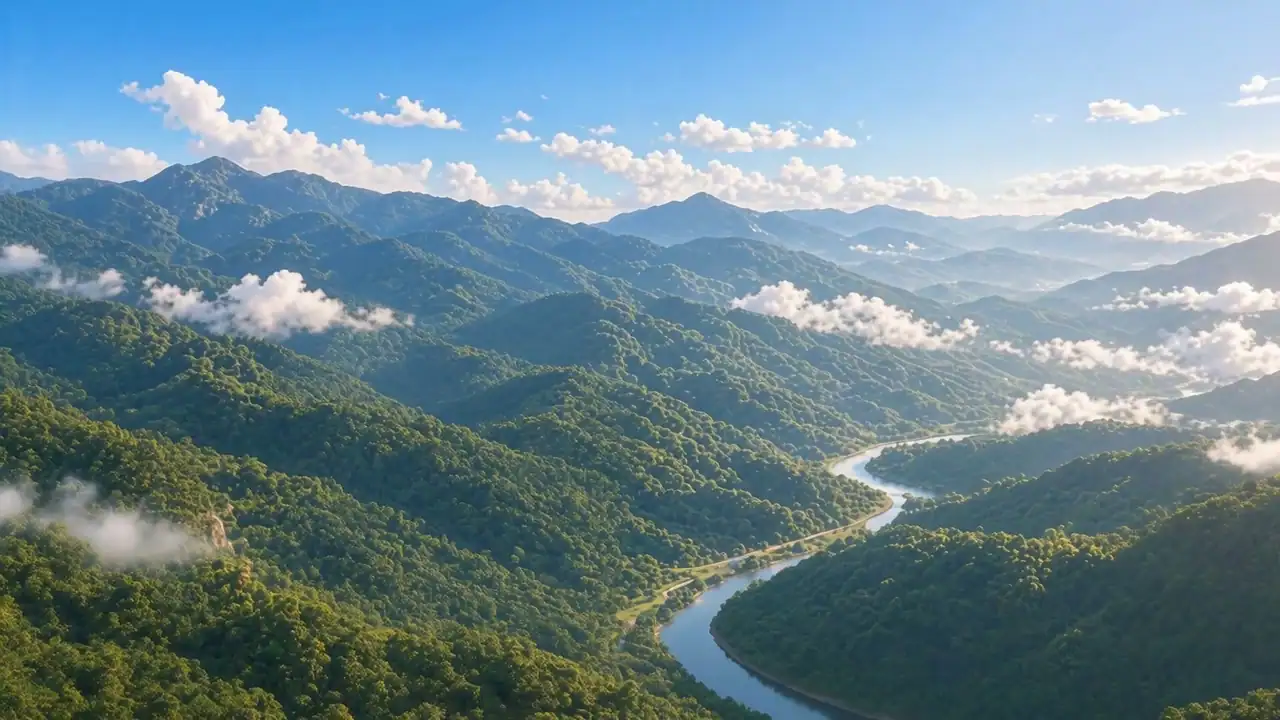
 Mountain story
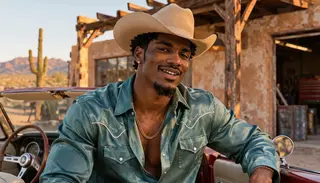 Old Town Road AINEW
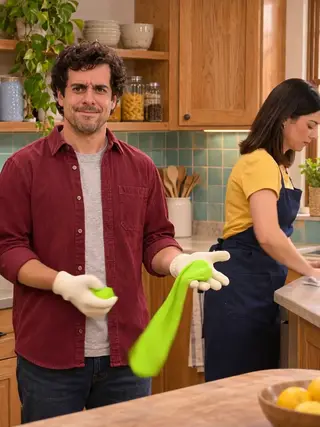 Rubber Band Prank AINEW
 Office Parkour AINEW
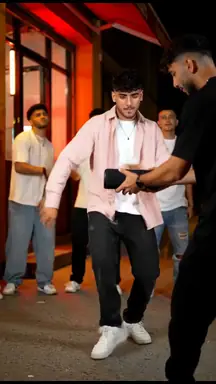 Bulin 47 AI
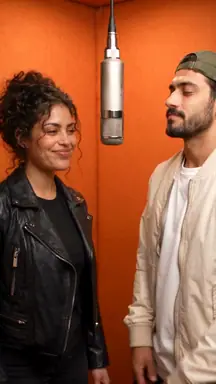 Genjutsu AI
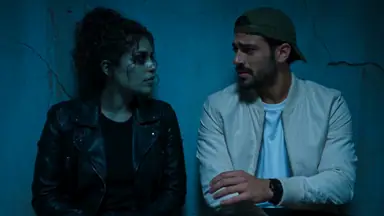 Zombie AI
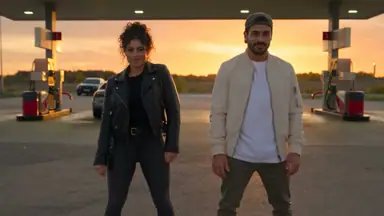 Gas Station Dance
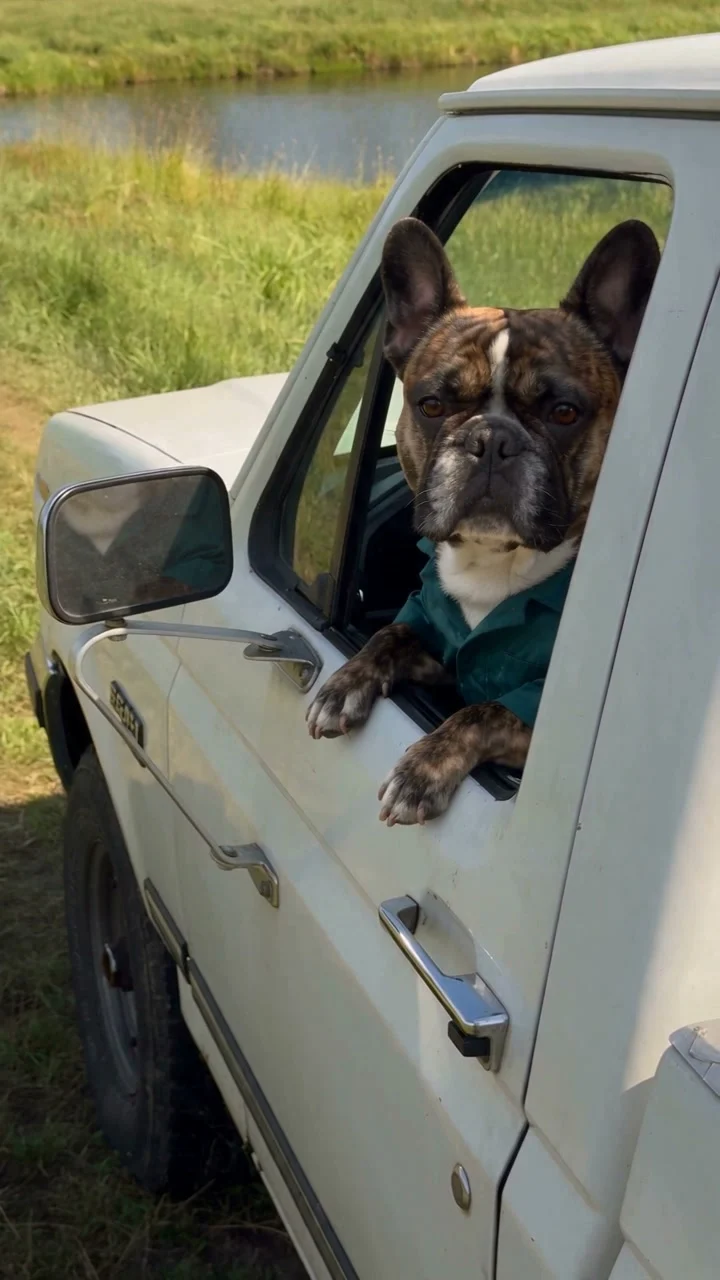 Hit the Road Dude
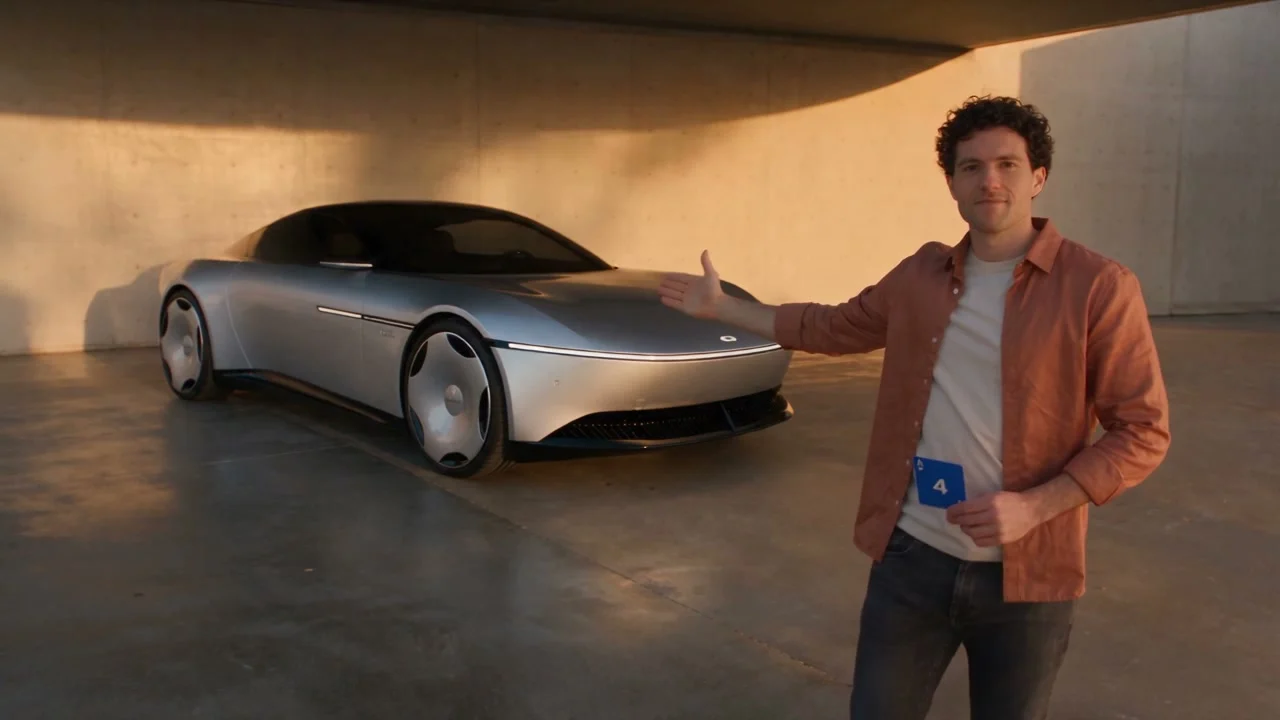 Unforgettable Car
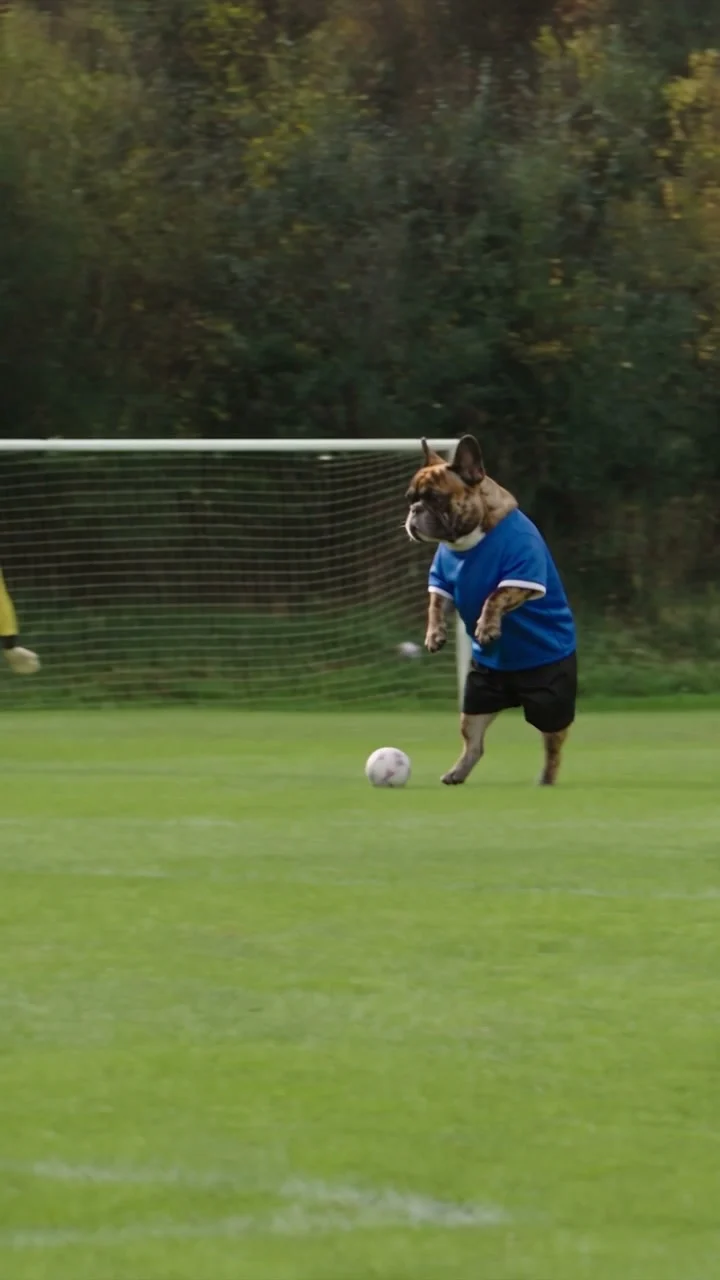 Ozil Goal
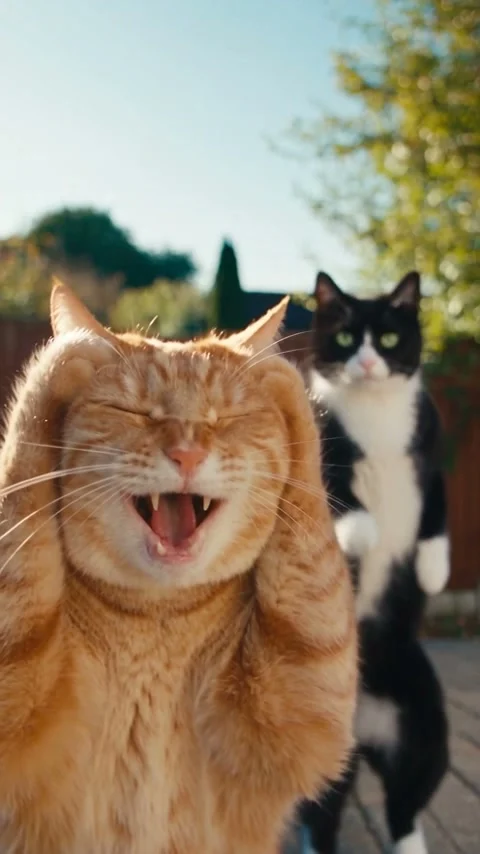 Two cats, one Smalltown Boy routine
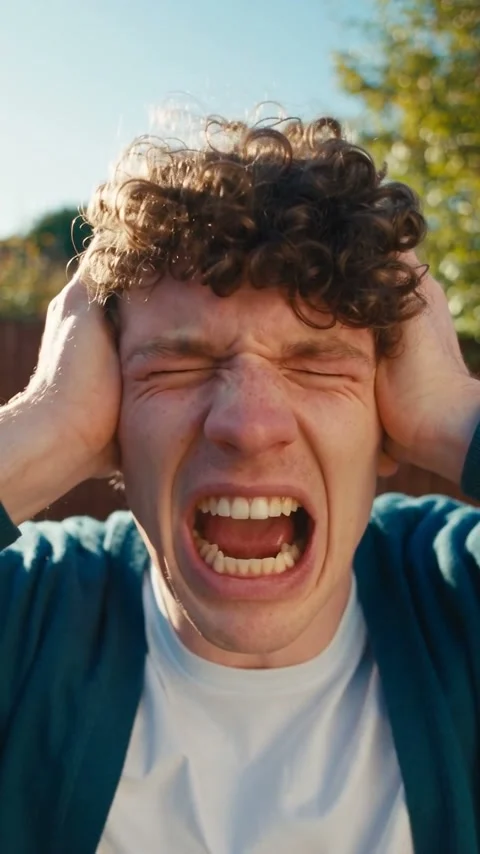 Two friends, the scream-and-swap dance
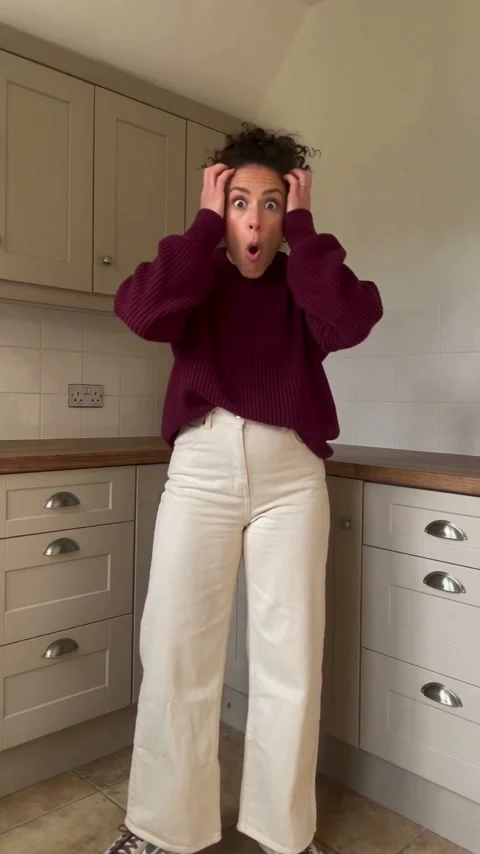 Bad Times AI
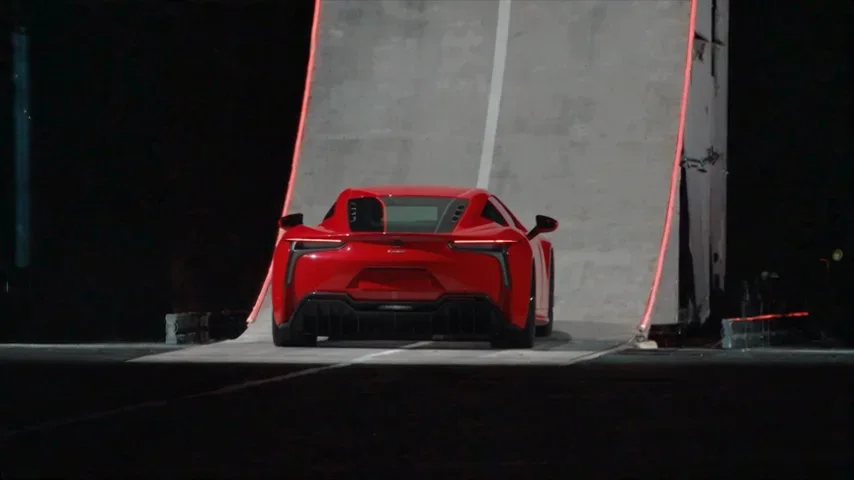
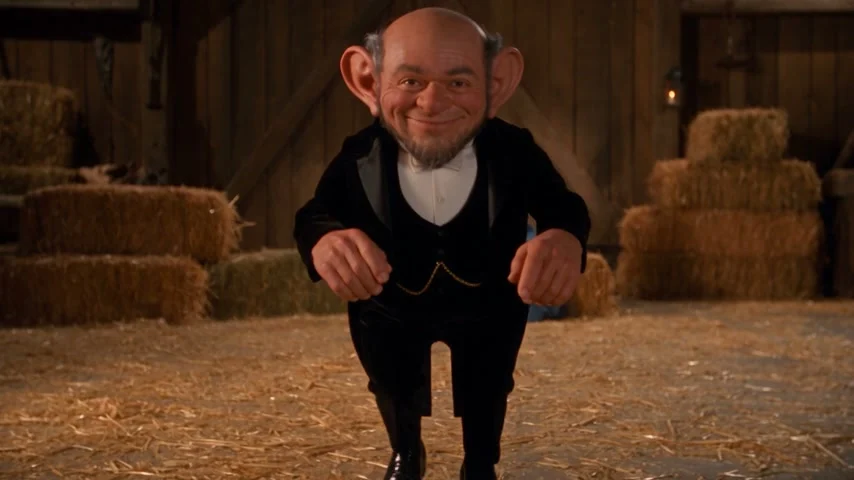 Rumpelstiltskin AITesla Roadster AI
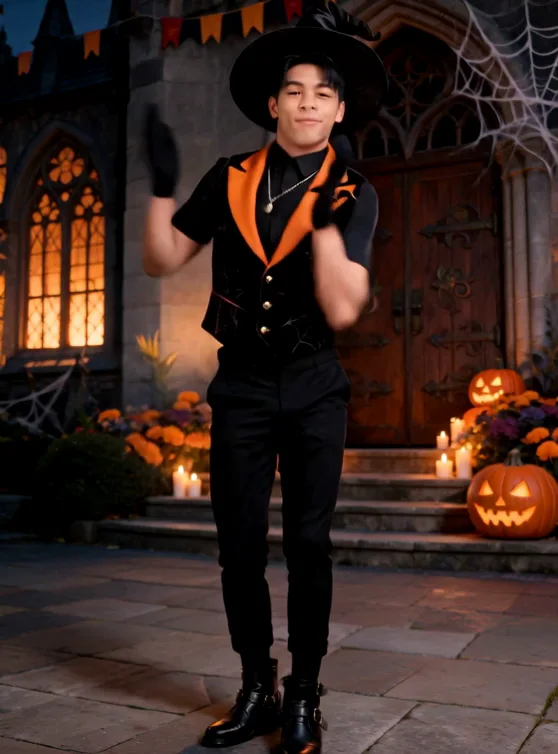 Halloween AI dancer
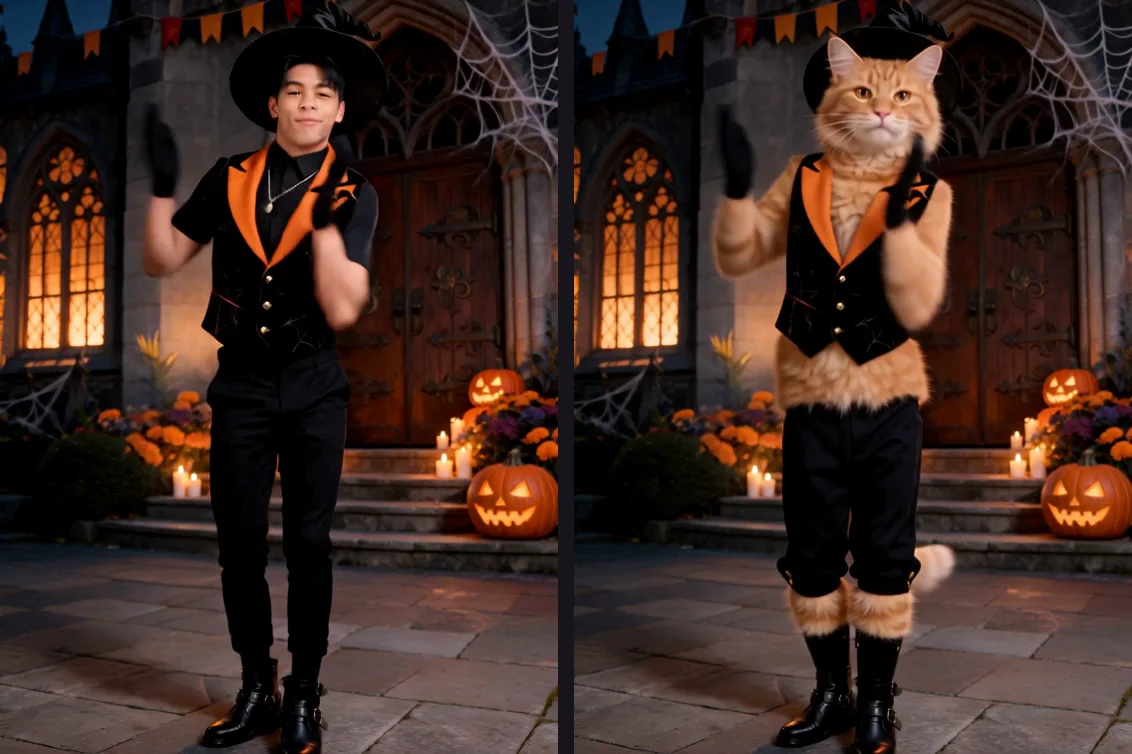 Halloween AI cat dance
 Nightwing AI stadium dancer
 Nightwing AI space heroine
 Original K-pop Firestarter dancer
 Asian studio Firestarter dancer
 Original Babydoll dance in EveryGen AI
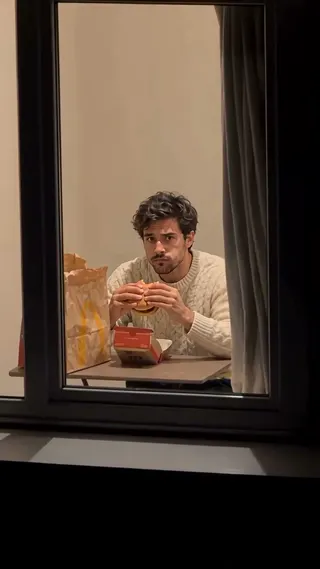 Human Window Peeper in EveryGen AI
 Small cat Window Peeper in EveryGen AI
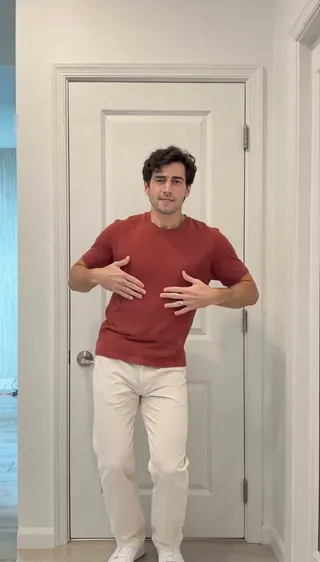 Indoor solo at a white doorNEW
 Outdoor solo on a brick porchNEW
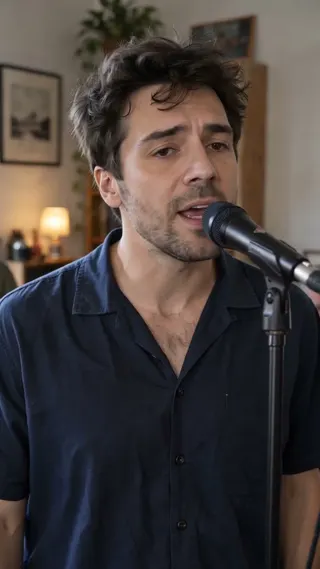 Five-person Tiny Desk AI bandNEW
 Female-led Tiny Desk AI trioNEW
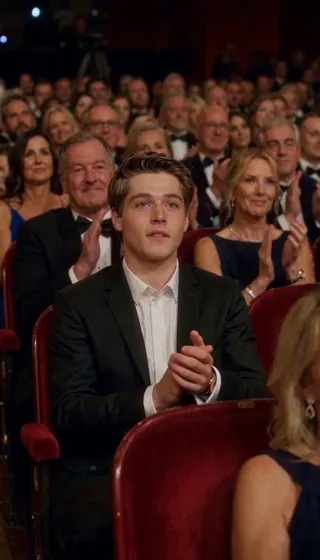 Ballon d'Or AINEW
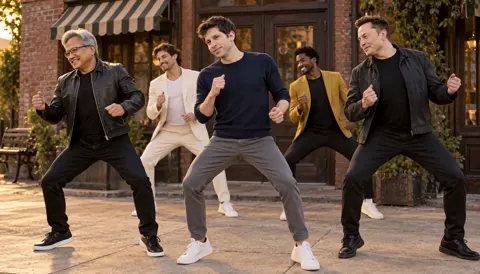 Uptown Funk AINEW
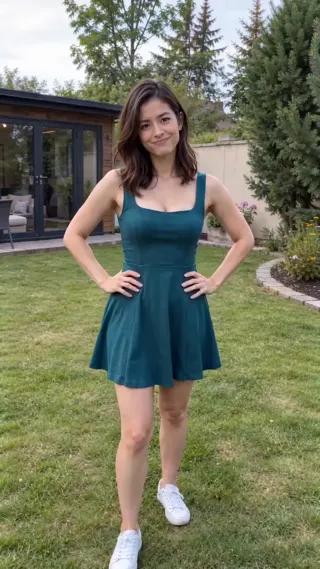 Angry Dance AINEW
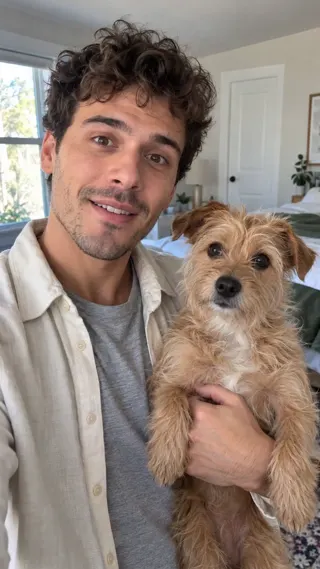 Skull Cap AINEW
 Diwali AI TransformationNEW
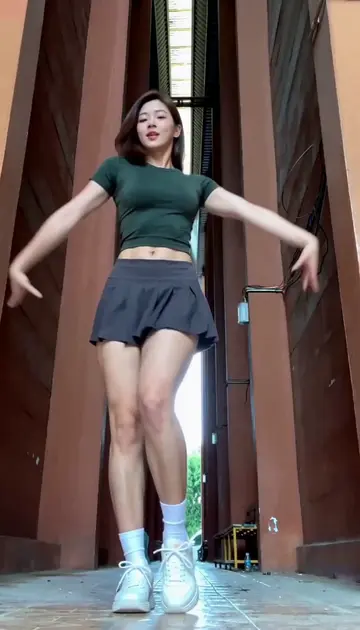 Lisa Tarantino Dance AINEW
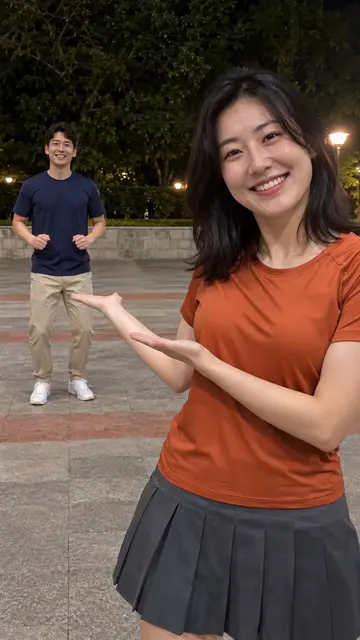 Hop Hop Hop AI DanceNEW
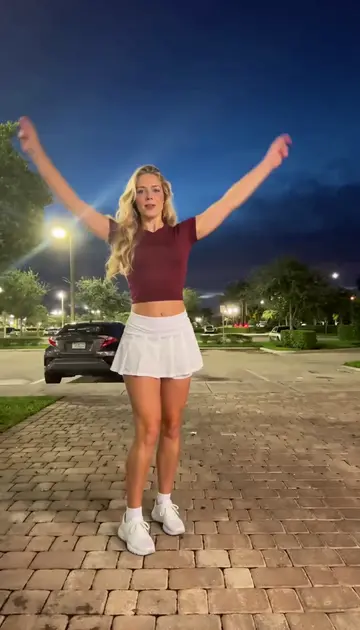 Pick It Up Dance AINEW
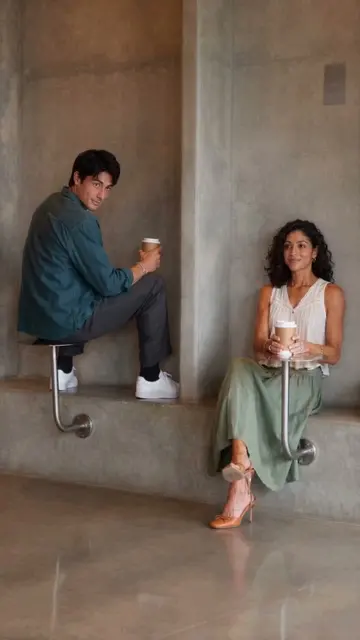 Fancy Cafe AINEW
 24K Magic AI DanceNEW
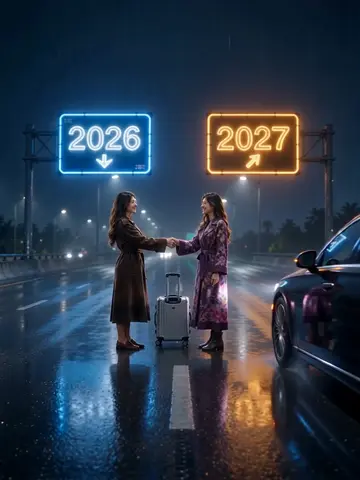 Goodbye 2026 Welcome 2027 AINEW
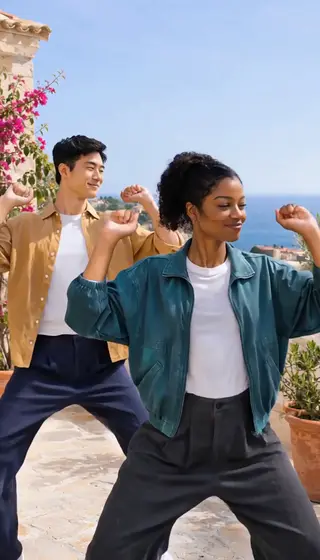 Can I Ride Dance AINEW
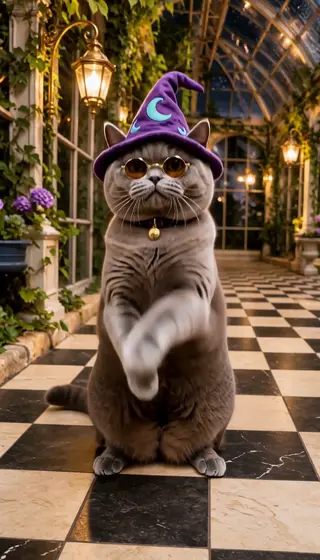 Buggin Dance AINEW
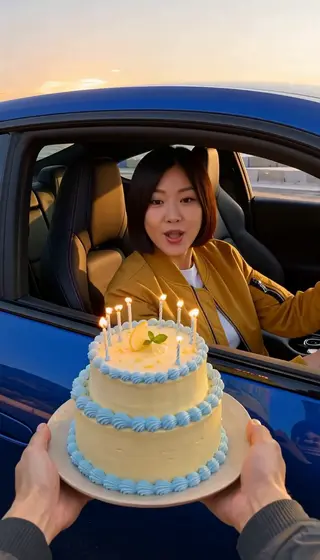 Birthday Car Drift AINEW
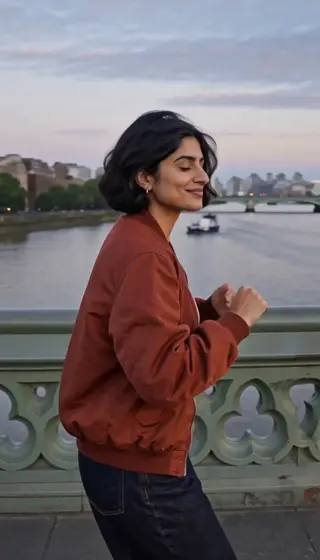 Vossi Bop AI DanceNEW
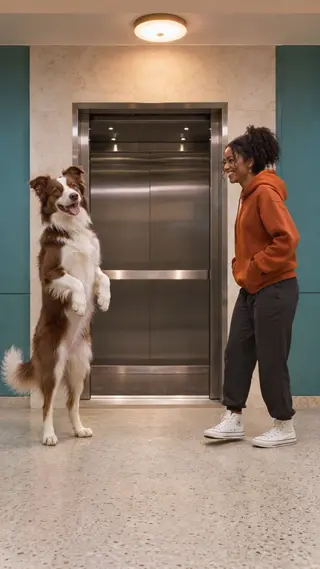 Dog Elevator Prank AINEW
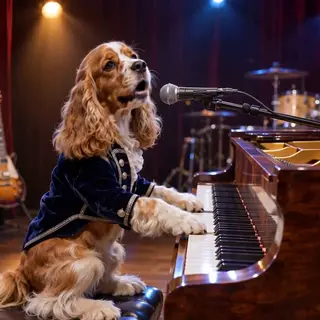 Dog Bohemian Rhapsody AINEW
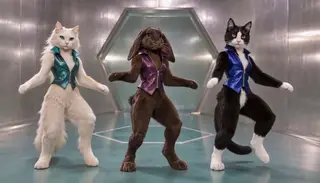 No Scrubs AINEW
 Flamingo Float AINEW
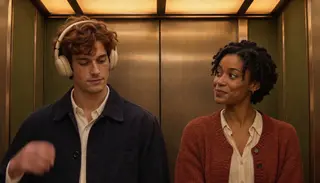 I Love The Smiths AINEW
01 / EXAMPLES
Explore EveryGen AI video ideas
Watch a scene, read its original generation prompt and inspect the references before preparing your own EveryGen AI take.
21 distinct videos, with recorded prompts and outputs from 480p to 1080p. Each setup separates the recorded output from the model and inputs available for your next take. New results vary.
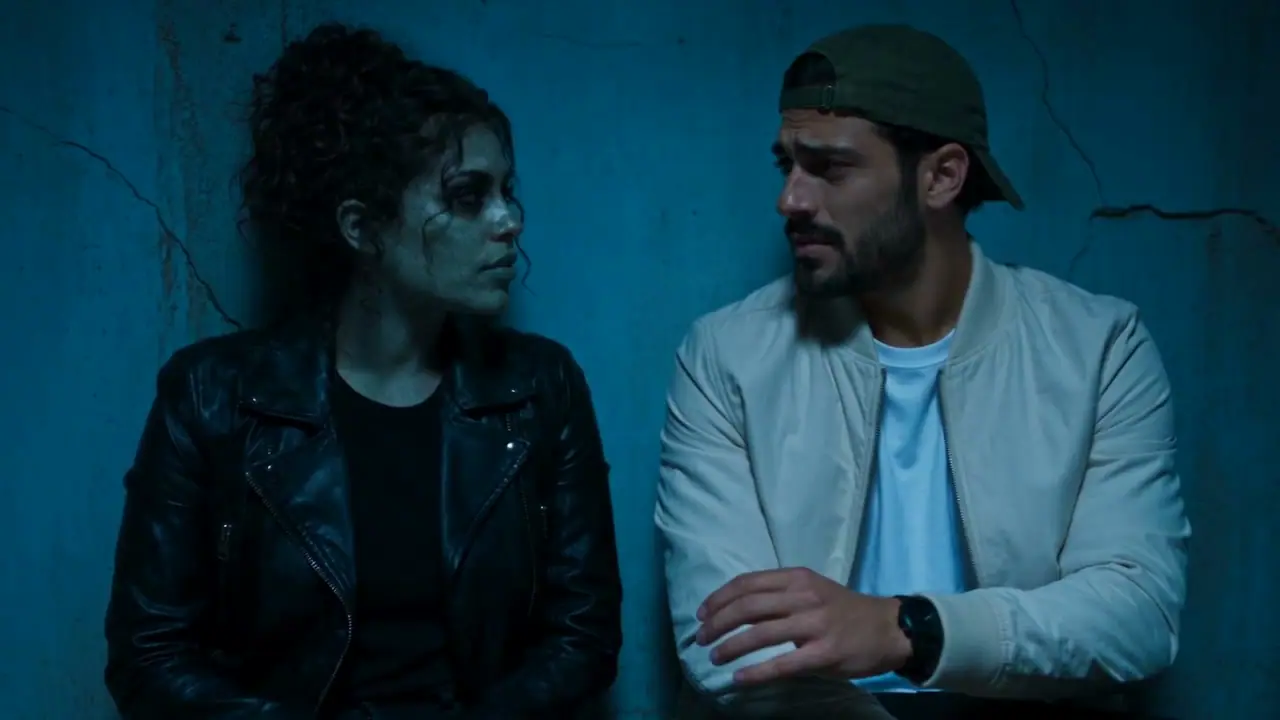
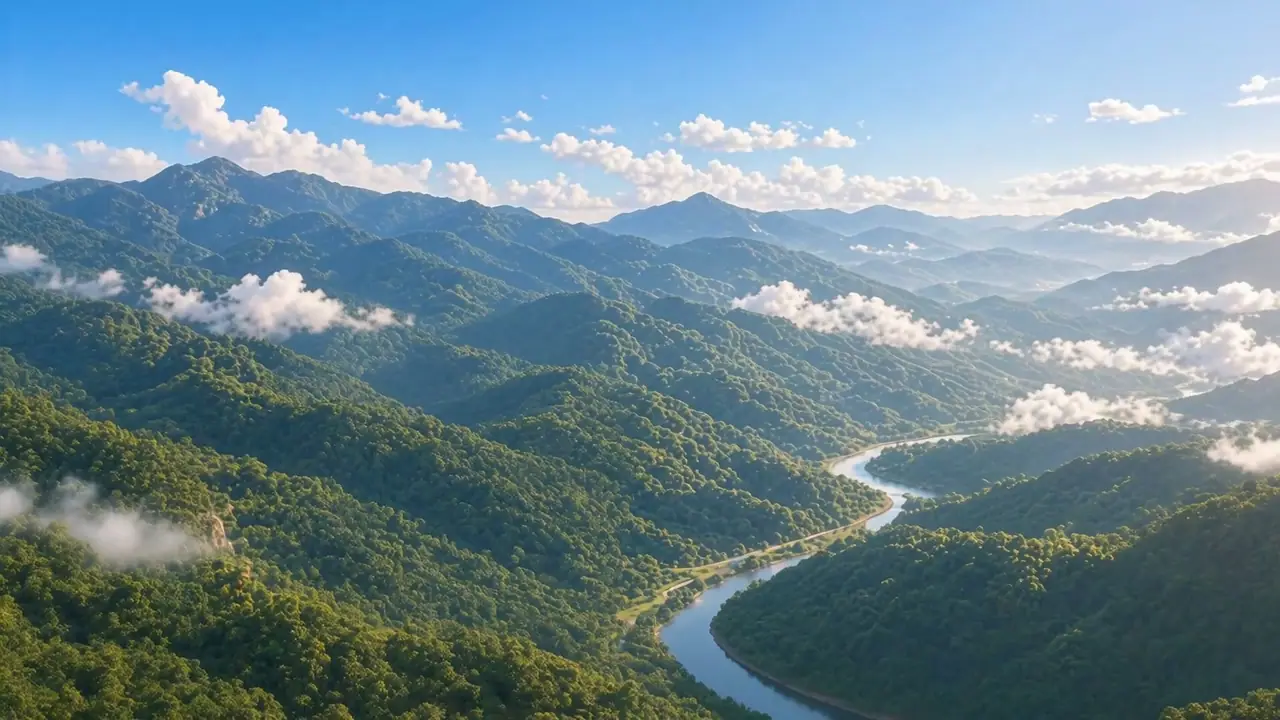

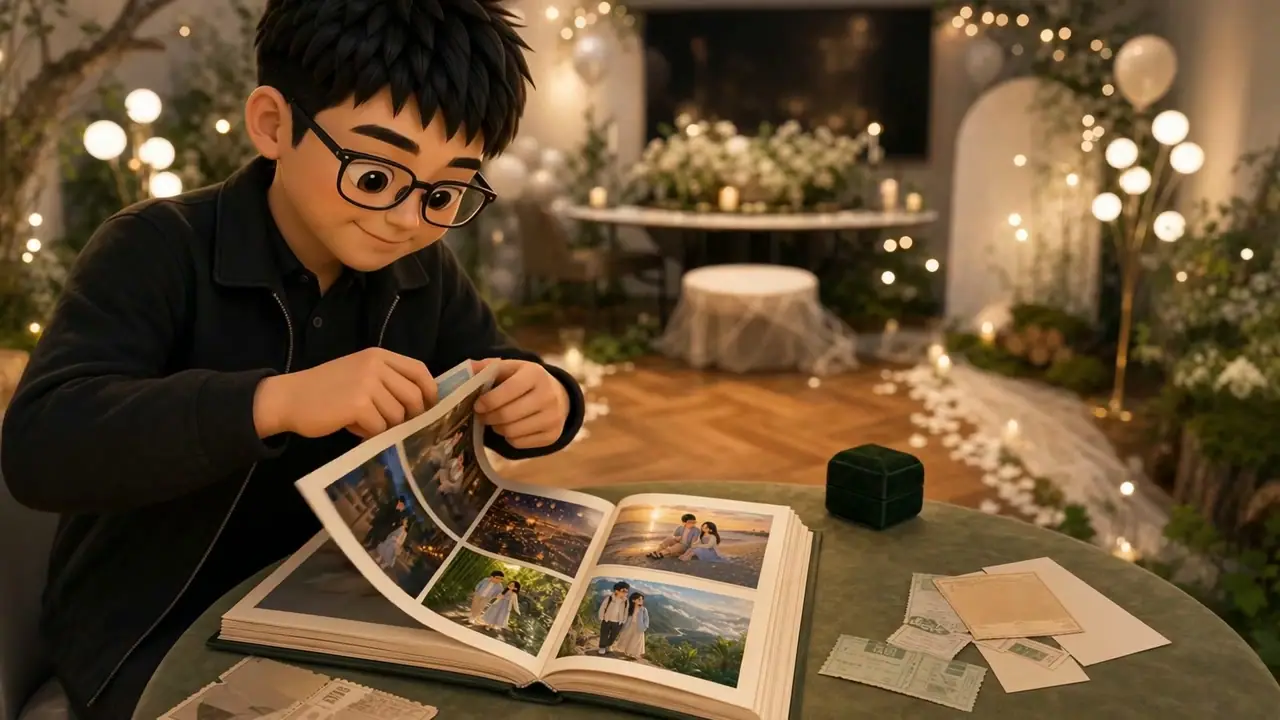
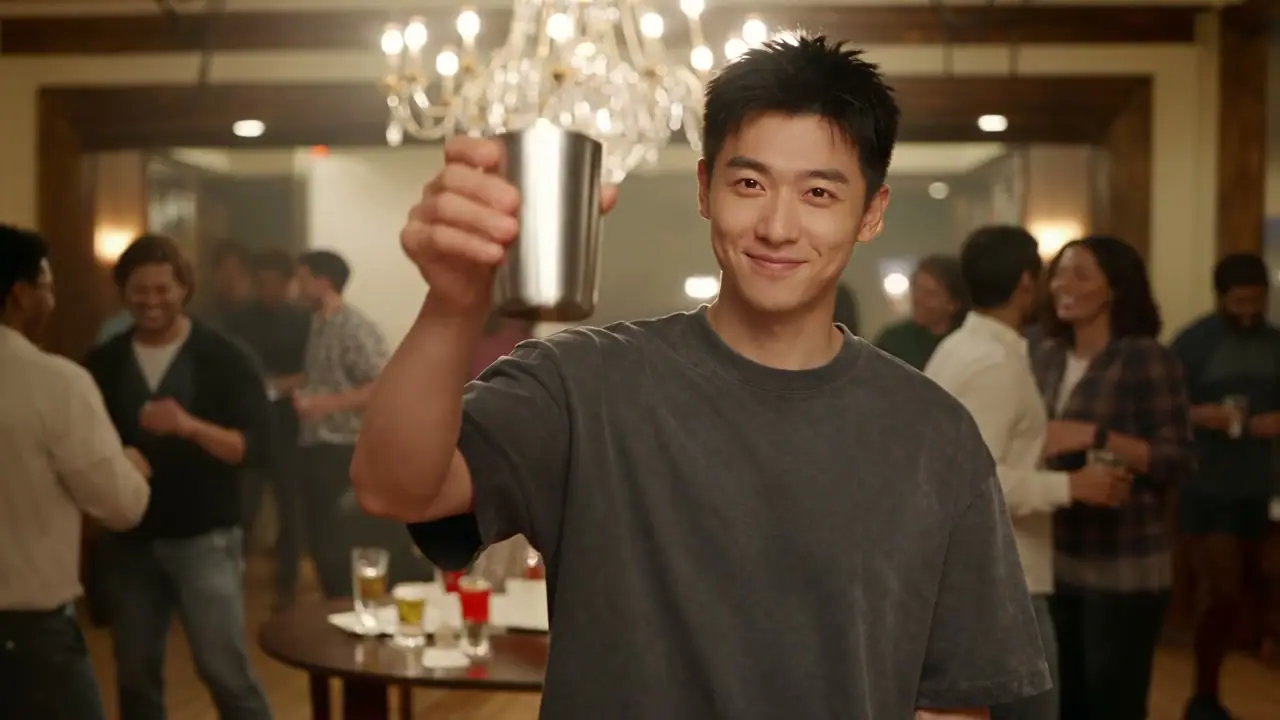
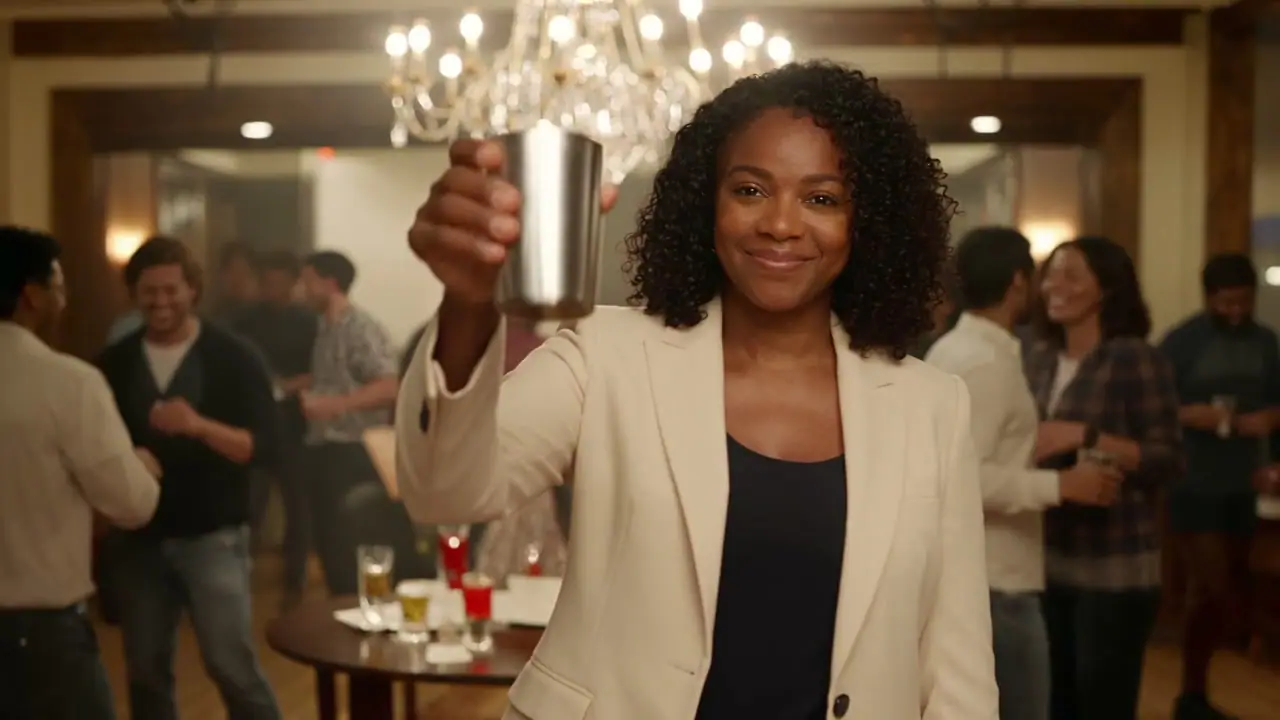
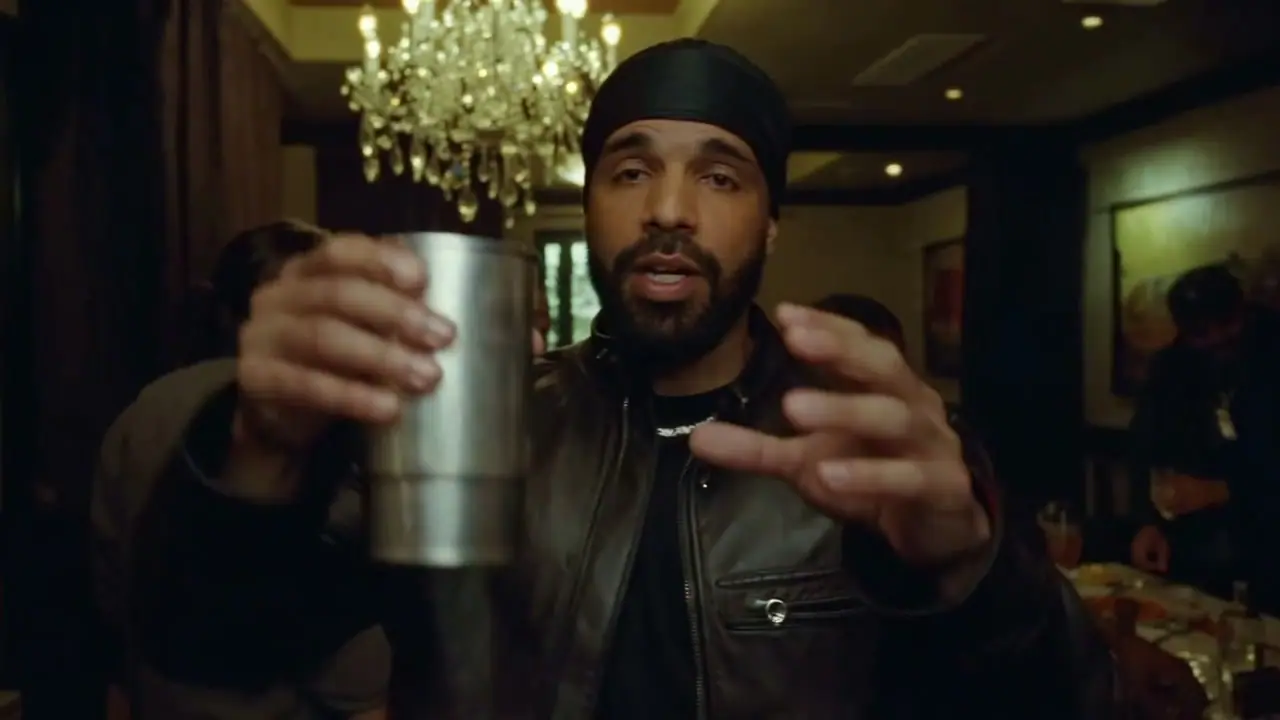
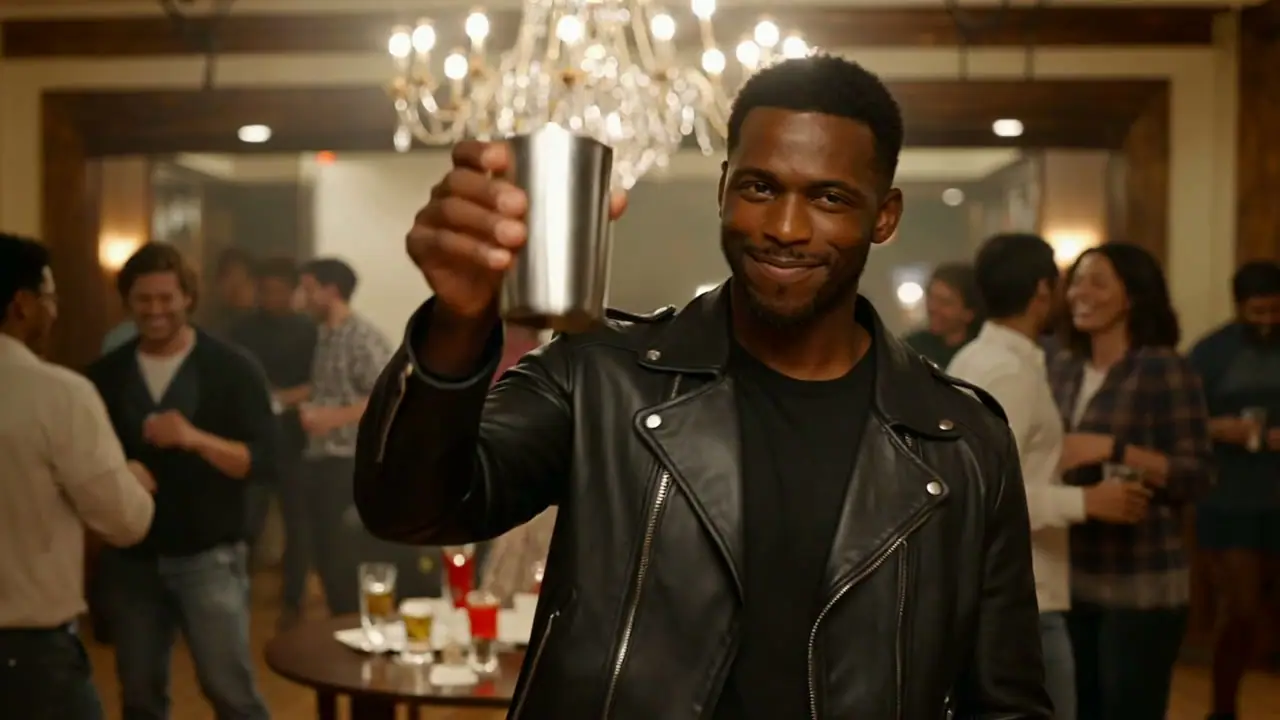
02 / YOUR STARTING POINT
Text to video with EveryGen AI
Describe a subject, an action and a camera move to create an AI video from text. EveryGen AI lets you choose Seedance, Veo or Hailuo, set a supported duration and resolution, and check the generation credits before submitting.
Text to Video
Describe one scene: who is in it, what moves, and how the camera sees it.
Start with textImage to Video
Upload a reference image. Describe the motion you want to add.
Start with an imageDIRECT YOUR SCENE
Direct your AI video scene
Build an EveryGen AI video prompt around the subject, action and camera movement. Add supported image references, choose the audio setting, and use the same brief to refine your next generation.
Give the model one clear scene. Name the action, setting, mood, and camera movement.
Use an image to guide the subject or a supported reference to shape the motion. Make the role of each input clear.
Review composition, continuity, and sound. Reuse the settings that worked and change one decision at a time.
A cinematic 3D animated scene in a green mountain valley. Reveal two expressive characters above a winding river in warm daylight.
Turn an image into an AI video
Upload a photo or choose an image from your EveryGen AI library, then describe the movement. Image-to-video starts with your visual; supported first and last frames can guide where the shot begins and ends.
Check the model’s input requirements, choose the format, and review the estimate before generating. Compare the subject with the original before keeping the take.
Frame from the exampleStart with a still.
Give the motion a direction.
Describe the action and camera movement you want. This existing clip illustrates a scene direction; your uploaded image and model determine the new take.
Try image to videoGuide AI video motion, references and sound
EveryGen AI exposes the controls supported by your selected model. Use frames to guide a transition, references to describe a character, and optional generated audio to shape the sound of your scene.
03 / HOW IT WORKS
How to create a video with EveryGen AI
Start with a prompt or image, choose a video model, check the credits, then follow the task in Creations. The same EveryGen AI account keeps your settings and generation history together.
Prepare your input
Write a scene prompt or upload a reference image. The AI Assistant can turn your idea into an editable brief; creative templates offer another starting point.
Confirm the settings
Choose a supported duration, format and resolution. Review the generation estimate before submitting.
- Model
- Seedance 2.0 Fast
- Format
- 16:9 · 5s · 720p
- Estimate
- 100 sample credits
Keep track of your take
Use a guest video pass or shared account credits to submit. Your draft stays available, and task history is the place to check progress when you return.
Pending → Processing → Result
Open task historyReview, download, refine
Preview the completed video and download it within 24 hours, before its stored file expires. Reuse the prompt and settings from task history to prepare your next video.
04 / VIDEO TOOLS
EveryGen AI video tools
Choose an EveryGen AI tool for text-to-video, photo animation, reference-led motion or a product scene. Each tool opens a video generator with matching inputs and a starting prompt you can edit.
Text to Video
Turn a scene description into a video.
Open toolImage to Video
Animate a still with a motion brief.
Open toolAI Video Workspace
One workspace for models, inputs and credits.
Open toolFirst & Last Frame
Guide the opening and ending compositions.
Open toolMulti-reference Video
Assign a role to images, clips and sound.
Open toolVideo to Video
Guide a new scene with a reference clip.
Open toolMotion Reference
Use a clip to describe movement.
Open toolCamera Direction
Direct a pan, orbit or tracking shot.
Open toolCharacter Reference
Keep a recurring subject in your brief.
Open toolVideo with Audio
Describe sound together with the scene.
Open toolAI Animation
Develop a stylized animated scene.
Open toolAnime Video
Shape a shot with an anime art direction.
Open toolProduct Video
Build one clear product shot.
Open toolAI Video Ad
Plan a focused commercial scene.
Open toolSocial Video
Frame a short scene for a vertical feed.
Open toolCinematic Video
Explore a composed story moment.
Open toolVideo Extend
Continue a 2–30-second, 480p–1080p clip with native scene extension. Complete workbench access with every paid order; each continuation uses quoted credits.
Open toolVideo UpscalePlanned
Enlarge an existing finished video.
Explore tool05 / VIDEO MODELS
Compare video models in EveryGen AI
EveryGen AI brings Seedance, Kling, Veo, Gemini, Grok, MiniMax, FLUX Video, Wan, Vidu, PixVerse, SkyReels and HappyHorse into one video workspace. Compare text and image inputs, supported durations, resolution and audio options. Open a model page for its controls, prompt examples and current generation credits.

Seedance 1.0 Pro Quality
First and last frames
Text + image · 2–12s · 480p / 720p / 1080p
Explore modelSeedance 2.5
Long-form scenes and native continuation
Text + image · 4–30s · 480p / 720p / 1080p
Explore modelKling 3.0 Omni
Shot planning and first/last frames
Text + image · 3–15s · 720p / 1080p / 4k
Explore modelKling 2.6 Motion Control
Photo + motion-reference video
Photo + motion video · 3–30s · std / pro
Explore modelKling 3.0 Motion Control
Photo + motion-reference video
Photo + motion video · 3–30s · std / pro
Explore modelGrok Imagine 1.5 Video Ext
Six-to-fifteen-second image-led clips
Text + image · 6–15s · 480p / 720p
Explore modelGrok Imagine Video
Short scenes from text or reference photos
Text + image · 1–15s · 480p / 720p
Explore modelGrok Imagine Video 1.5
Photo-led video with a 1080p option
Text + image · 1–15s · 480p / 720p / 1080p
Explore model
Gemini Omni 1.1 Flash Ext
Starting frames or three-photo references
Text + image · 4–10s · 720p / 1080p / 4k
Explore modelMiniMax Hailuo 02
Start and end with owned frames
Text + image · 5–10s · 512p / 768p / 1080p
Explore modelMiniMax H3 Max
Frames or multimodal references
Text + image · 5–15s · 480p / 768p / 1080p
Explore modelSkyReels V4 Fast
Prepare first and ending frames
Text + image · 3–15s · 480p / 720p / 1080p
Explore modelSkyReels V4 Standard
Prepare first and ending frames
Text + image · 3–15s · 480p / 720p / 1080p
Explore modelVidu Q3 Pro
Start from text or endpoint photos
Text + image · 1–16s · 540p / 720p / 1080p
Explore modelVidu Q3 Turbo
Start from text or endpoint photos
Text + image · 1–16s · 540p / 720p / 1080p
Explore modelVidu Q3 Standard
One to seven appearance references
Image only · 3–16s · 540p / 720p / 1080p
Explore modelVidu Q4 Preview
First frame or a reference collection
Image only · 3–16s · 540p / 720p / 1080p / 2k / 4k
Explore modelPixVerse V6 Max
Native generation inputs
Text + image · 1–15s · 360p / 540p / 720p / 1080p
Explore modelVeo 3.1 Fast Official
Native text and endpoint frames
Text + image · 4–8s · 720p / 1080p / 4k
Explore modelVeo 3.1 Quality Official
Native text and endpoint frames
Text + image · 4–8s · 720p / 1080p / 4k
Explore modelMODEL SPOTLIGHT
Create a scene from the references you have
Use the EveryGen AI reference workflow when an image defines your subject or a clip shows the camera movement you want. Seedance models support mixed references; the generator shows the available image, video and audio inputs for your model and plan.
Assign a role to each reference, describe what should change, and review the resulting quote. The model page keeps input limits and the video generator together.
Explore reference workflowsSubject reference
Scene reference
Location reference
Choose your EveryGen AI video workflow
Compare the inputs before opening the matching video tool.
06 / CREATIVE
Creative video templates for EveryGen AI
Prepare an AI rap duo, bullet-time scene, character dance or sketch-to-video animation in EveryGen AI. Each template explains what to upload and loads an editable prompt into the video generator.
AI TRENDS / VIDEO GENERATORS
AI video trend tools in EveryGen AI
Explore Hit the Road Dude dog reactions, Unforgettable Car reveals, Ozil Goal dog football, Smalltown Boy dance duets, Bad Times pet reactions and memory stories. Every Gen AI opens each tool with an editable prompt, the right input controls and compatible generation settings.
These are curated creative directions, not a live popularity ranking. Each tool generates a new video using supported models. Genjutsu uses an independent reference-led workflow. Your new take may vary.
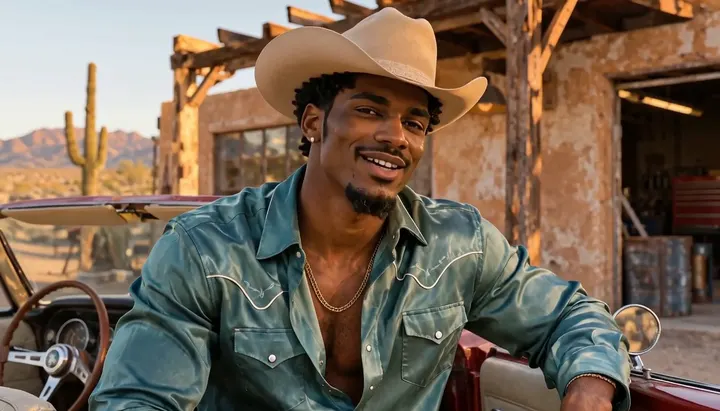
Old Town Road AI
Turn one portrait into a red-convertible Western performance clip with the Old Town Road AI video generator from EveryGen AI.
Rubber Band Prank AI
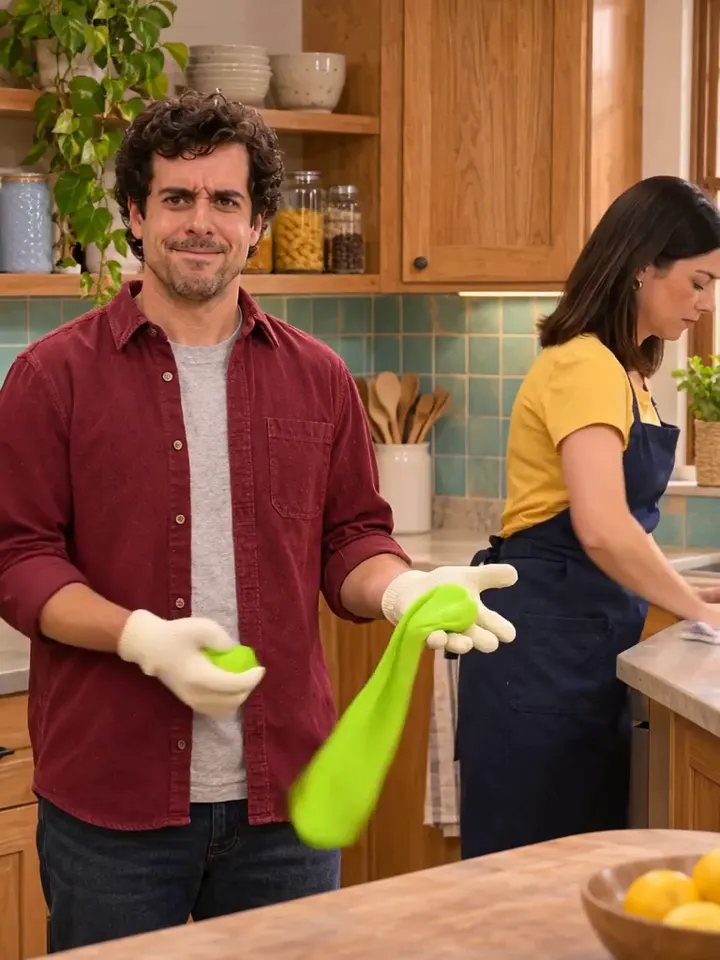
Cast two people in a fictional rubber-band prank that backfires. Try the two-photo Rubber Band Prank AI template from EveryGen AI.
Office Parkour AI
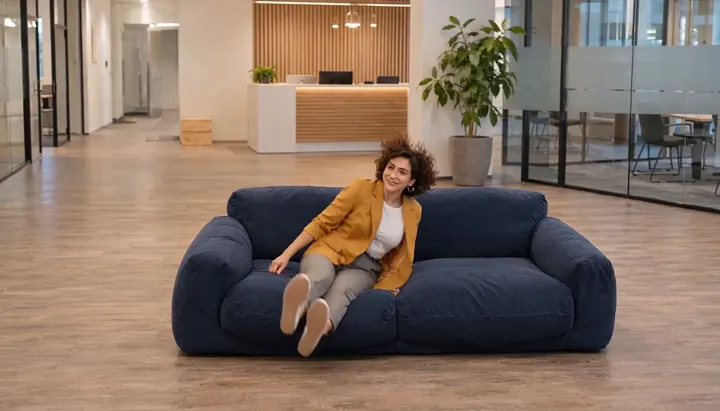
Animate one full-body photo into a staged office couch comedy with the Office Parkour AI video generator in EveryGen AI.
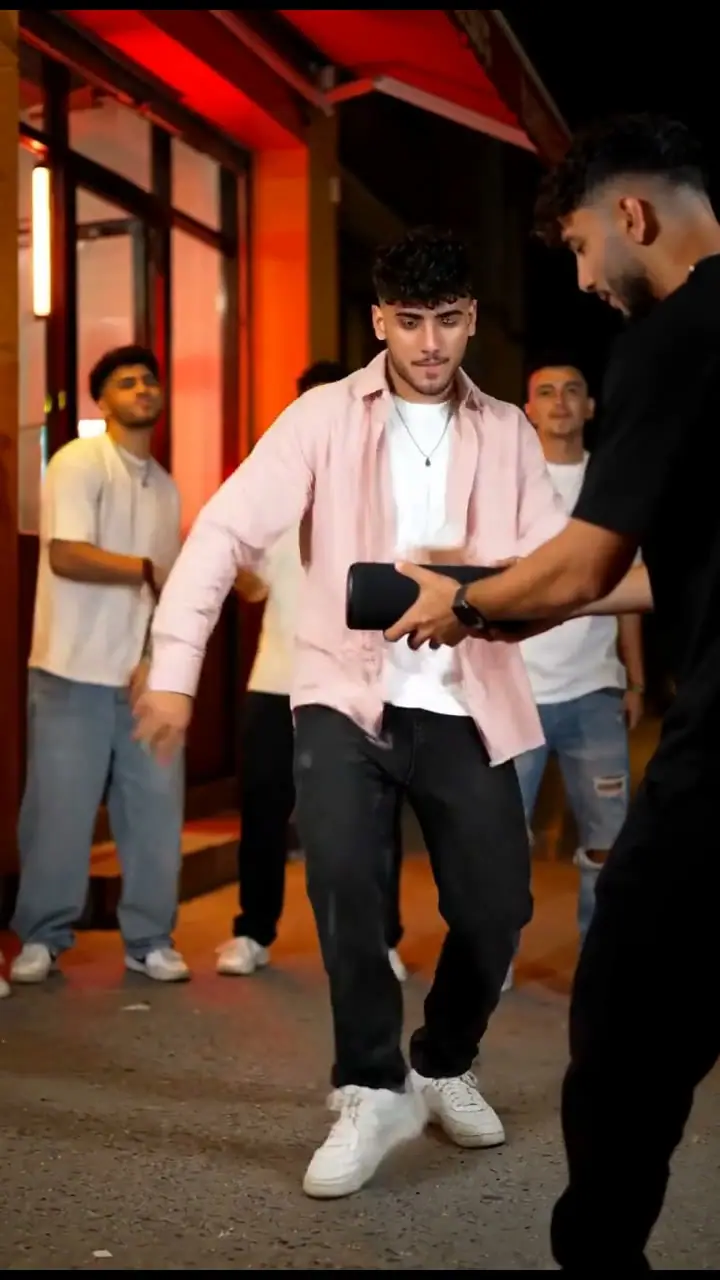
Bulin 47 AI
Generate an original street freestyle with a lead performer, a portable speaker and a night-time crowd. Edit the ready-filled prompt and start your own take.
Genjutsu AI
Generate a new scene guided by photos and supported video references. Assign identity, movement and camera direction in the same workspace.
Zombie AI
Create a gentle fictional Zombie AI memory video from two portraits. Edit the prefilled story, choose your companions and generate with original sound.
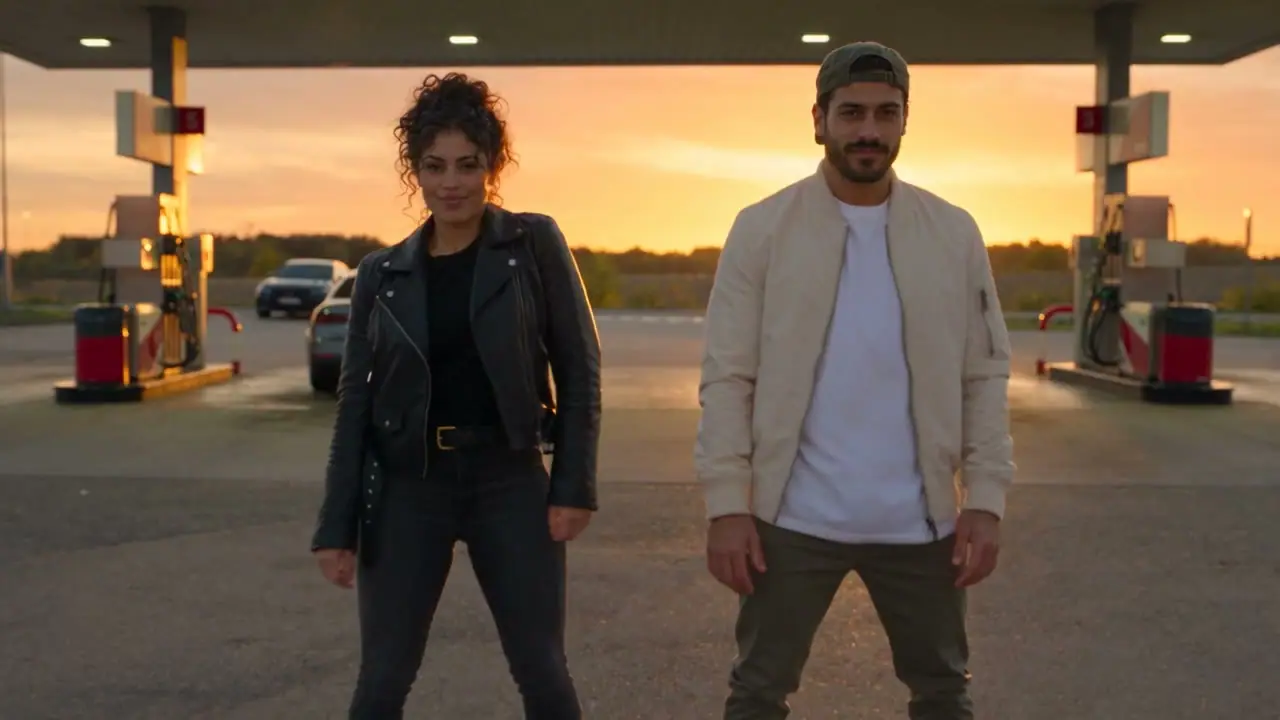
Gas Station Dance
Create a sunset Gas Station Dance video with two performers. Your dance prompt and settings are ready; add your photos and generate a new take.
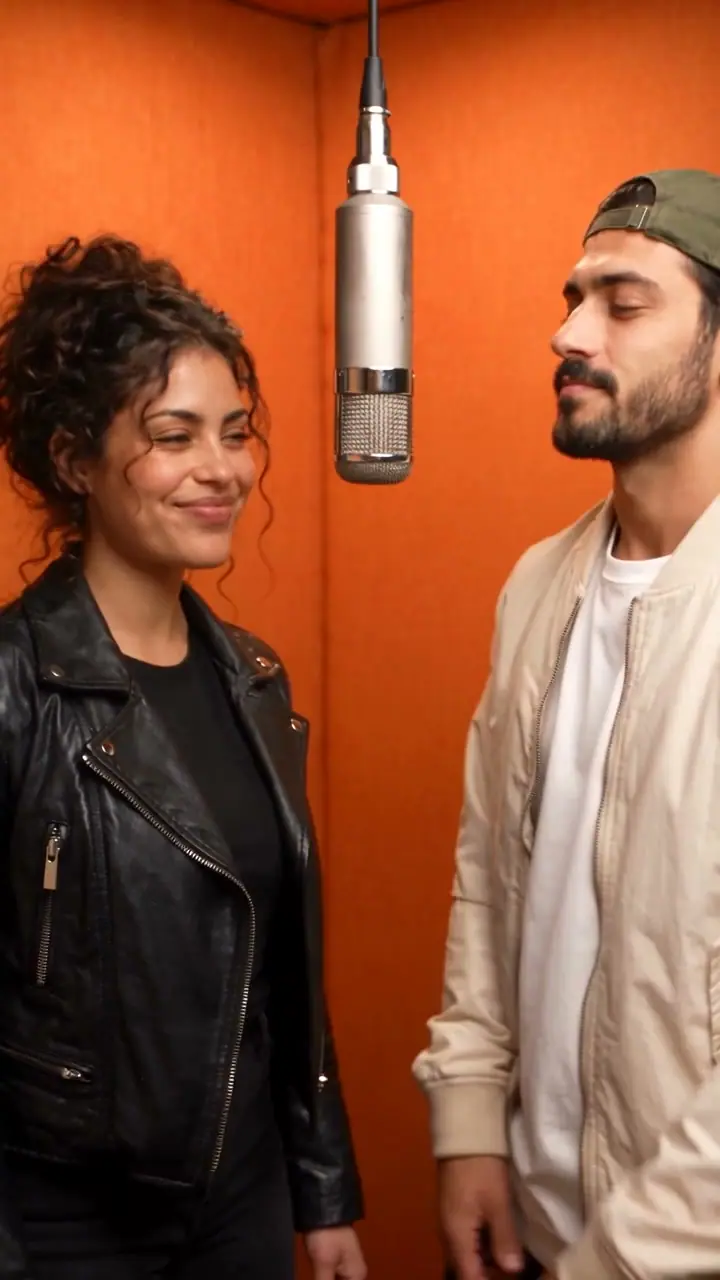
AI Hotel Lobby
Create an AI Hotel Lobby duet from two portraits. Edit the ready-filled orange-booth prompt, choose your performers and generate with original sound.
Hit the Road Dude
Create Hit the Road Dude AI videos with Every Gen AI. Upload your character, customize the setting, and generate a 15-second 720p pickup reaction with sound.
Unforgettable Car
Make an Unforgettable Car AI reveal with Every Gen AI. Upload your presenter for a 24-card transition, fictional car reveal and 15-second 720p video with sound.
Ozil Goal
Create Ozil Goal AI videos with Every Gen AI. Upload your dog or character, customize the setting, and generate a 15-second 720p football video with sound.
Smalltown Boy AI
Turn two cats, friends or original characters into the scream-and-swap dance. Keep both identities assigned through the close-ups, duet and final rush.
Bad Times AI
Create a playful argument-with-the-camera performance from a person’s photo. Follow the head grab, wait gesture, skeptical pause and final forward lean.
Rumpelstiltskin AI
Turn a subject photo into a mischievous barn dance: tiptoe steps, a shh gesture and a theatrical finish. One original fifteen-second landscape action template.
Tesla Roadster AI
Replace the stunt vehicle with your own subject while following a giant-ramp video template. Describe a vehicle or upload a photo in EveryGen AI.
Spooky Scary Skeletons AI Dance
Create a Spooky Scary Skeletons AI dance with EveryGen AI. Describe a Halloween character or upload your photo and follow the included dance video.
Nightwing AI
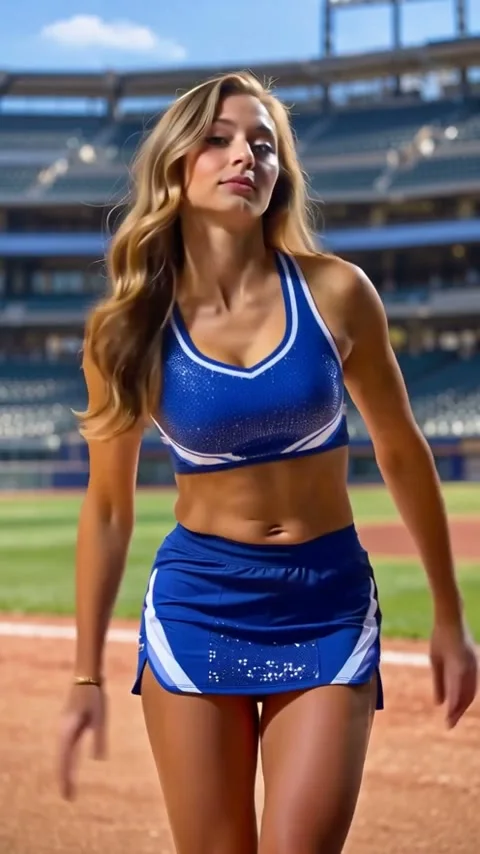
Explore the Nightwing AI dance trend with an original space-heroine example. Chat in Inspiration or customize the video prompt and model in EveryGen AI.
Firestarter KDA Dance AI
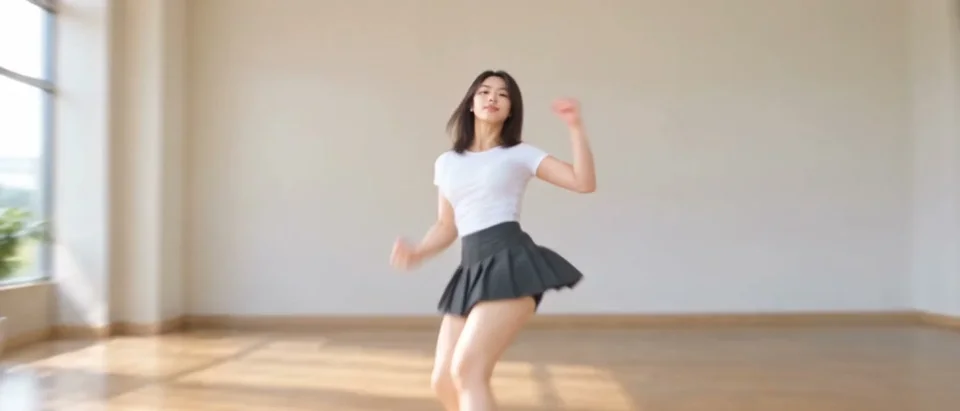
Make a Firestarter KDA dance AI video with EveryGen AI: shape your idea in Inspiration, choose a model in Normal or transfer the included dance to your photo.
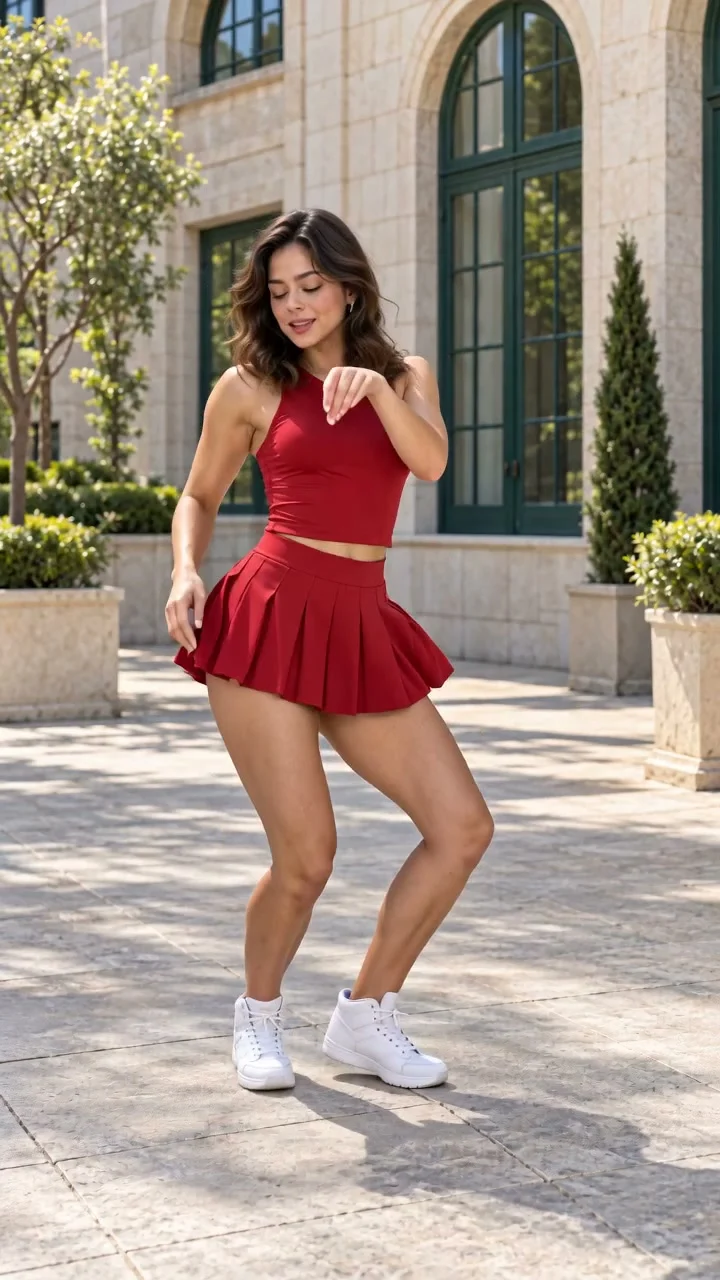
Babydoll Dance AI
Create a Babydoll dance AI video with EveryGen AI. Plan in Inspiration, customize a dancer in Normal or use our included 720p dance reference.
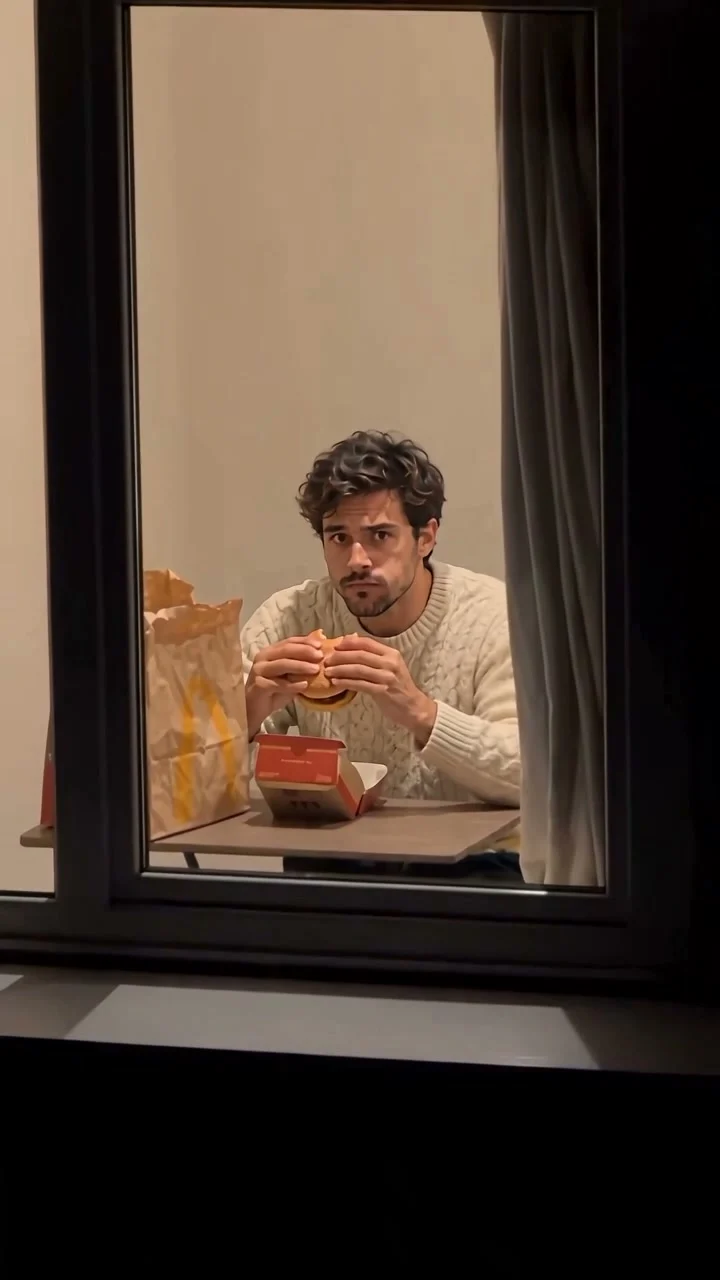
Window Peeper AI
Make a Window Peeper AI video with EveryGen AI. Plan a human or cat scene in Inspiration, or customize our original 720p burger-through-window template.
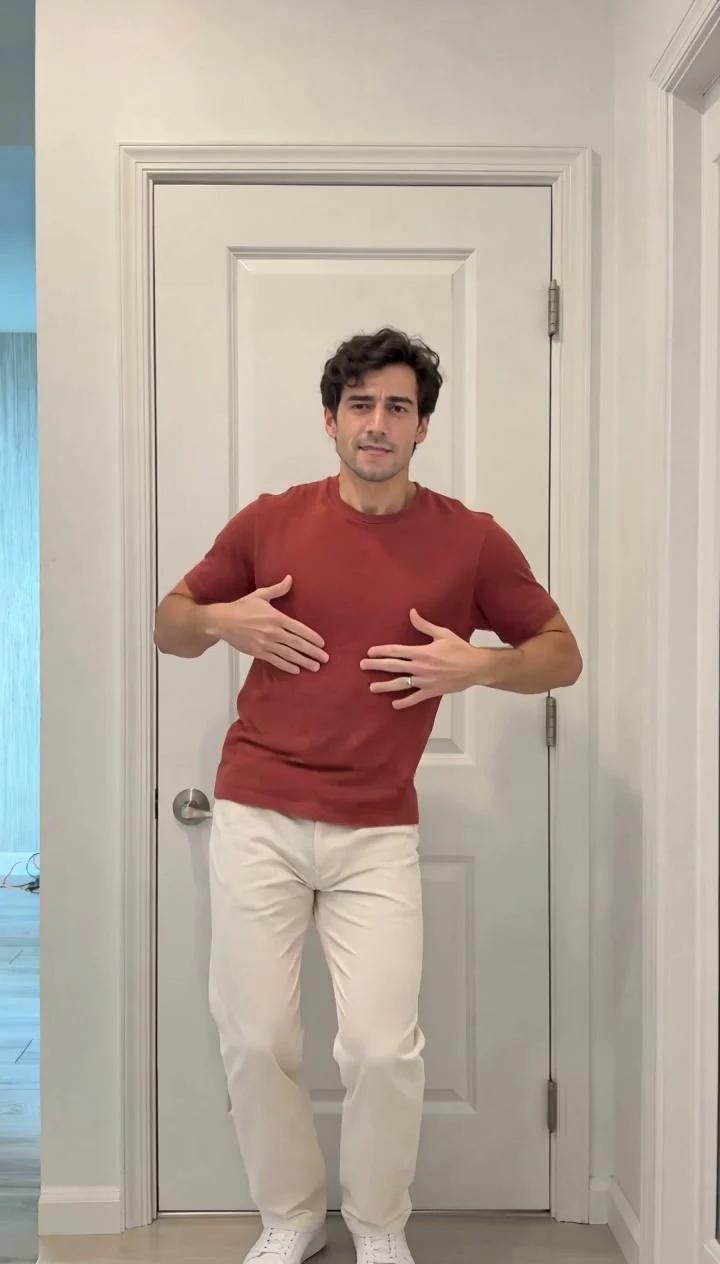
Puerto Rican Mami AI Dance
Make a Puerto Rican Mami AI dance video with EveryGen AI. Explore original 720p solo examples, prepare your look and review the full generation quote.
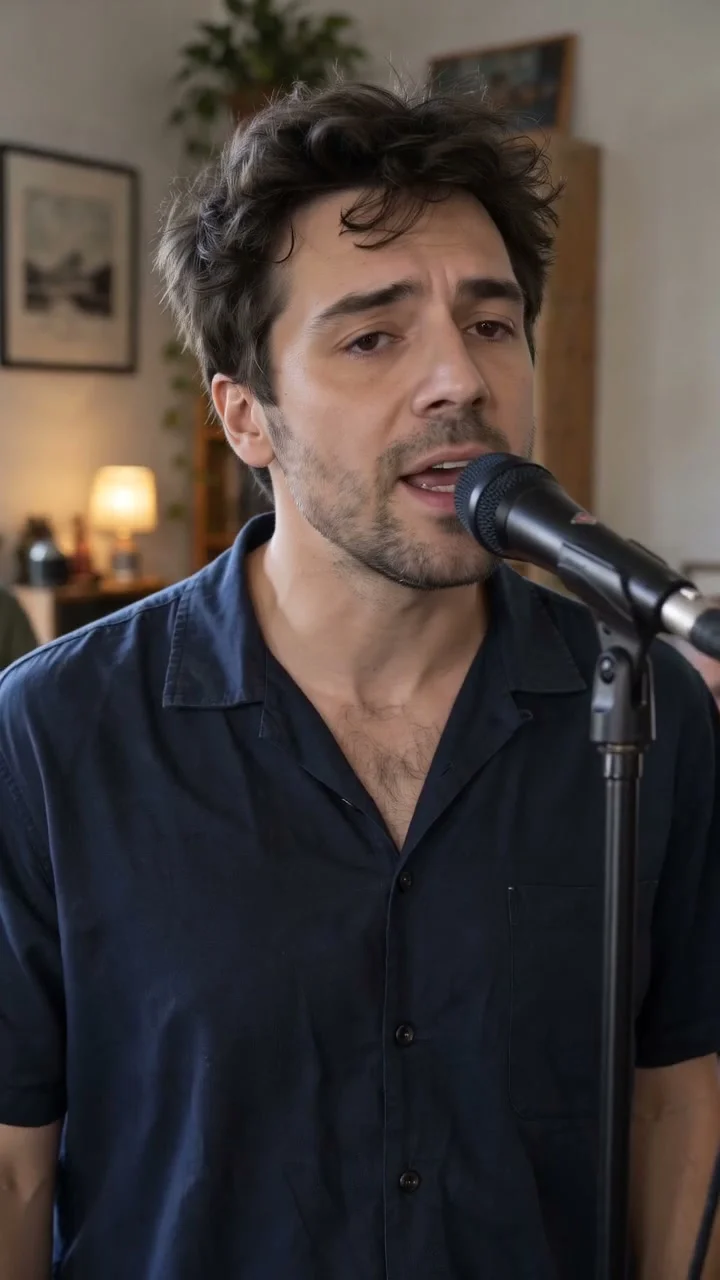
Tiny Desk AI
Create a Tiny Desk AI video with EveryGen AI. Plan an acoustic band, prepare a subject photo and make an intimate music session with original sound.
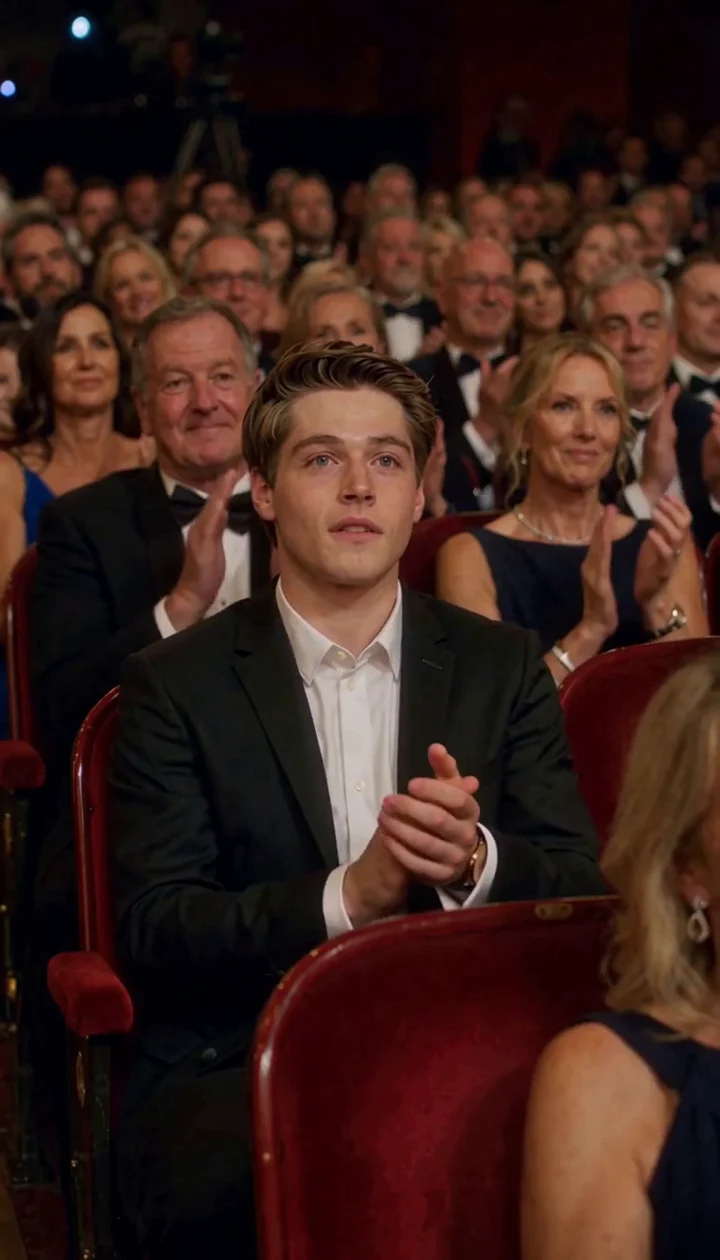
Ballon d'Or AI
Create a Ballon d'Or AI video with EveryGen AI. Plan a fictional award night, personalize the recipient and generate a ceremony with original sound.
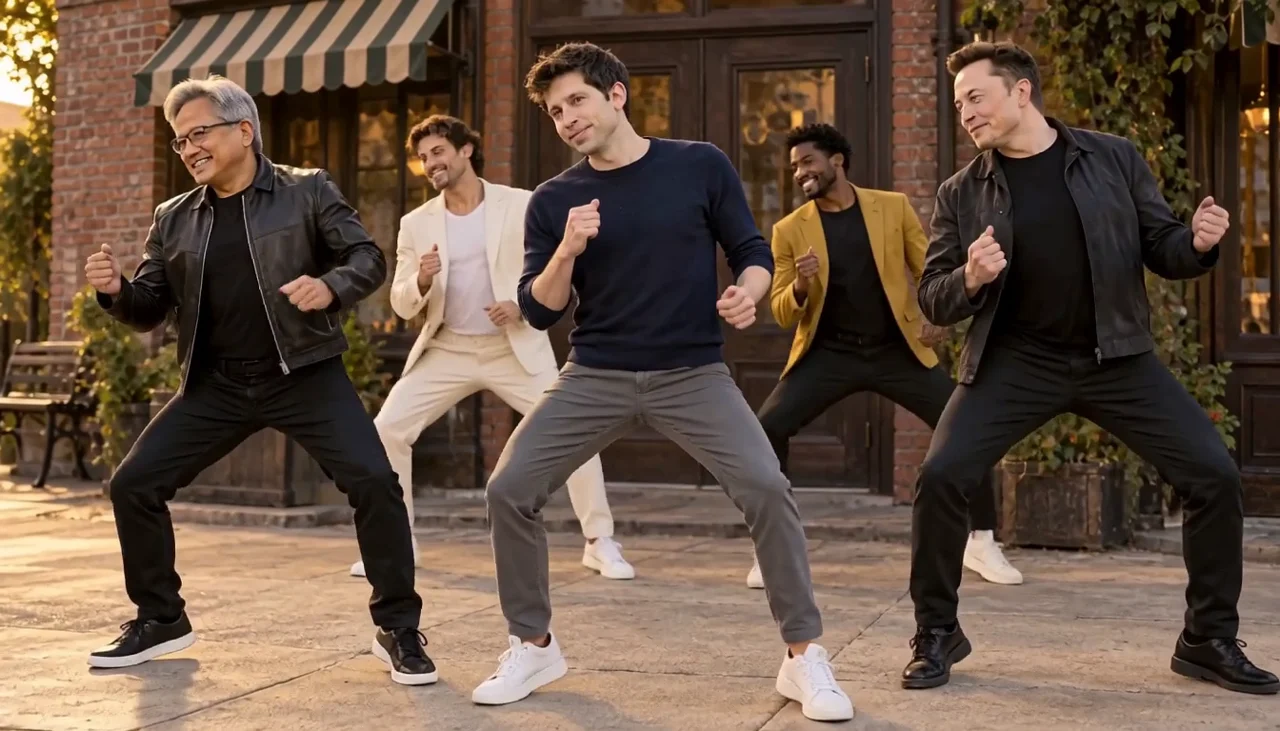
Uptown Funk AI
Make an Uptown Funk AI video with EveryGen AI. Plan your dance crew, prepare a subject photo and generate a street-dance scene with original sound.
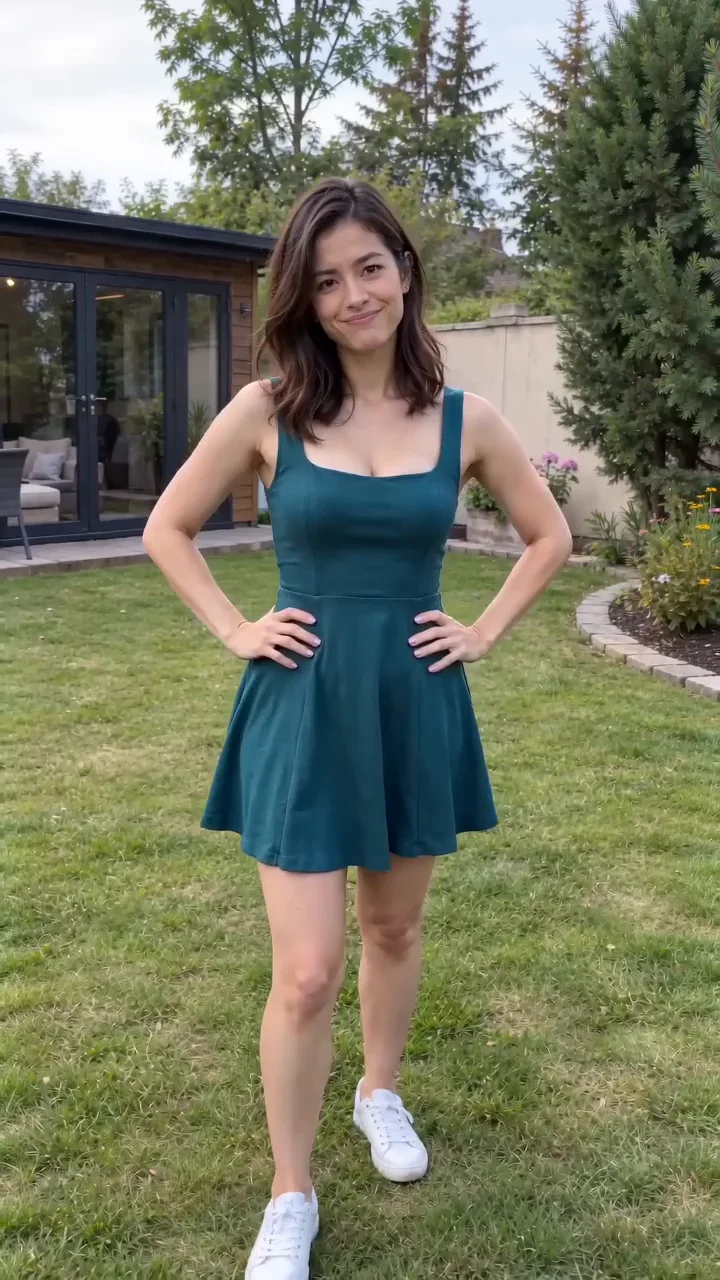
Angry Dance AI
Make an Angry Dance AI video with EveryGen AI. Plan a funny reaction, prepare an image and animate expressive gestures with original sound.
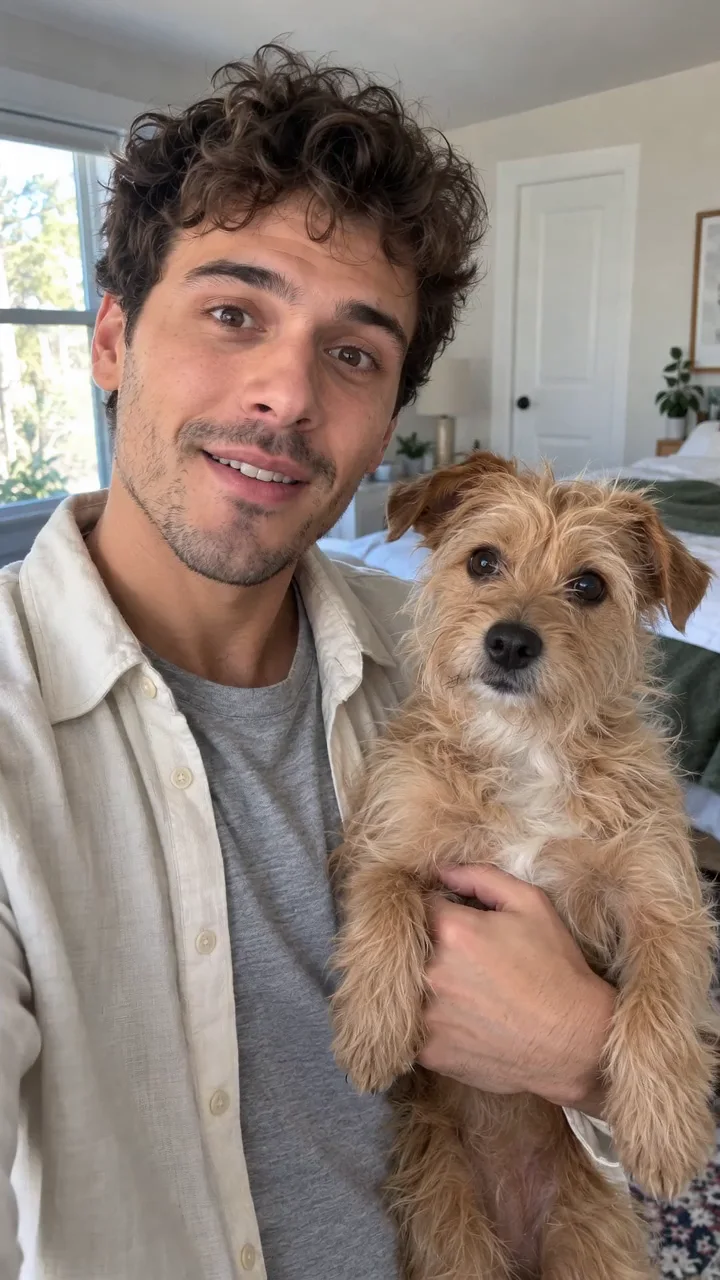
Skull Cap AI
Make a Skull Cap AI before-and-after video with EveryGen AI: a playful pet-partner reveal, original music and a ready-to-edit prompt.
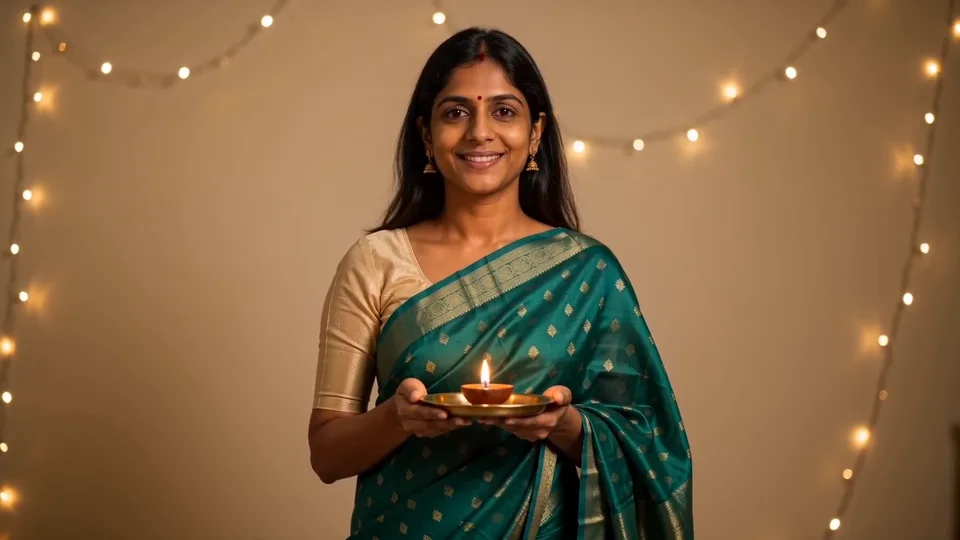
Diwali AI Transformation
Create a Diwali AI Transformation video in EveryGen AI: a black-and-white everyday look becomes a colorful festive portrait, with original sound and an editable prompt.
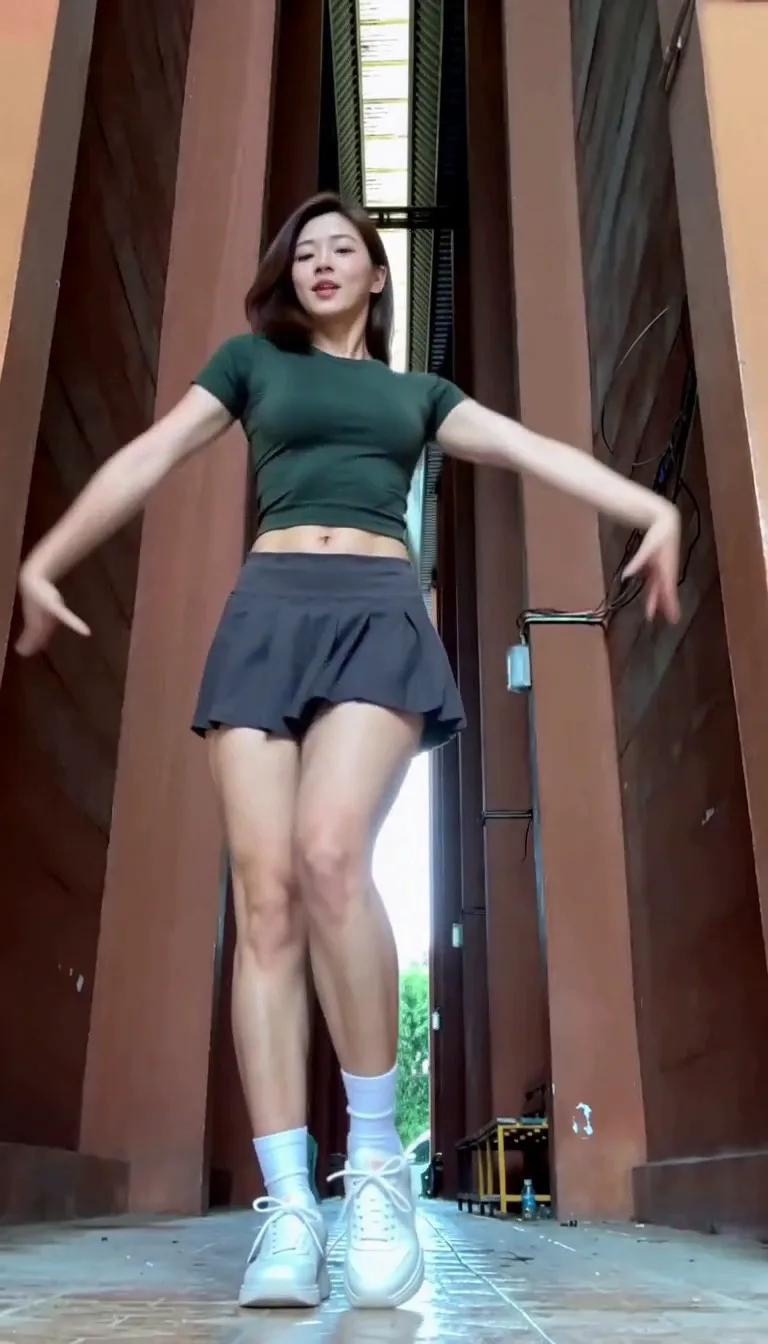
Lisa Tarantino Dance AI
Make a Lisa Tarantino Dance AI video with EveryGen AI. Plan a dancer, use an editable prompt or authorized photo and create a full-body routine with original sound.
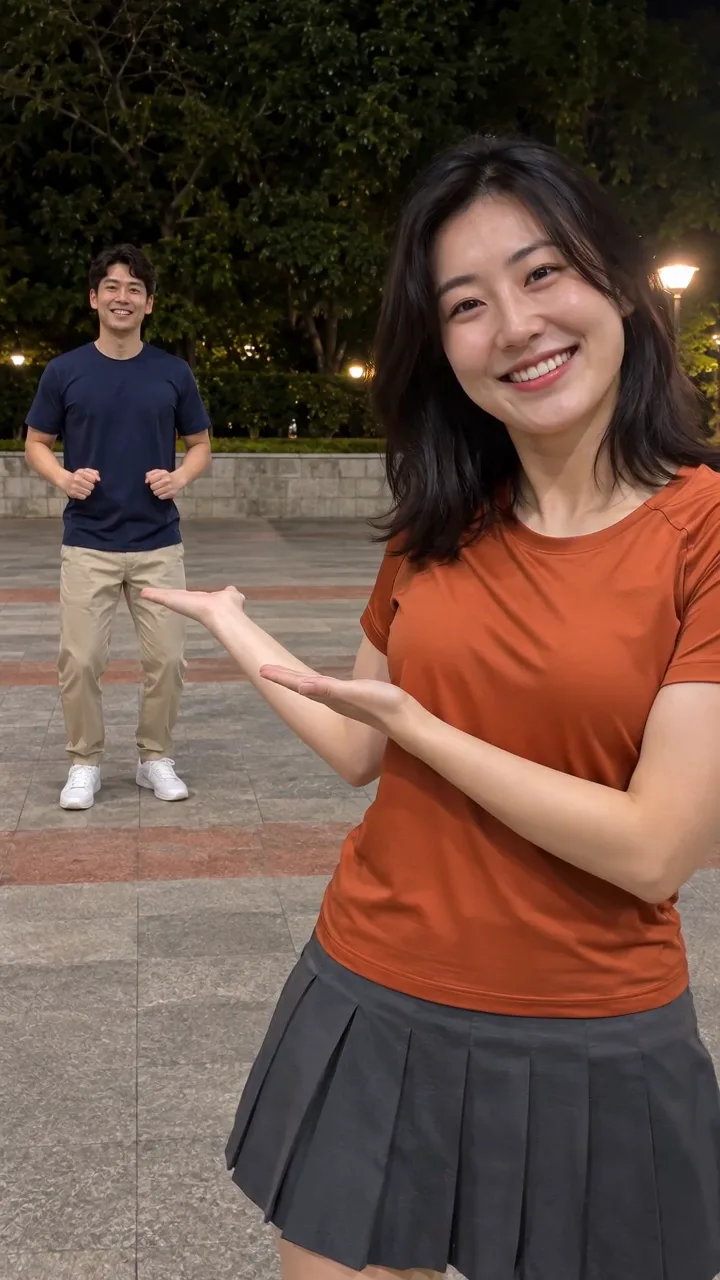
Hop Hop Hop AI Dance
Make a Hop Hop Hop AI Dance video with EveryGen AI. Plan two dancers, edit the prompt and choose a model for the point-and-hop swap with sound.
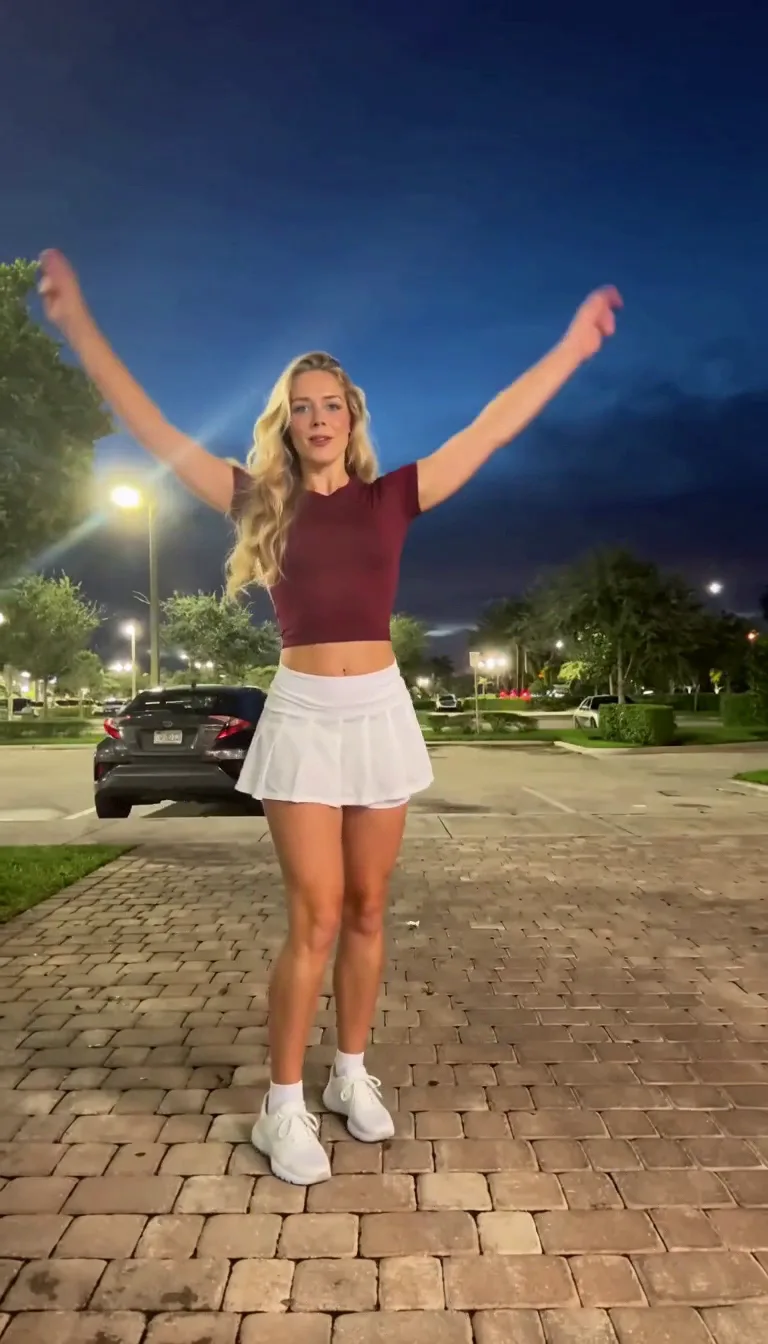
Pick It Up Dance AI
Create a Pick It Up Dance AI video with EveryGen AI. Prepare a full-body photo, edit the prompt and choose a model for the turn, squat and jump.
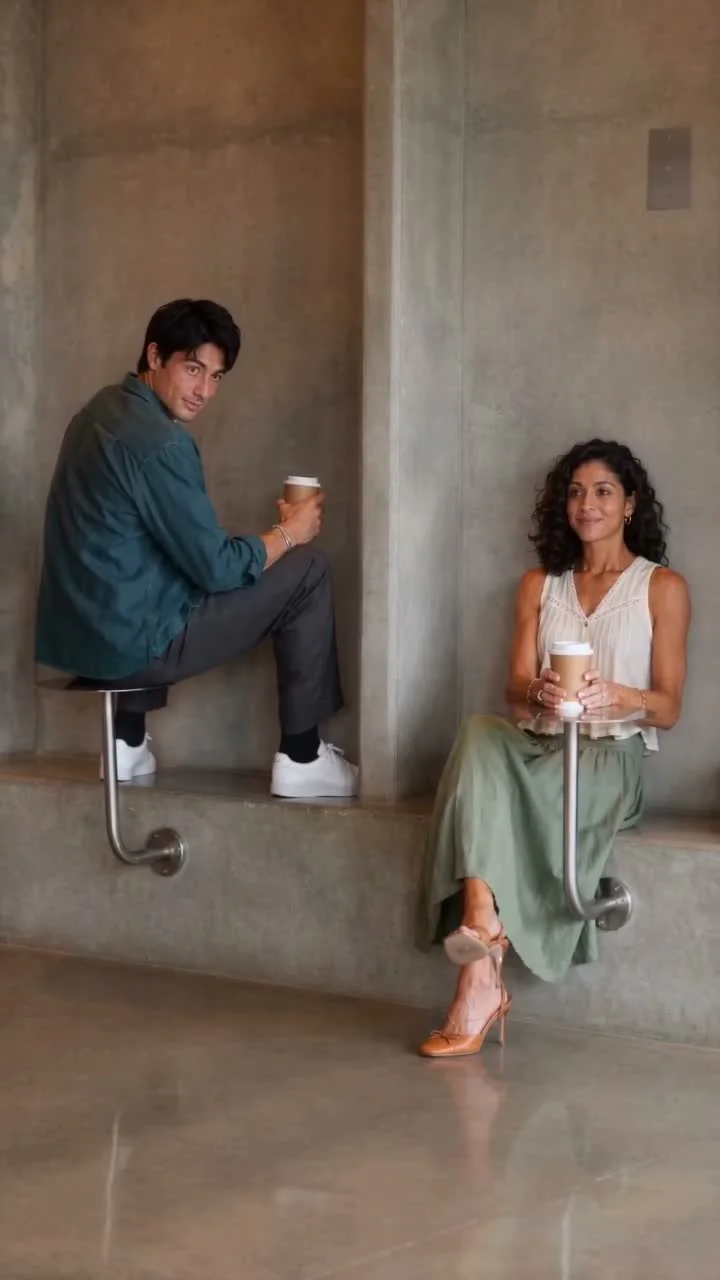
Fancy Cafe AI
Make a Fancy Cafe AI video with EveryGen AI. Recreate the wrong-seat cafe joke with an editable prompt, your own characters and generated sound.
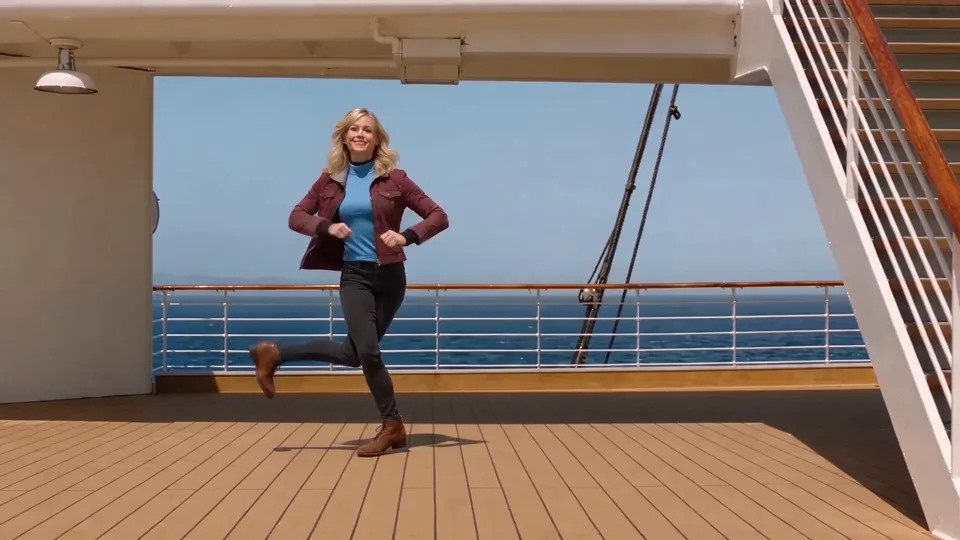
24K Magic AI Dance
Create a 24K Magic AI Dance video in EveryGen AI. Pick a model, prepare your adult dancer and build a cabin-to-deck routine with generated music.
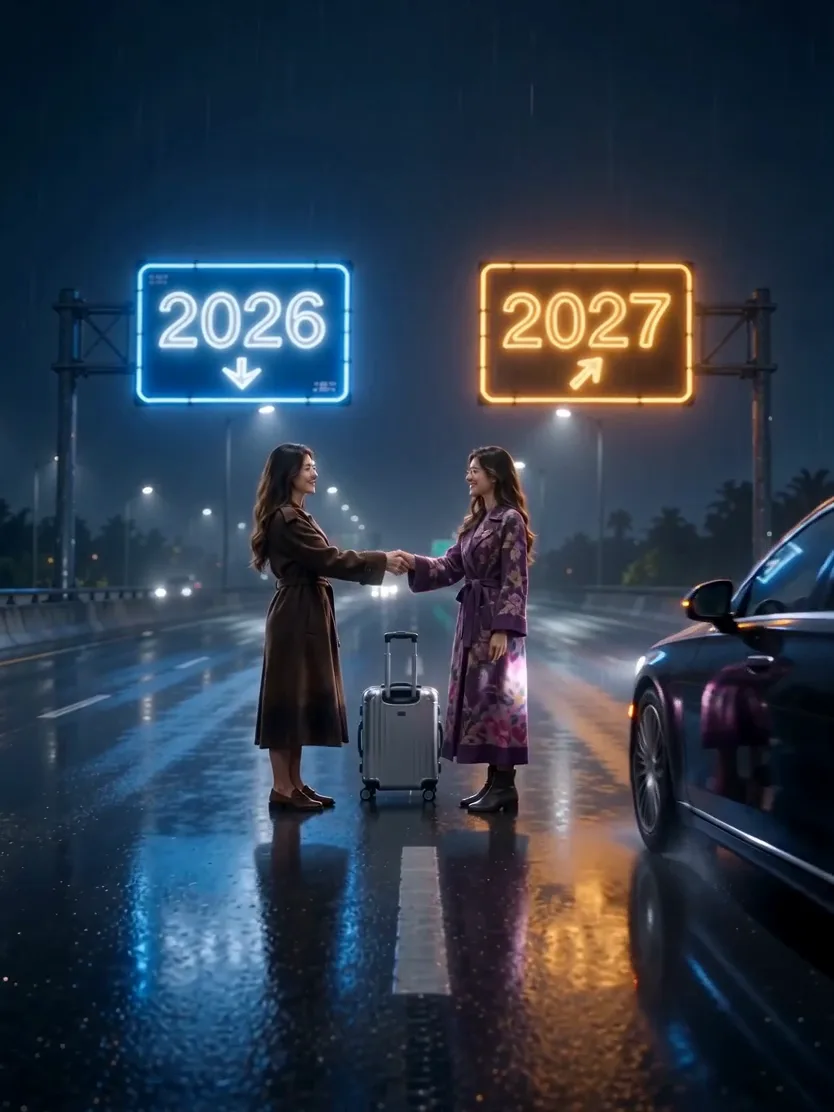
Goodbye 2026 Welcome 2027 AI
Create a Goodbye 2026 Welcome 2027 AI video in EveryGen AI. Customize two versions of one character, a rainy farewell and original sound.
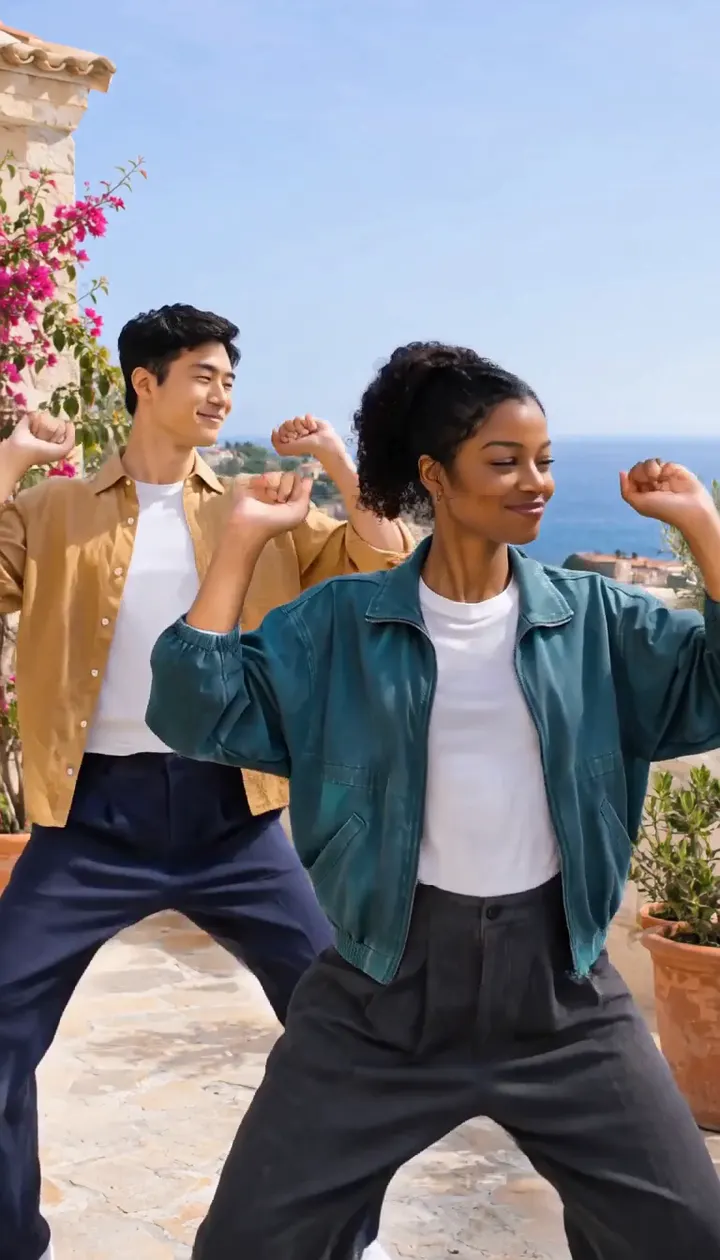
Can I Ride Dance AI
Create a Can I Ride Dance AI video in EveryGen AI. Plan two distinct dancers, edit a hand-gesture routine or use the reviewed rooftop motion template.
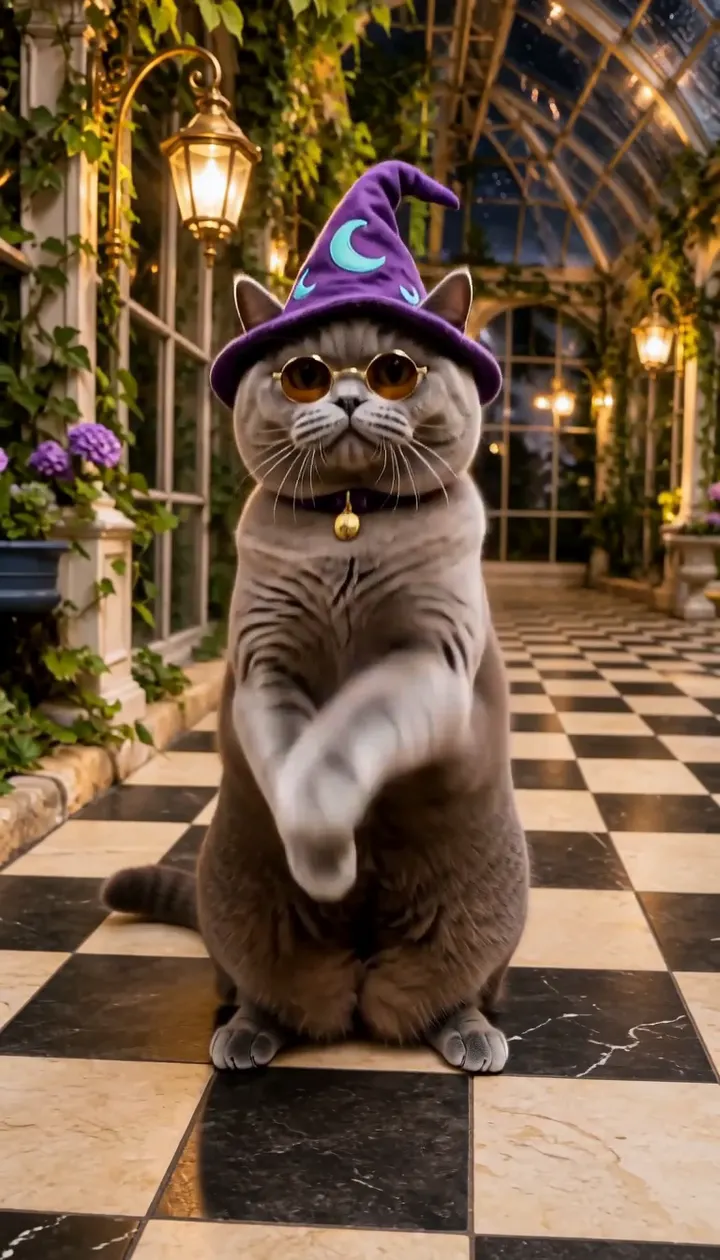
Buggin Dance AI
Make a Buggin Dance AI video with EveryGen AI. Plan a playful pet, prepare its image and follow a pullback, paw-bounce and turning dance sequence.
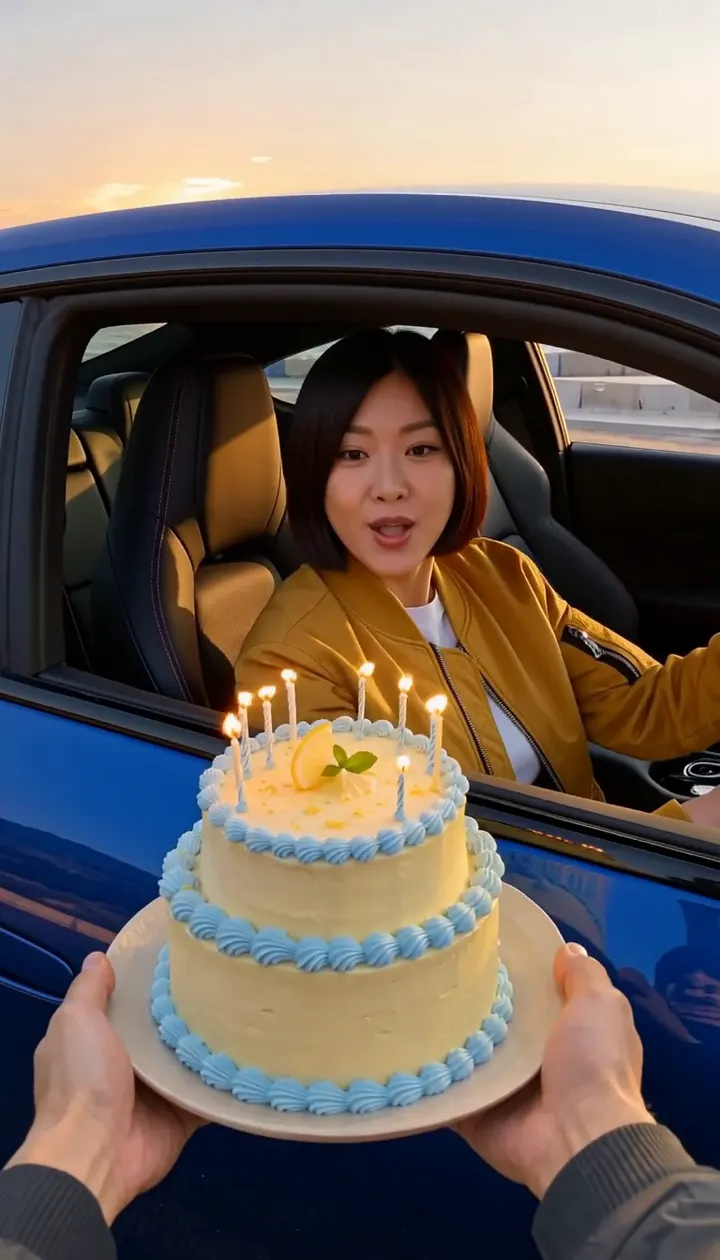
Birthday Car Drift AI
Create a Birthday Car Drift AI video in EveryGen AI. Stage a cake-first POV, a fictional car arrival and a candle-blowing reaction with native controls.
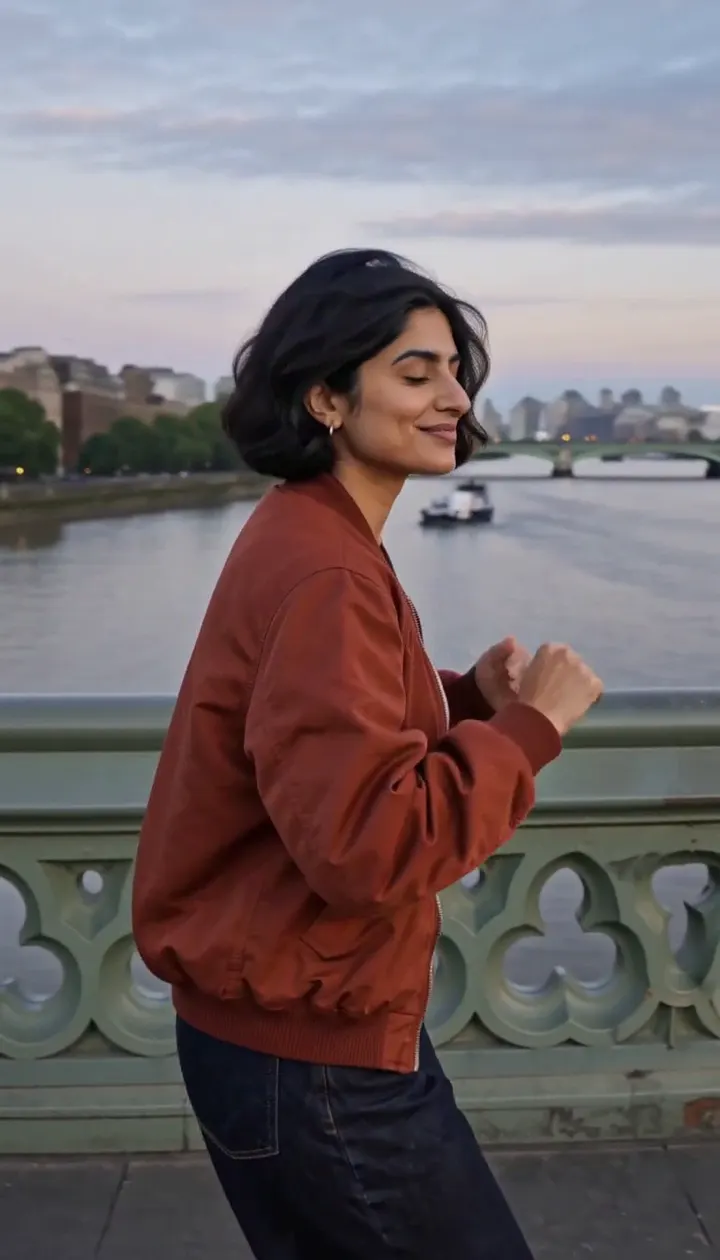
Vossi Bop AI Dance
Make a Vossi Bop AI Dance video with EveryGen AI. Plan one dancer, bridge-walk turns, shoulder bounces and an original grime-inspired beat.
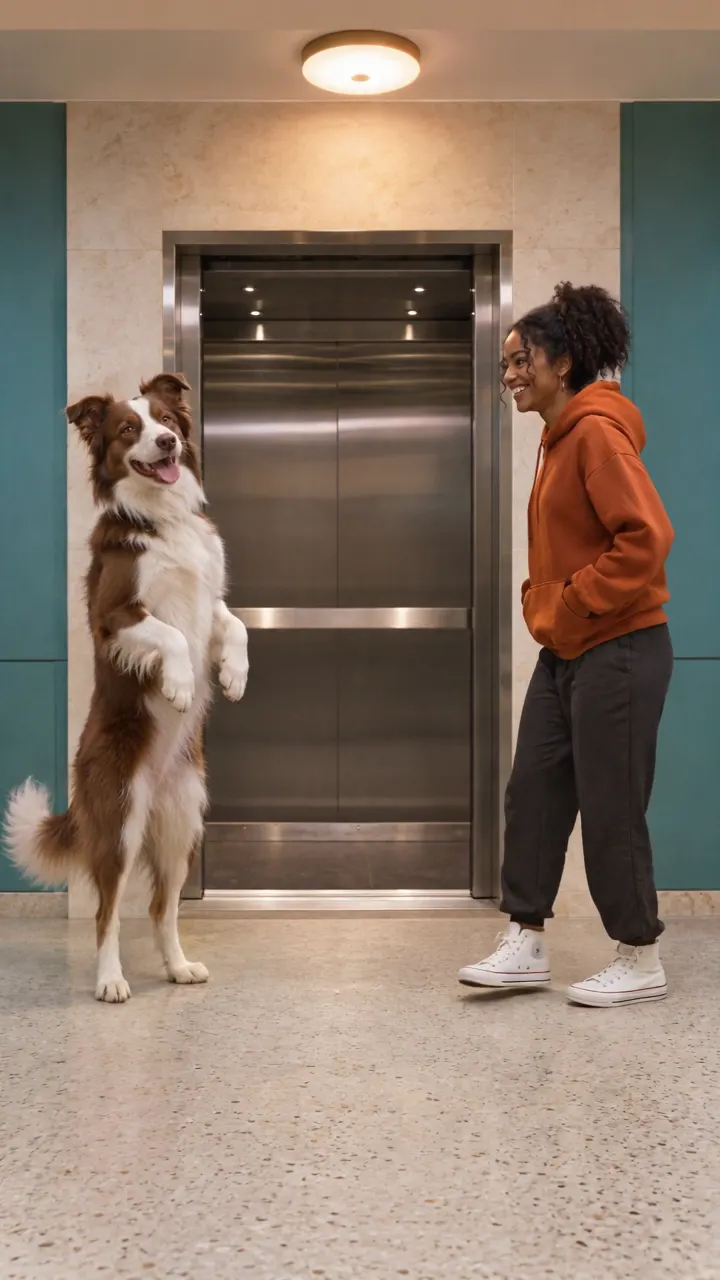
Dog Elevator Prank AI
Create a Dog Elevator Prank AI video in EveryGen AI. Assign a pet and an adult, plan a harmless elevator gag and review the button, shoes and exit sequence.
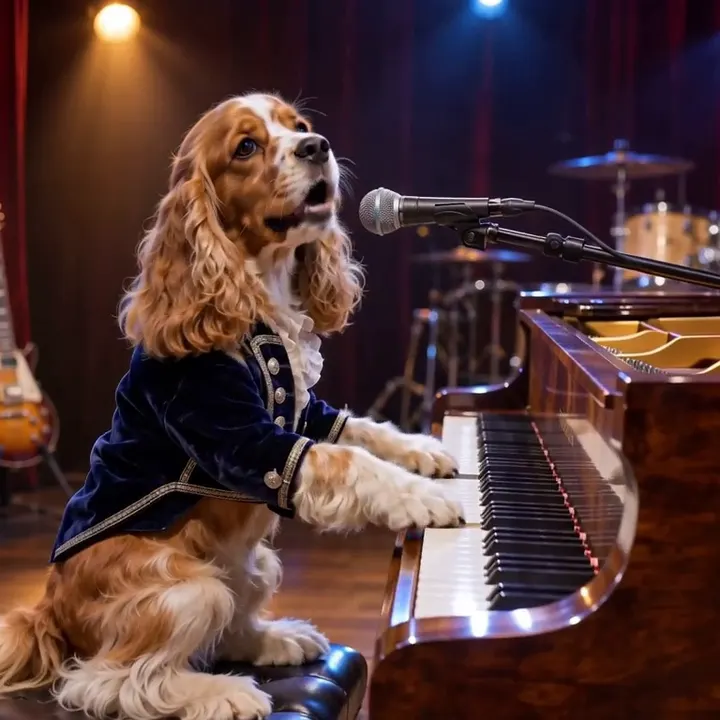
Dog Bohemian Rhapsody AI
Create a Dog Bohemian Rhapsody AI video in EveryGen AI. Plan a pet piano performance, stage lighting and dramatic close-ups with original generated sound.
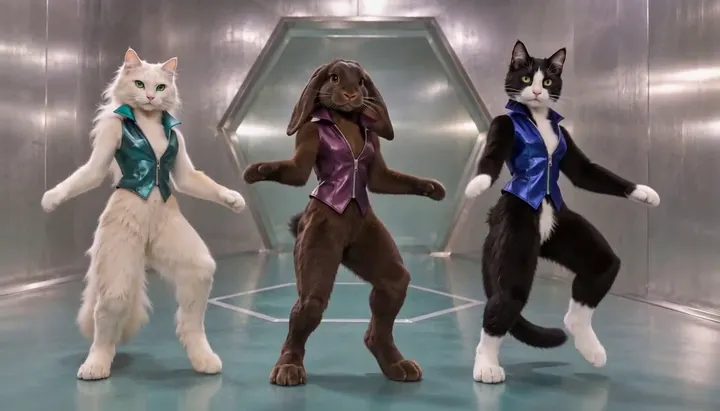
No Scrubs AI
Make a No Scrubs AI music video in EveryGen AI. Cast three people or pets, or use one lead photo with generated backup dancers on a silver R&B stage.

Flamingo Float AI
Make a Flamingo Float AI video with one photo in EveryGen AI. Recreate the Hey Bro Thank You Bro pool gag with a pink float and a comic splash.
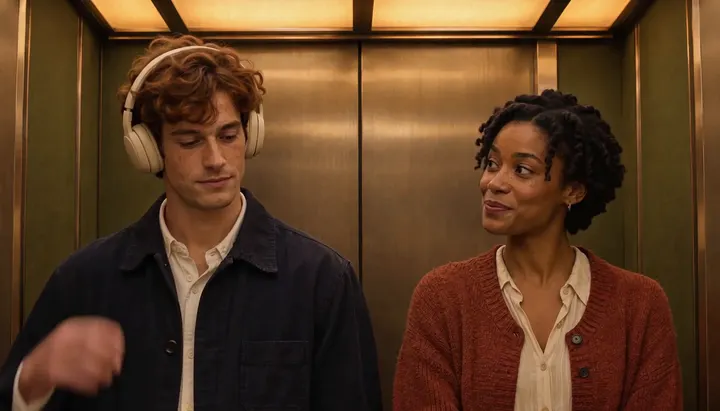
I Love The Smiths AI
Create an I Love The Smiths AI elevator scene with EveryGen AI. Use a two-person photo or assign listener and speaker portraits for the headphone moment.
Plan your next EveryGen AI video
Read EveryGen AI guides for product videos, social clips, cinematic scenes and character animation. Learn how to write a video prompt, prepare image references and choose model settings for your project.
Product campaigns
Start with a product photo and a simple idea. Create polished clips for ads, launches, or social.
Social stories
Start with a photo or a focused prompt. Turn everyday moments into something shareable.
Cinematic studies
Start with a reference image or concept. Explore lighting, camera moves, and mood.
Animated ideas
Start with a character, sketch, or image. Bring original worlds and stories to life.
07 / PRICING
More ways to start. Credits from $6.90; Premium take $12.50.
Start with a video pass or use shared studio credits for images and videos. Basic 1K images cost 6 credits each. Mix your creations within one balance.
No login required for video passes, credit packs or subscriptions. Just enter your receipt email at checkout.
Create images with Every Gen AI →Pay once in USD, with no automatic renewal. Guest checkout is available. Credit packs let you spend the same balance on video or images.
Premium take
Put yourself in a template
Choose an eligible theme and add your photo. Photo preparation, motion and sound are included.
$12.50USD once
1 HD video15 seconds · 720p · Seedance 2.5 or 2.0
- One successful 15-second HD video720p with Seedance 2.0 or 2.5 on compatible settings. One finished take, with generated sound included.
- Your photo in an eligible themeEligible theme character replacement includes subject-photo preparation and the built-in reference motion. Review compatibility before checkout.
- A clear price for a complete takeThe stated compatible scene is covered by the pass. Custom references, different settings and additional takes receive separate credit quotes.
- Your pass is restored after a confirmed failureA confirmed technical failure does not use up the successful-video allowance. Uncertain submissions are checked before another attempt.
- Pay once, create when you are readyNo automatic renewal or scheduled expiry on an unused pass. Download the completed result within 24 hours.
Starter
Start with a small creative budget
Try short videos or images with 250 flexible credits. Full workbench access, without a subscription.
$6.90USD once
250 shared creditsFor video or images · no scheduled expiry
- Up to 8 short videosCalculated at 29 credits each: Seedance 1.0 Pro Fast, text-to-video, 5s / 480p, no sound or input video. Other settings cost more; images use the same balance.
- Our lowest credit-pack entry priceExplore short clips and images with a small budget. All models and templates remain accessible with their quoted credits and native requirements.
- 1 active video at a timeUp to 3 video requests per UTC day, within your credits.
- Keep unused credits for your next ideaNo scheduled credit expiry, no subscription and no automatic renewal. Top up only when you choose.
500 credit pack
One project. No monthly commitment.
500 flexible credits can fund one Seedance 2.5 video at 15s and 720p with sound and no input video, or a mix of smaller requests.
$10.90USD once
500 shared creditsFor video or images · no scheduled expiry
- Up to 17 short videosCalculated at 29 credits each: Seedance 1.0 Pro Fast, text-to-video, 5s / 480p, no sound or input video. Other settings cost more; images use the same balance.
- Flexible funding for one projectEnough for one Seedance 2.5 video at 15s / 720p with sound and no input video, or a mix of smaller requests. Photo preparation is quoted separately.
- 1 active video at a timeUp to 3 video requests per UTC day, within your credits.
- Keep unused credits for your next ideaNo scheduled credit expiry, no subscription and no automatic renewal. Top up only when you choose.
Creator pack
Take an idea from brief to edit
Plan your prompt with Inspiration, then refine and compare takes for one project.
$19.90USD once
1,000 shared creditsFor video or images · no scheduled expiry
15 Inspiration text replies
- Up to 34 short videosCalculated at 29 credits each: Seedance 1.0 Pro Fast, text-to-video, 5s / 480p, no sound or input video. Other settings cost more; images use the same balance.
- Plan, generate and compareDevelop a direction in Inspiration, then spend your credits on the takes or images your project needs.
- 15 Inspiration text repliesIncluded separately from your shared credits. Refine briefs, scripts and prompts; image and video creation use their own quotes.
- 1 active video at a timeUp to 6 video requests per UTC day, within your credits.
- 2-take batches and side-by-side comparisonSubmit variations together and compare two finished takes. Each take uses its quoted credits; active jobs respect your concurrency limit.
- Keep unused credits for your next ideaNo scheduled credit expiry, no subscription and no automatic renewal. Top up only when you choose.
Studio pack
Run a project in parallel
Run three videos at once or submit a three-take batch. Good for a campaign with a deadline.
$58.90USD once
3,000 shared creditsFor video or images · no scheduled expiry
60 Inspiration text replies
- Up to 103 short videosCalculated at 29 credits each: Seedance 1.0 Pro Fast, text-to-video, 5s / 480p, no sound or input video. Other settings cost more; images use the same balance.
- Our best one-time credit valueA lower cost per credit than Creator, plus more room for campaign variations and parallel work.
- 60 Inspiration text repliesIncluded separately from your shared credits. Refine briefs, scripts and prompts; image and video creation use their own quotes.
- 3 videos generating at onceNo daily video request cap; each request needs sufficient credits.
- 3-take batches and side-by-side comparisonSubmit variations together and compare two finished takes. Each take uses its quoted credits; active jobs respect your concurrency limit.
- Keep unused credits for your next ideaNo scheduled credit expiry, no subscription and no automatic renewal. Top up only when you choose.
Inspiration text refill
Pick up your creative conversation
Develop a brief, storyboard or prompt in Inspiration at your own pace.
$7.50USD once
40 Inspiration text repliesText replies only · no scheduled expiry
- 40 successful Inspiration text repliesContinue a conversation, explore ideas and refine a brief without buying more video credits.
- Turn a rough idea into a usable directionAsk for a script, storyboard, shot description or prompt revision, then review and edit it in your workbench.
- Use your replies at your own paceNo scheduled expiry and no automatic renewal. A confirmed failed reply restores its original turn.
- Keep creative planning separate from renderingThis is a text-only refill. It adds no images, videos, shared credits, membership or concurrency upgrade; generation is quoted separately.
Every paid order includes the complete workbench: eligible themes and character replacement, native reference and output controls, scene continuation, batch takes and comparison. Included usage varies by offer. Video passes fund their stated single successful video, not shared credits or extra Agent replies. New credit packs, subscriptions and text refills include only their stated Inspiration reply allowance; replies within that allowance use no shared credits. Images, videos and additional AI Assistant preparation use their confirmed quotes. Existing purchased rights are preserved. Review each cost before starting; no automatic extra charge. Video examples use native sound and no input video. Confirmed technical failures restore the pass. Review the exact quote before creating. Generated results are available to download for 24 hours.
Estimate your images or videos
Generation quote: 325 credits
Premium take
1 estimated request per purchase
3/day (UTC) · 1 active at once
Starter
0 estimated requests per purchase
3/day (UTC) · 1 active at once
500 credit pack
1 estimated request per purchase
3/day (UTC) · 1 active at once
Creator pack
3 estimated requests per purchase
6/day (UTC) · 1 active at once
Studio pack
9 estimated requests per purchase
No daily video request cap · 3 active at once
Estimates use the selected model, input mode, duration and resolution. Reference-video seconds are included when entered above; Images and video take separate confirmed credits; included Inspiration text replies use their stated separate allowance. These are request counts at unchanged settings, not a promise of usable clips. Daily limits reset at 00:00 UTC; available credits and your account controls still apply. Every result has a 24-hour download window. A credit pack adds shared usage; your account’s current concurrency and daily request limits still apply.
Commercial refund rule: Request a refund within 7 days of purchase, provided the purchase is completely unused. Mandatory consumer rights remain applicable.
Check the configuration
Review the exact credit quote for your model, duration and references before submitting.
Compare your allowance
Subscriptions deliver credits monthly. Video passes and credit packs are separate one-time purchases.
Leave room for iteration
A request can need another take. A sample count is not a promise of successful videos.
08 / FAQ
EveryGen AI questions, answered
How EveryGen AI handles video inputs, model settings, generation credits and your finished creations.
What is EveryGen AI?
EveryGen AI is an online AI video generator for text prompts, images and supported references. Choose Seedance, Veo or Hailuo, review the credits and create a video in one workspace. Your account keeps the task and settings for later reuse.
How to use EveryGen AI to make your idea into a video?
- Describe your idea, upload an authorized image, or choose an AI Trend and provide its required inputs.
- Choose the model, duration and resolution, then check the video-pass or shared-credit estimate.
- Choose a compatible video pass, credit pack or subscription. Video passes include one successful video, not shared credits; extra usage is quoted separately.
- Continue as a guest with a receipt email or use your account. Pay in Waffo checkout; funding arrives after verified payment.
- Return to your saved scene and click Generate. Track progress in Creations and download within 24 hours. Compatible passes are used before shared credits.
How do I choose a video model?
Compare supported inputs, controls, and examples for your task. Review the available settings and estimate before you create.
Can I animate my own images?
Yes. Choose image to video and upload your image or select one from your library. Use first/last frames or reference images where the model supports them.
What happens if a generation fails?
EveryGen AI releases reserved generation credits once a failure is confirmed. An uncertain submission keeps its reservation while its status is checked, so the same paid request is not duplicated. Your prompt and settings remain in task history.
What formats can I download?
Open a completed EveryGen AI task to preview or download the available video file. Generated video files are stored privately for 24 hours, then deleted; download before the expiry time displayed in Creations. Task history keeps the prompt and settings.
How are generation credits calculated?
Review the confirmed quote for your model, duration, resolution and references before generating. Inspiration includes three free replies and one supporting image per account; paid replies have the stated separate allowance. Extra images, AI Assistant scene preparation and videos use their confirmed credits. Premium take costs $12.50 and covers one successful 15-second 720p video, including eligible theme character replacement, photo preparation, source motion and generated sound. Every paid order provides full workbench access; included usage varies by offer. Existing balances and purchased rights stay unchanged. No automatic extra charge. Confirmed failures restore the pass.
How do I create a video with the EveryGen AI Inspiration Agent?
- Sign in and start with Inspiration on the homepage. Describe your subject, setting and the movement you want.
- Refine the idea through 3 free successful replies. Tap Create free image for the account's 1 included image; creating a new conversation does not reset the allowance.
- Select the image and choose Use in video. Confirm the proposed prompt, image and native settings, then review the separate video quote and fund it before generating.
- Try 3 free replies and 1 supporting image per account. New subscriptions include 10–150 Inspiration text replies each month. Creator includes 15 replies in total and Studio includes 60; a $7.50 refill adds 40 replies. Included replies use no shared credits. Images and videos use separate confirmed quotes. Existing purchased Agent rights are preserved. Video passes include no extra Agent replies.
- Follow each task in Creations and download generated files within 24 hours. The $12.50 Normal video pass includes no extra Agent replies.
Can I use my videos commercially?
Check the selected model provider’s terms and your rights to all source material before publishing. A proposed plan card does not establish commercial permissions.
Are my uploads private?
Your media library and task history are available to your signed-in account. When you submit, the AI generation service receives the prompt and limited-time links to required references for content checks and generation.
How long does generation take?
Timing varies with the model, settings, and provider queue. The workspace refreshes status while open. You can leave and return to your task history; no completion time is guaranteed.
Can I reuse a prompt and its settings?
Yes. Use this setup on a case, open a model page, or choose a creative template to bring a starting point into the same workspace.
How does the AI Assistant help?
In Inspiration, discuss your idea over three free replies and create one free supporting image per signed-in account. Your conversation, prepared prompts and images stay together. Select an image and apply the prepared idea to Normal mode, then choose your video model and confirm its paid quote. Try 3 free replies and 1 supporting image per account. New subscriptions include 10–150 Inspiration text replies each month. Creator includes 15 replies in total and Studio includes 60; a $7.50 refill adds 40 replies. Included replies use no shared credits. Images and videos use separate confirmed quotes. Existing purchased Agent rights are preserved. Video passes include no extra Agent replies. In Image to Video, Generate a reference image opens the same image models and settings directly in the workbench.
What happens during content checks?
EveryGen AI checks prompt text and image references before video submission. Only an allowed prompt proceeds; a review, rejection or unavailable check stops submission and releases reserved video credits. Keep the draft to revise or retry. These checks do not independently audit all video frames or audio tracks.
Create your next video with EveryGen AI
Bring a prompt or image. Choose your model and review the generation credits in the EveryGen AI workspace.
Explore the EveryGen AI video workspace
Find the video tool, model, creative template or practical guide that matches what you want to make in EveryGen AI.
AI Trends
Original scene prompts and practical reference workflows.
Old Town Road AIRubber Band Prank AIOffice Parkour AIBulin 47 AIGenjutsu AIZombie AIGas Station DanceAI Hotel LobbyHit the Road DudeUnforgettable CarOzil GoalSmalltown Boy AIBad Times AIRumpelstiltskin AITesla Roadster AISpooky Scary Skeletons AI DanceNightwing AIFirestarter KDA Dance AIBabydoll Dance AIWindow Peeper AIPuerto Rican Mami AI DanceTiny Desk AIBallon d'Or AIUptown Funk AIAngry Dance AISkull Cap AIDiwali AI TransformationLisa Tarantino Dance AIHop Hop Hop AI DancePick It Up Dance AIFancy Cafe AI24K Magic AI DanceGoodbye 2026 Welcome 2027 AICan I Ride Dance AIBuggin Dance AIBirthday Car Drift AIVossi Bop AI DanceDog Elevator Prank AIDog Bohemian Rhapsody AINo Scrubs AIFlamingo Float AII Love The Smiths AI
Rubber Band Prank AIOffice Parkour AIBulin 47 AIGenjutsu AIZombie AIGas Station DanceAI Hotel LobbyHit the Road DudeUnforgettable CarOzil GoalSmalltown Boy AIBad Times AIRumpelstiltskin AITesla Roadster AI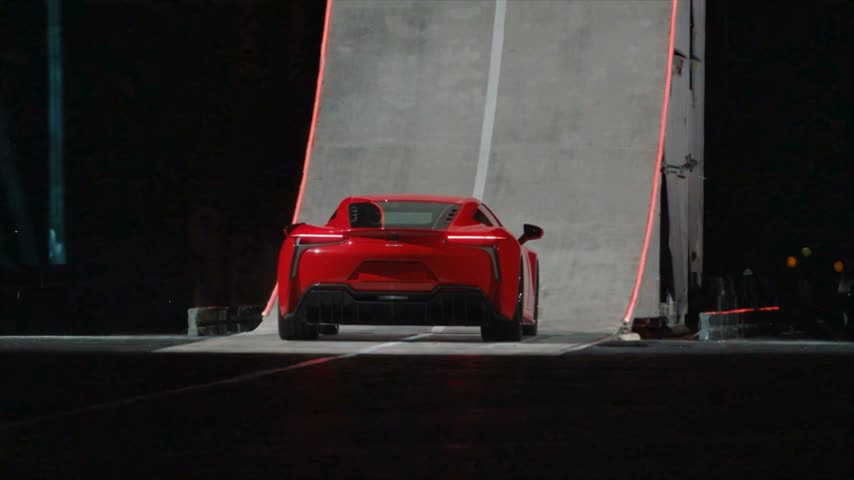 Spooky Scary Skeletons AI Dance
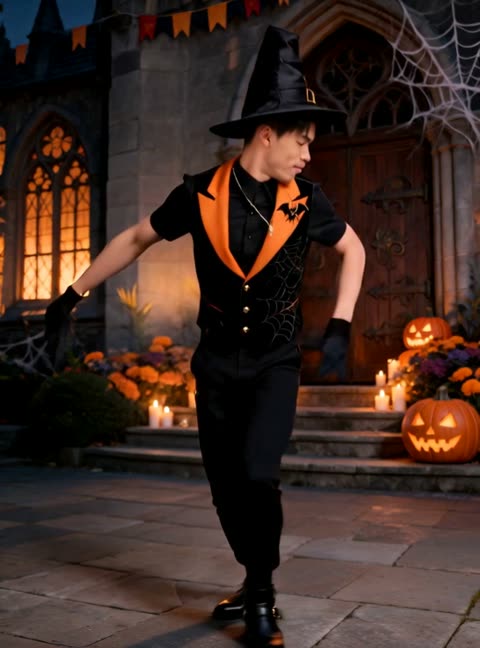 Nightwing AIFirestarter KDA Dance AIBabydoll Dance AIWindow Peeper AIPuerto Rican Mami AI DanceTiny Desk AIBallon d'Or AIUptown Funk AIAngry Dance AISkull Cap AIDiwali AI TransformationLisa Tarantino Dance AIHop Hop Hop AI DancePick It Up Dance AIFancy Cafe AI24K Magic AI DanceGoodbye 2026 Welcome 2027 AICan I Ride Dance AIBuggin Dance AIBirthday Car Drift AIVossi Bop AI DanceDog Elevator Prank AIDog Bohemian Rhapsody AINo Scrubs AIFlamingo Float AII Love The Smiths AI
Video Tools
Turn your ideas into video in different ways.

Image Tools
Create stills, edit photos and prepare video frames with Every Gen AI.
Image Models
Choose a model and review shared image credits.
Video Models
Explore leading models for every style.
Seedance 2.0Seedance 2.0 FastSeedance 2.0 MiniSeedance 1.5 ProVeo 3.1 FastVeo 3.1 QualityVeo 3.1 LiteSeedance 1.0 Pro FastSeedance 1.0 Pro QualityHailuo 2.3Hailuo 2.3 FastSeedance 2.5Kling 2.6Kling 3.0Kling 3.0 TurboKling 3.0 OmniKling O1Kling 2.6 Motion ControlKling 3.0 Motion ControlGrok Imagine 1.5 Video Ext![Video preview frame]() Grok Imagine Video
![Video preview frame]() Grok Imagine Video 1.5
![Video preview frame]() Gemini Omni 1.1 Flash Ext
![Video preview frame]() Kling V4
![Video preview frame]() MiniMax Hailuo 02
![Video preview frame]() MiniMax H3
![Video preview frame]() MiniMax H3 Max
![Video preview frame]() FLUX 3 Video
![Video preview frame]() SkyReels V4 Fast
![Video preview frame]() SkyReels V4 Standard
![Video preview frame]() HappyHorse 1.0
![Video preview frame]() HappyHorse 1.1
![Video preview frame]() Wan 2.5 Preview
![Video preview frame]() Wan 2.6
![Video preview frame]() Wan 2.6 Image
![Video preview frame]() Wan 2.6 Image Flash
![Video preview frame]() Wan 2.7
![Video preview frame]() Wan 2.7 Reference
![Video preview frame]() Wan 3.0
![Video preview frame]() Wan 3.0 Prime
![Video preview frame]() Vidu Q3 Pro
![Video preview frame]() Vidu Q3 Turbo
![Video preview frame]() Vidu Q3 Standard
![Video preview frame]() Vidu Q3 Mix
![Video preview frame]() Vidu Q4 Preview
![Video preview frame]() PixVerse V6
![Video preview frame]() PixVerse V6 Max
![Video preview frame]() Veo 3.1 Fast Official
![Video preview frame]() Veo 3.1 Quality Official
![Video preview frame]()
Seedance 2.0 Fast Seedance 2.0 Mini
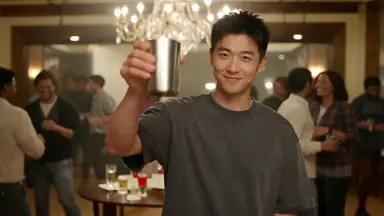 Seedance 1.5 Pro
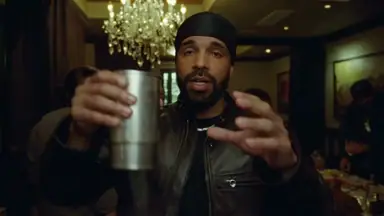 Veo 3.1 Fast
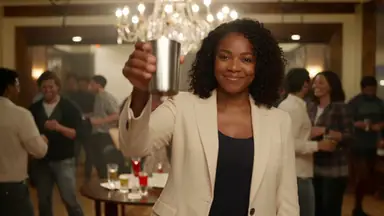 Veo 3.1 Quality
 Veo 3.1 LiteSeedance 1.0 Pro FastSeedance 1.0 Pro QualityHailuo 2.3Hailuo 2.3 FastSeedance 2.5Kling 2.6
 Kling 3.0Kling 3.0 TurboKling 3.0 OmniKling O1Kling 2.6 Motion ControlKling 3.0 Motion ControlGrok Imagine 1.5 Video Ext
Video Effects & Templates
Try new techniques and fresh ideas.
Guides
Learn and get the most from EveryGen AI.